Someone has handed you a Zendesk instance and told you to make customer support work. The product will let you configure it any way you like, including badly, and it will not warn you which choices are the ones you have to live with.
Zendesk is customer service software built around a ticketing system. Every customer message, whatever channel it arrives on, becomes a ticket that agents work, route and resolve in one shared workspace, with business rules, a help centre and reporting built around that core.
Learning where the buttons are is the easy half, and Zendesk's own documentation does that better than anyone. The part nobody covers is the order you build it in. A Zendesk assembled in the wrong sequence works fine for three months and then starts costing you an afternoon a week in cleanup you cannot explain to anyone.
The sequence matters because the pieces depend on each other. Groups decide how tickets route, so views built before groups are views you will rebuild. Fields decide what you can report on, so reports built before fields are reports you cannot trust. None of that is visible on day one, which is why so many instances need untangling in year two.
TL;DR
-
Zendesk is a ticketing system with a support operation built around it. Messages from email, chat, messaging, social and phone all become tickets in one queue.
-
Five products, one bundle. Support is the ticketing core. Guide is the help centre. Chat and Messaging handle live conversation. Voice handles phone. Explore handles reporting. Suite packages them, and Support sold alone is ticketing only.
-
Build containers before the things that point at them. Account settings, then people and groups, then channels, then fields, then views, then business rules, then the help centre. Every phase assumes the one before it.
-
Five choices are expensive to reverse. Brand structure, whether a piece of information is a field or a tag, group structure, naming conventions, and switching on channels you have not staffed.
-
The learning curve is uneven. An afternoon for agents, a few weeks for admins, and about a year before you know which of Zendesk's three or four ways to do a thing you will not regret.
-
Two 2026 dates matter if you are setting up now. Zendesk is removing AI agents Essential along with the legacy bot builder, answers, intents and autoreplies with articles. The legacy experience enters maintenance mode on 31 August 2026, with development limited to critical bug fixes, and the functionality is removed on 10 December 2026. Do not build anything new on it.
What is Zendesk used for?
Zendesk is used to consolidate customer support requests into one queue, route them to the right person, resolve them, and report on the whole thing.
In practice, the messages arriving at your support email address, your website chat widget, WhatsApp, your social accounts and your support phone line all land in the same place, in the same format, with the same customer history attached. An agent opening a ticket sees who the customer is, what they have asked before, and what your team told them last time.
The payoff is unglamorous. Without something like Zendesk, support lives in a shared inbox, nobody knows who is replying to what, and no one can say how long anything takes.
Who Zendesk fits, and who it does not
It fits teams with recurring inbound volume across more than one channel, where several people work the same queue and somebody is going to ask how long tickets take. It does not fit a two-person company answering fifteen emails a day. A shared inbox works fine at that size, and the setup work below costs more than it returns until the volume justifies it.
The five Zendesk products and what Suite bundles
Zendesk sells five core products for customer service, plus a set of paid add-ons, and Suite is the bundle that puts the five together.
| Product | What it does | Do you need it on day one? |
|---|---|---|
| Support | The ticketing core. Tickets, views, business rules, agent workspace. Everything else attaches to it. | Yes. This is Zendesk. |
| Guide | The help centre and knowledge base your customers read, and the article library your automation later ingests. | Yes, within the first quarter. It is what reduces volume. |
| Chat and Messaging | Live conversation on your website and in apps. Messaging is the current generation and Chat is the older one. | Only when someone is staffed to watch it. |
| Voice | Phone support, built natively into Zendesk. The Admin Center and much of Zendesk's documentation still use the older name Talk, so expect to see both. | Only if you take calls. |
| Explore | Reporting and analytics across everything above. | Yes, from about week three. |
What it costs
Zendesk runs from $19 per agent per month for ticketing alone to $115 for Suite Professional, paid yearly, with the top tier priced on request. Figures read from zendesk.com/pricing on 26 August 2026.
| Plan | Price | What you get |
|---|---|---|
| Support Team | $19 | Baseline. Email and ticketing, routing, prebuilt analytics dashboards, pre-written responses, customer context, automations and triggers |
| Suite Team | $55 | Adds AI agents, knowledge base, Action Builder, omnichannel routing, messaging and live chat, telephony |
| Suite Professional | $115 | Adds Admin Copilot, App Builder, Writing Tools, Quick Reports, skills-based routing, IVR phone tree |
| Suite Enterprise + Copilot | Talk to Sales | Adds Intelligent Triage, Auto Assist, generative AI for voice, approval workflows, sandbox, custom agent roles |
| Copilot add-on | $50 | Available on Professional and higher |
| Workforce Engagement Bundle | $50 | Add-on |
| Contact Center | $83 | Add-on, and separate from the telephony included in Suite |
These are the plans Zendesk publishes. Its documentation still gates some features by Suite Growth and Enterprise Plus, which do not appear on the pricing page, so a feature you read about may sit on a tier the public page does not show. Prices vary by region, billing term and packaging.
The buying decision at the $19 tier. Support Team is ticketing without the self-service and messaging layer. The knowledge base, messaging and telephony all start at Suite Team. It is enough for a small team handling email, and most teams who start there are on Suite within a year, because the help centre turns out to be the thing that reduces volume. If self-service is already on your roadmap, starting on Suite Team saves you a migration of your own making.
AI agents are included in every Suite and Support plan and billed on automated resolutions, which Zendesk defines as resolutions the AI completes without escalating to a human. Zendesk does not publish a per-resolution price on its public pricing page. Third-party pricing analyses report $1.50 for committed volume and $2.00 pay-as-you-go, and both should be treated as reported until Zendesk confirms them. For the full picture, see what Zendesk's automated resolutions cost.
How a ticket moves through Zendesk
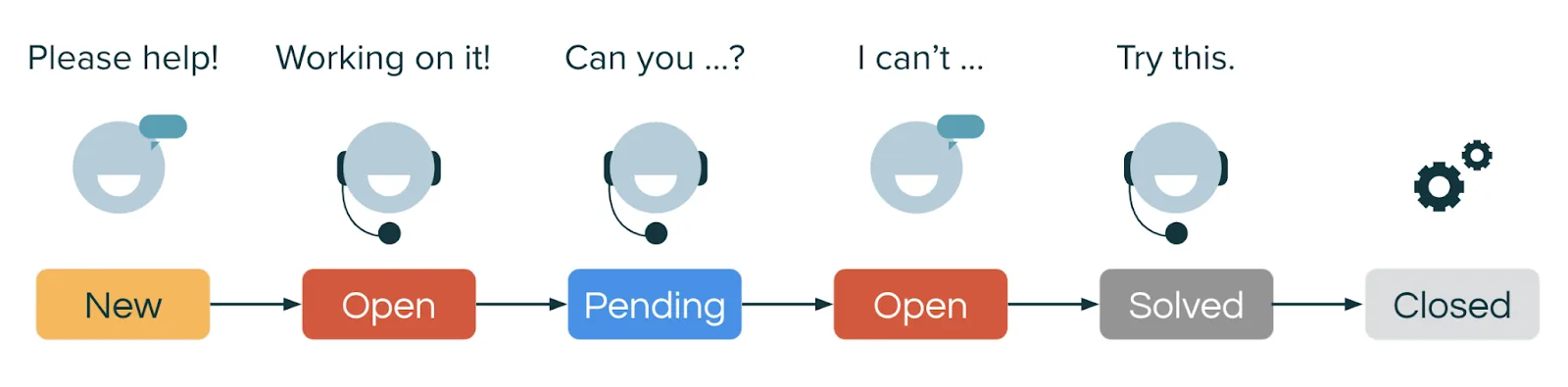
A ticket is created when a message arrives, moves through a series of statuses while an agent works it, and closes automatically some time after it is solved.
-
A message arrives on a connected channel. Email, the web widget, WhatsApp, a social account, a phone call, or a form on your help centre.
-
It becomes a ticket with a requester (the customer who asked), a subject, a description, and whatever fields your setup fills in automatically.
-
It lands in a view. Views are saved filters, and they are the queues your agents work from.
-
It gets assigned to an agent or to a group, either by a person or by a trigger you built.
-
An agent works it, using public replies the customer sees and internal notes only your team sees. Sending an internal note as a public reply is the mistake every new agent makes exactly once.
-
The status moves as the work progresses.
-
It closes, and this part is not manual.
The six statuses, and the two that get confused
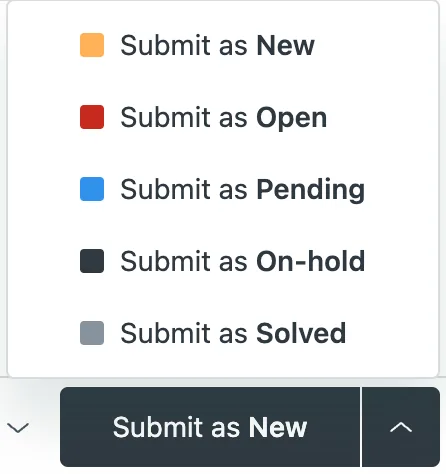
These are Zendesk's own definitions. The distinction between Pending and On-hold is the one that breaks reporting later.
-
New. No action has been taken on the ticket.
-
Open. Assigned to an agent and waiting for action by the agent. If you are the one who owes a reply, the ticket is Open.
-
Pending. The agent is waiting for more information from the requester. The ball is with the customer.
-
On-hold. The agent is waiting for information or action from someone other than the requester, such as a colleague, another team, or a third party. On-hold is optional and switched off by default, so if you cannot find it, an admin has to activate it.
-
Solved. The work is done and the ticket is waiting to close.
-
Closed. Final. Tickets cannot be set to Closed manually, per Zendesk's own documentation. An automation moves them there after a period in Solved, which is why the option is missing from the dropdown and why "why can't I close this ticket" is the most common question a new admin asks.
Splitting Pending from On-hold properly is a ten-minute decision that makes three months of reporting usable, because a team that marks everything Pending cannot say afterwards how much of their resolution time was ever within their control.
Zendesk also supports custom ticket statuses, and on any account created after 17 January 2023 they are activated by default. When they are on, the six standard statuses become categories that your custom statuses sit inside, which is why your instance may show statuses that are not on this list.
How to set-up your Zendesk account
Build the containers before the things that point at them. Each phase below assumes the one above it exists, and doing them out of order is how instances end up needing a rebuild.
1. Account settings and brands
Set the timezone and the support address first, because everything timestamped afterwards inherits them. Decide on brands now too. Adding a second brand later is manageable, and splitting one brand into two after you have ticket history is painful, because the history does not split with it.
Business hours come with a plan caveat. Schedules require Suite Growth or above, or Support Professional or above, and the trigger conditions that reference them are gated the same way. On Support Team or Suite Team you cannot set business hours at all, per Zendesk's plan availability for schedules, so any guide telling you to configure them first is not describing your account. If your plan does include schedules, set them before you build SLAs or any rule that references business hours, because those rules read the schedule instead of storing a copy of it. Growth and Professional get one schedule; multiple schedules are Enterprise.
2. People: users, groups and roles
Groups are how tickets get routed and how reporting gets sliced, which makes them the most consequential structural decision in the setup. Every view, trigger and report you build afterwards inherits whatever you choose here.
Map groups to how the work is divided in practice. Your org chart is a different thing and copying it is the usual mistake. If billing and technical questions go to different people, those are groups. If two teams sit in different countries but handle the same queue, that is one group with a schedule, assuming your plan has schedules.
3. Channels, starting with email
Connect and verify your support address, set up forwarding from wherever mail arrives today, and send yourself a test ticket before you touch anything else. Email carries most volume for most teams, and it is the channel most likely to be misconfigured in a way nobody notices for a week. Get it completely clean before adding a second. Messaging, voice and social come after email works.
4. Ticket fields and forms
Decide what is a field and what is a tag, write the rule down, and tell everyone. Both can hold the same information, which is why teams end up using both for one job, and the next section covers what that costs. Pick one, hold to it, and keep tags for things that are ad hoc by nature. It is worth reading how to classify tickets without creating tag sprawl before your tag list passes fifty entries.
5. Views
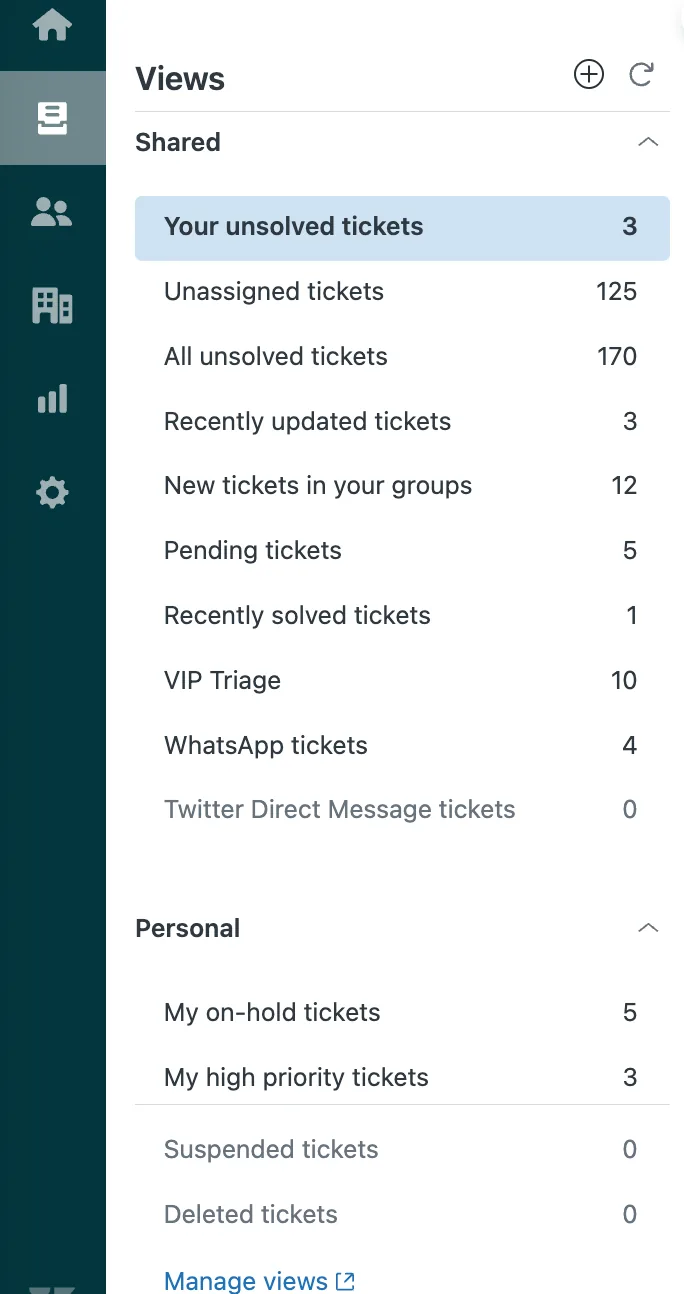
Build the queues your agents work from before you build anything that acts on tickets. There is no technical dependency here, and deleting a view does not break a macro or a trigger. The reason is practical: you cannot tell whether a trigger is routing correctly without a queue to watch tickets land in, so views are how you verify everything you build next.
Start with fewer views than you think you need. Three or four that agents open every day beat fifteen nobody touches.
6. Business rules
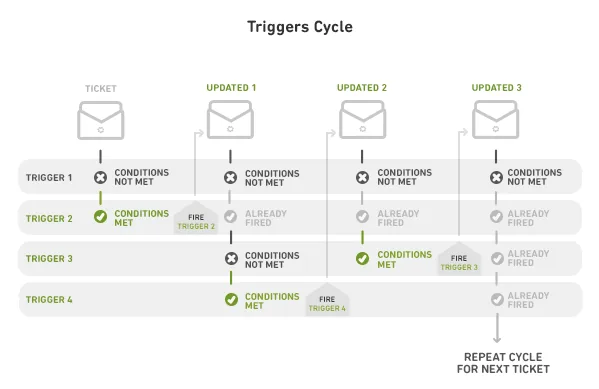
Triggers, then automations, then macros, then SLAs.
-
Triggers fire when something happens to a ticket.
-
Automations fire based on time passing.
-
Macros are applied by an agent, on purpose.
-
SLAs set the clock everything else is measured against.
Build them in that order because each layer assumes the one before it. SLAs are worth leaving until last, since a policy built before you know your real routing produces breach alerts for a workflow you are about to change.
Business rules are the deepest part of Zendesk and they need more room than a pillar guide can give them. The full treatment, including six workflows worth building first, is in the Zendesk automation guide.
7. Help centre and self-service
The help centre comes last in setup and pays back the longest. Write articles from tickets you have received, in the order of how often you receive them. Publishing before you have seen real questions is how teams end up with thirty articles nobody reads and the volume they started with.
Once the core works, connect the rest of your stack. Most teams start with their chat tool and their CRM, and the Slack and Salesforce integrations are the two most common first connections. The broader integration guide covers the rest.
How to use Zendesk as an agent, day to day
An agent's day in Zendesk is working a queue: open a view, take the top ticket, read the customer's history, reply or escalate, set the right status, move on.
The Agent Workspace
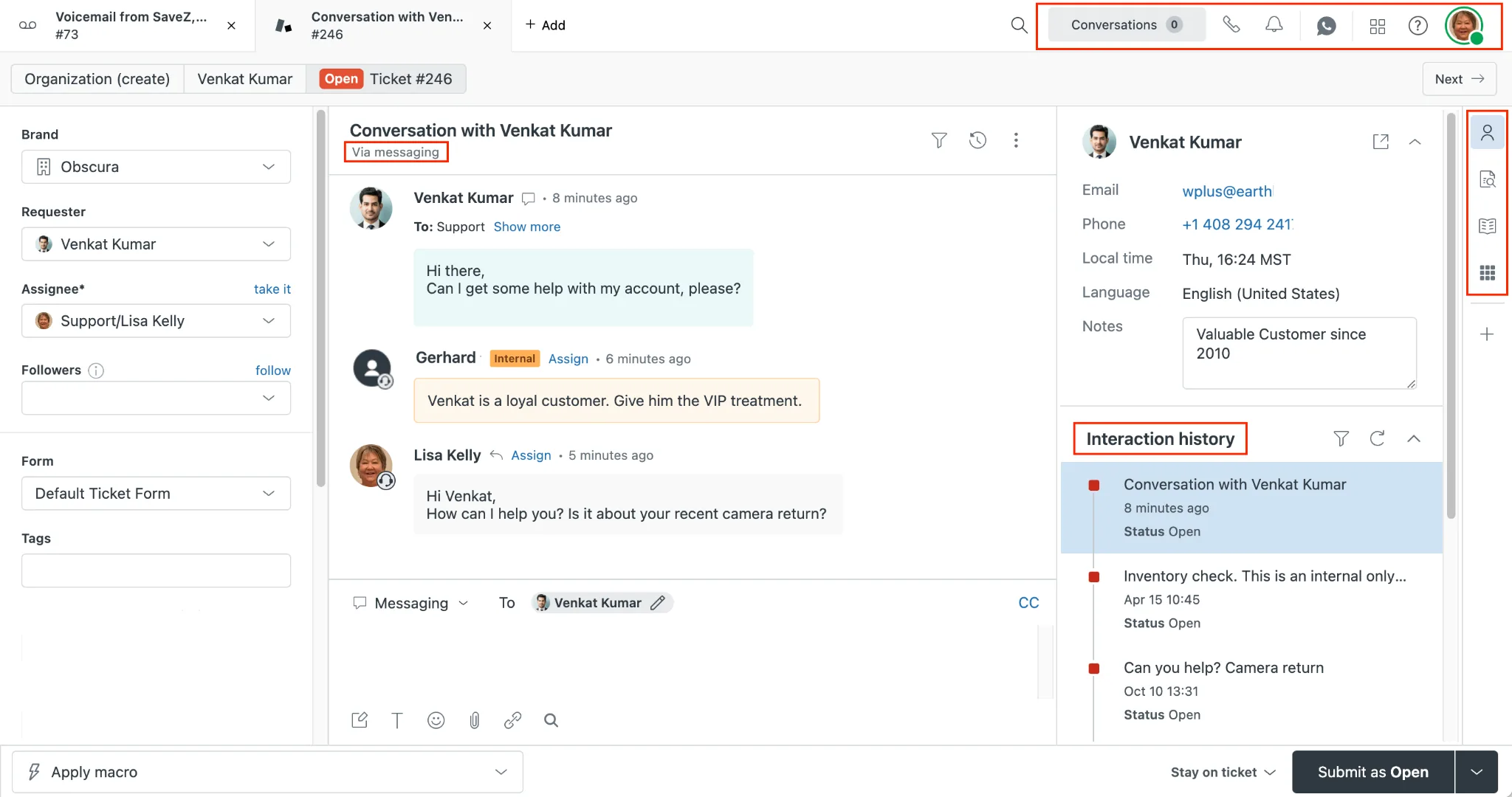
The Agent Workspace puts four things on one screen. The ticket panel holds the fields and the status. The conversation shows the full thread across whichever channels the customer used. The customer context sidebar tells you who this person is, what organisation they belong to and what they have contacted you about before. The apps panel surfaces whatever you have connected, such as order history or account state in your own product.
The context sidebar is the part new agents ignore and experienced agents check first. Most of what an agent is about to ask the customer is already answered there.
The habits that make agents fast
-
Work from a view. Views are ordered deliberately. Your notification feed is ordered by whatever arrived last.
-
Use macros for structure and then edit the specifics. A macro that goes out untouched reads like a macro.
-
Leave an internal note before you reassign. The next person should not have to reconstruct what you already worked out.
-
Set Pending deliberately. Leaving a ticket Open when you are waiting on the customer inflates your own backlog and hides the tickets that need you.
-
Check the context sidebar before asking a question. Asking a customer something their account already tells you is the fastest way to sound like you are not paying attention.
-
Set Solved and stop there. An automation handles the close; the dropdown will never offer it.
Building a Zendesk knowledge base that people use
A Zendesk knowledge base gets used when its articles come from real tickets in volume order. It lives inside Zendesk Guide, it is what customers search before they contact you, and it is what your automation later ingests to answer questions on its own.
That second job is the one people underestimate. Most of Zendesk's AI features can draw on your knowledge base, so article quality lifts everything downstream. Zendesk also connects external sources, covered further down, and the help centre is the one you control directly and the one that pays back fastest.
Write from real tickets, in volume order. Pull your most common ticket subjects from the last quarter and write those articles first. Do not write from an imagined FAQ, because the questions you expect and the questions you get are different lists.
Keep the hierarchy shallow. Categories, sections, articles. Three levels is enough. Most teams over-nest and then cannot find their own content.
A good article has three things. One question per article. A title written the way a customer would phrase it, using their words instead of your internal ones. And a named owner with a review date. The owner matters more than the writing, because an article nobody is responsible for will be wrong within a year and nobody will notice.
Measuring what is happening, with Explore
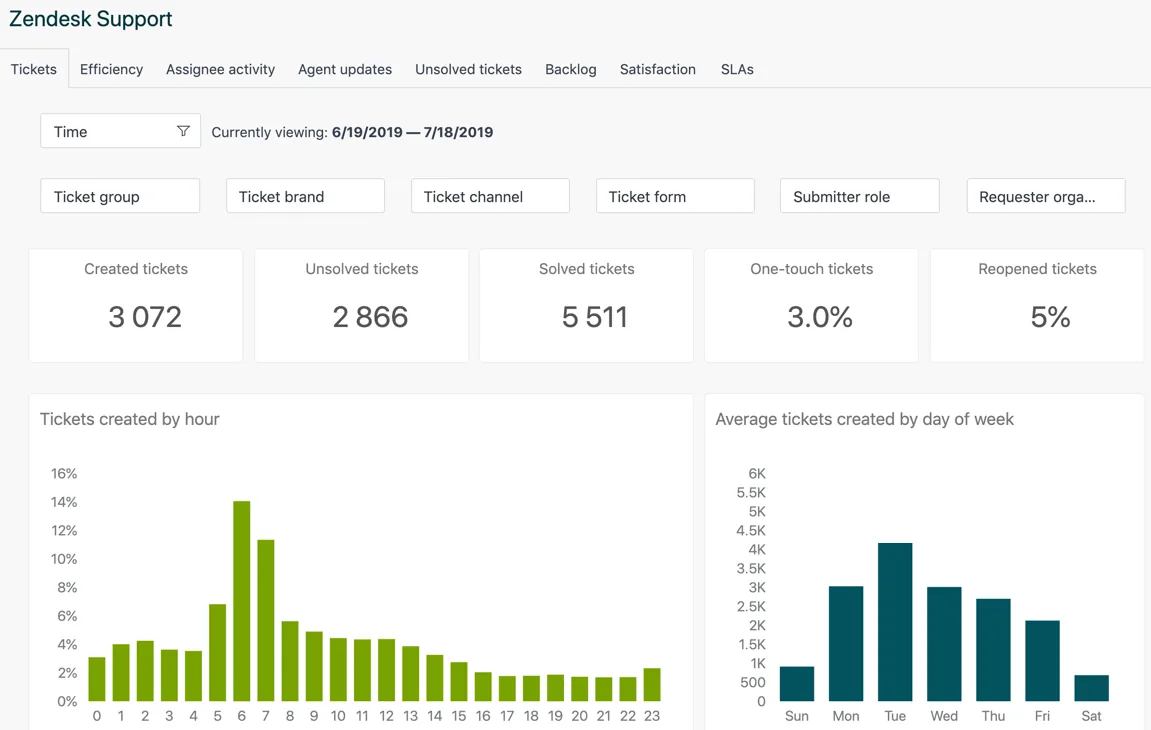
Explore is Zendesk's reporting product, and it ships with prebuilt dashboards that cover most of what a new support operation needs before anyone builds a custom report.
Six numbers are worth watching from the start.
| Metric | What it tells you | How it misleads |
|---|---|---|
| Ticket volume by channel | Where your work comes from | Rising volume can mean growth or a product problem, so segment before concluding |
| First reply time | How fast a customer hears from a human | Easy to improve with an autoreply that helps nobody |
| Full resolution time | How long the customer waited | Inflated by Pending and On-hold time that was not yours |
| One-touch ticket rate | How often you get it right first time | A high rate can mean efficiency or that agents are closing things prematurely |
| CSAT | Whether customers were happy | Response rates are low and skew to the extremes |
| Reopen rate | How often a solved ticket comes back | Rarely tracked, and it is the number that corrects everything above it |
Reopen rate deserves the attention nobody gives it. A ticket solved twice was not solved once, and a team whose resolution times look excellent while reopens climb is measuring speed instead of outcomes.
Accept one thing early. Your reports are only as good as your ticket fields and your group structure, so if phases 2 and 4 were sloppy, Explore will faithfully report the mess.
Is Zendesk hard to learn?
It depends on which side of it you are on, and it splits three ways.
The agent side takes an afternoon. Views, tickets, replies, macros, statuses. A new agent is productive on day one and comfortable within a week. There is very little to it, by design.
The admin side takes a few weeks. Business rules, forms and fields, permissions, the difference between a trigger and an automation, and where any given setting lives. Zendesk has a lot of surface area and the Admin Center is not always obvious about which of two similar-looking settings is the one you want.
The part that takes about a year is judgement. Zendesk usually gives you three or four ways to solve the same problem, and they are not equivalent over time. Should this be a trigger or an automation? A field or a tag? A new view or a better filter on an existing one? They are not equivalent over time, and the difference usually shows up months later.
Zendesk Academy is free and worth the time. Its on-demand courses cover account configuration, automation and AI for admins, and ticketing basics, messaging and voice for agents. Certifications are separate and paid, at $199 for specialist exams and $350 for expert exams.
What your AI layer is grounded in
Zendesk's native rules and native AI resolve tickets whose answer exists somewhere they can reach. Understanding where that boundary sits is the last thing a new admin needs, and the boundary moved this year.
What changed in Zendesk AI in 2026
Zendesk announced on 30 March 2026 that it was removing the distinction between AI agents Essential and the AI agents Advanced add-on, and rolled the change out from 11 May to 12 June 2026. Capabilities that used to sit behind the Advanced add-on, including agentic reasoning, multi-step procedures and external API integrations, are now included across Suite and Support plans, with configuration consistent across messaging, email and voice, and voice in early access.
Most guides on how to use Zendesk still describe the old Essential and Advanced split, and it no longer exists. The current feature map is in the guide to Zendesk's 2026 AI features, and Copilot has its own setup guide if agent assist is what you want.
The deadline to know about before you build anything
On 23 June 2026 Zendesk announced that AI agents Essential and its legacy functionality are being removed. The removal covers the legacy bot builder, answers, intents, and autoreplies with articles, which is the one a new admin is most likely to have switched on without thinking about it.
Two dates matter. On 31 August 2026 the legacy experience enters maintenance mode, with development limited to critical bug fixes. On 10 December 2026 the functionality is removed, and any AI agents still running on it will no longer function. Customers who previously bought the AI agents Advanced add-on are not affected. If you are setting up now, build on the current AI agent experience.
The tickets that none of it reaches
Zendesk AI can ingest a lot more than your help centre. It connects to external knowledge sources including Confluence, Guru, Notion, SharePoint, Google Drive, Jira, Box and Dropbox, it can crawl external websites, and it can take in records through the Federated Search API.
Breadth is not the constraint. Depth is what these tools run out of, because all of them resolve tickets whose answer exists somewhere as written content or structured data. When the answer only ever existed as work an agent did on a previous ticket, the questions they asked and the fix that turned out to be right, resolved tickets have to be the answer source instead of a signal feeding back into content. Zendesk's Resolution Learning Loop does analyse interaction data including tickets and agent actions to improve automation over time, and ingestion details are not yet published.
That gap is small for a consumer support team, where most questions are documented and repetitive. It is large for a technical B2B product, where the hard tickets are integration errors, failed imports and authentication problems nobody wrote up because the product changed again last sprint.
Where Pluno fits, and when it is worth adding
Zendesk's native AI agents are grounded in written content and structured data. The other option is an AI layer grounded in the tickets your team has already resolved.
Pluno is an AI support agent for complex technical tickets that works inside Zendesk and Intercom, and it ingests resolved support tickets, which is what lets it handle issues the help centre never documented. B2B SaaS teams run into this constantly, because the product changes faster than anyone writes it up.
For autonomous resolution the relevant module is Deflection AI (module name pending Syed's sign-off before it becomes a link), which ingests resolved support tickets, your help centre, uploaded files and custom API integrations. It responds on Zendesk email and form tickets, and on messaging channels through Sunshine Conversations including WhatsApp and the web widget. When confidence is low, when system access is needed, or when a business decision is required, it escalates with a research summary, the relevant ticket references and suggested next steps.
It charges €0.90 per resolution, roughly $1 for US readers, billed only when a ticket closes without a human. A ticket is marked resolved 72 hours after Pluno's last reply if the customer does not respond. There is also a monthly base fee that scales with ticket volume, published on the pricing page.
Vendors define a resolution differently, so per-resolution rates across this category are not directly comparable. Zendesk counts a resolution its AI completes without escalating to a human; Pluno bills when a ticket closes without a human. Both vendors' pricing varies by region, billing term and packaging, so treat every figure as the start of a quote.
Pluno gets stronger the more resolved tickets sit behind it, and that is worth saying plainly. It learns from resolved support tickets, so it does its best work once you have real history and a category of ticket your help centre has never covered. If your instance is only weeks old, build the fundamentals above first and bring it in once your ticket archive is worth learning from. If you are already there, the comparison of AI agents for Zendesk is the right next read.
Frequently asked questions
Can Zendesk be used as a CRM? Zendesk Support holds customer records, organisations and full conversation history, so it works as a service CRM. It does not manage a sales pipeline, deal stages or forecasting. Zendesk sells a separate product for that, Zendesk Sell, with its own pricing. Running a sales process inside Support is a known way to be disappointed.
Is Zendesk difficult to learn? The agent side takes an afternoon and a new agent is comfortable within a week. The admin side takes a few weeks, mostly spent on business rules and on finding where settings live. The part that takes about a year is knowing which of the three or four ways Zendesk offers to solve a problem is the one that will not cause trouble later.
What is the difference between a trigger and an automation in Zendesk? A trigger fires when something happens to a ticket, such as its creation or an update. An automation fires because time has passed, such as a ticket sitting untouched for 24 hours. Triggers are event-driven and automations are clock-driven, and confusing the two is the most common reason a rule never runs.
Can you make calls through Zendesk? Yes, through Zendesk Voice, with telephony included from Suite Team upward. A separate Contact Center add-on at $83 per agent per month covers fuller contact-centre capability, and it is not the same thing as the included telephony. Note that the Admin Center and much of Zendesk's documentation still use the older name Talk.
Does Zendesk include phone support, or is it an add-on? Telephony is included from Suite Team upward, so calls work without buying anything extra. The Contact Center add-on at $83 per agent per month is a separate purchase covering fuller contact-centre capability, and it is not the same thing as the included telephony. Zendesk's documentation and Admin Center still use the older name Talk in many places.