Zendesk macros are saved replies and ticket actions that an agent applies with one click. A good macro fills in the reply, sets the status, adds a tag and routes the ticket in a single step, so your team stops retyping the same answer forty times a day.
This guide shows you how to create, apply, organize and export them, with seven examples built for B2B SaaS support. Then it covers the part most guides skip: the tickets where a macro is the wrong tool, and what to use instead. Every Zendesk fact links to Zendesk's own help center or API docs.
Checked: October 21, 2026, against Zendesk's help center, API reference and US pricing page.
Disclosure: I work at Pluno, which sells an AI layer for help desks, including an AI Copilot that drafts replies inside Zendesk.
When I compare macros with AI options later on, I use the same five yardsticks for each one:
- Fit to the ticket: fixed text, or a reply written for this customer's situation.
- Upkeep: who keeps the content current, and how much work that is.
- Ticket actions: whether it can set status, tags, group and fields.
- Knowledge it draws on: only what someone typed into it, or your wider support history.
- Price: what it adds to your Zendesk bill.
TL;DR: Are Zendesk macros still worth it?
- What they are: saved bundles of actions (a reply, a status, tags, a group and more) that an agent applies by hand. They have no conditions, so a person always decides when to use one.
- Where they win: answers that are the same for every customer, such as policy wording, closing steps and bulk updates during an outage. Keep these as macros.
- Where they fall short: replies that depend on the customer's account, logs or past tickets. Fixed text can't adapt, the library sprawls, and Zendesk Explore doesn't report macro usage without a tag workaround.
- Export: Zendesk has no export button for macros. Use the Macros API, which returns up to 100 macros per page (script below).
- Bottom line: keep a short, tagged library of shared macros for fixed answers and actions. For tickets that need context, an AI copilot such as Pluno AI Copilot drafts a reply for each conversation from your past tickets and docs, which no macro library can match.
What are Zendesk macros, and how do they save your team time?
Zendesk macros let an agent apply a prepared reply and a set of ticket updates in one click. Zendesk defines a macro as a prepared response or action that an agent can manually apply. Macros contain only actions, not conditions, which is the key difference from triggers and automations.
That one click can do a lot. The list of macro actions covers:
- The reply: Comment/description (the text) and Comment mode (public reply or internal note).
- Ticket properties: subject, status, form, brand, priority, type, group and assignee.
- Tags: set, add or remove tags.
- Collaboration: add a follower or start a side conversation.
- Custom fields: any custom ticket field you've created.
Macros can't link an incident to a problem ticket or set a task due date. A comment can carry up to five attachments.
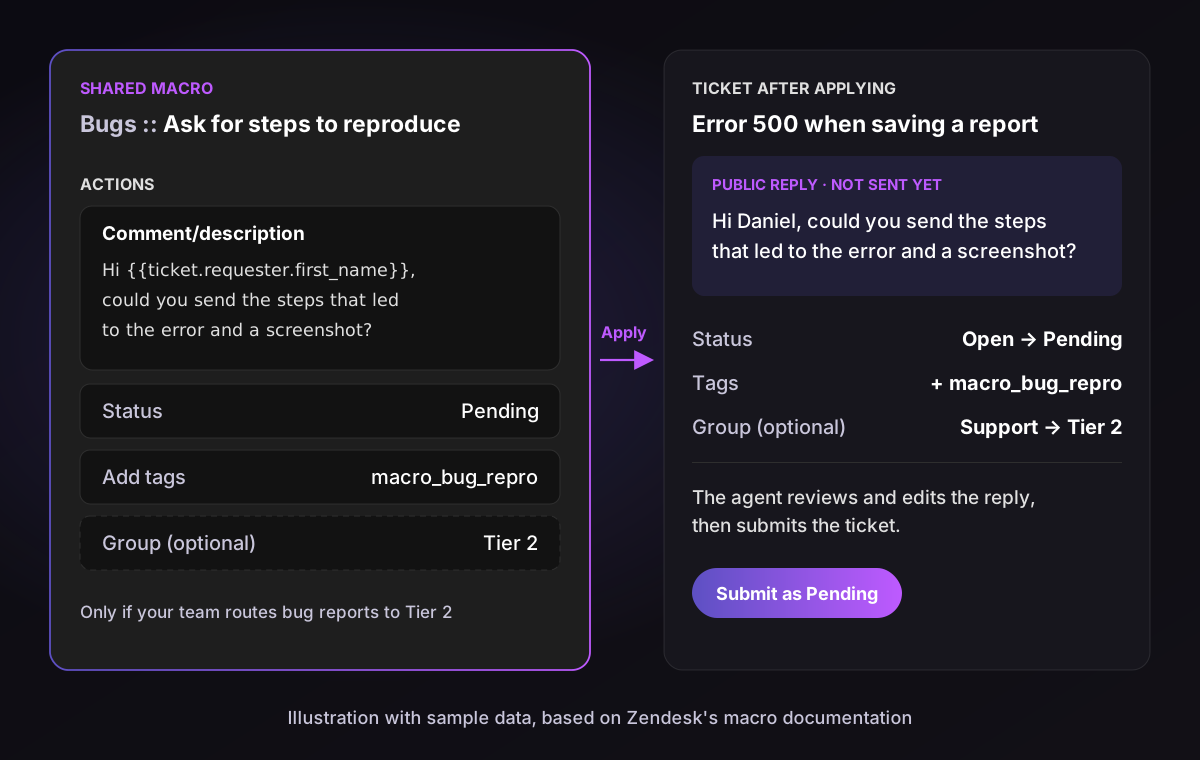
The time saving comes from bundling. Without a macro, an agent asking for reproduction steps types the request, switches the status, adds a tag and reassigns the group. With one, all four happen at once, and they happen the same way for every agent.
If you want to see where macros sit next to triggers, automations and views, my Zendesk automation guide maps the whole rule system.
Shared vs personal macros
There are two kinds of macros in Zendesk, and who can create each one matters for governance.
| Shared macros | Personal macros | |
|---|---|---|
| Who creates them | Admins, or agents with a custom role that allows it | Any agent or admin, for their own use |
| Who can use them | All agents, or only certain groups | Only the person who made them |
| Limit | 5,000 shared macros per account | Not stated |
| Restrict to groups | Suite Growth or Support Professional and up | Not applicable |
| Admin visibility | Full | Admins can see and clone them |
By default, agents can only create personal macros. If you want team leads to manage group macros without full admin rights, you need a custom role. Custom roles require Suite Enterprise or Support Enterprise.
Macros themselves are available on every Zendesk plan, from Support Team ($19 per agent a month on annual billing) to Suite Professional ($115) and up, according to Zendesk's pricing page. Zendesk's pricing cards no longer show Suite Growth, but help center articles still use it as a plan threshold.
How to create a macro in Zendesk
You create a shared macro in Admin Center, and agents create personal ones the same way or straight from a ticket. Here's how to create a macro in Zendesk from scratch, based on Zendesk's setup article:
- In Admin Center, go to Workspaces > Agent tools > Macros.
- Click Create macro.
- Give it a clear name. Use
::to put it in a category, for exampleBilling::Refund policy. - Add a short description, so other admins know what it's for.
- Under Available for, choose all agents, specific groups or only you.
- Click Add action and add each action. Start with Comment/description for the reply text, then add status, tags and group.
- Click Create, then apply the macro to a test ticket before your team uses it.
From an existing ticket: if you just wrote a reply worth reusing, open the ticket options menu and choose Create as macro. Zendesk copies the ticket's current values as actions, and copies the comment only if you wrote the last one. Agents get a personal macro this way, while admins can make it shared.
I'd add one step Zendesk doesn't require: give every shared macro an Add tags action with a unique tag, such as macro_refund_policy. You'll need it for reporting, as you'll see below.
Use placeholders to personalize the reply
Placeholders turn fixed text into something that reads less like a form letter. Write {{ticket.requester.first_name}} in the reply, and Zendesk swaps in the customer's first name when the agent applies the macro. A macro placeholder is evaluated against whatever is true about the ticket at that moment.
Placeholders also support the Liquid templating language, so you can add if/else logic directly in the Comment/description action. One macro can then show an extra line only for a certain organization or ticket type. Test any Liquid on a sample ticket first, because a typo prints raw code to the customer.
For teams that support several languages, put the macro's name and body in dynamic content under Admin Center > Workspaces > Agent tools > Dynamic Content. Zendesk then shows the macro in each agent's language. Dynamic content needs Suite Growth or Support Professional and up.
How to apply macros in Zendesk
Agents apply macros from the ticket's bottom toolbar or by typing / in the reply. Click Apply macro, then type part of the name to filter the list. In the Agent Workspace, typing / in the comment box opens the same list without leaving the keyboard.
Three details trip up new agents:
- Preview first. Hover a macro and use the preview icon, or press Shift + Enter, to see what it will change before applying it.
- Nothing is sent until you submit. Applying a macro only fills in the ticket. The agent can still edit the reply, then submits the ticket as usual.
- There's no undo button. Zendesk's article only notes that one macro can be reversed by applying another, so preview before you click.
Bulk updates. To apply a macro to many tickets, select them in a view, click Edit and pick the macro from the Apply Macro menu. Zendesk's bulk update has limits:
- Up to 100 tickets per update.
- No attachments and no macros that add a CC.
- Closed tickets can't be updated.
- Dynamic content doesn't render correctly in bulk.
Messaging and chat. When messaging is on, the / list shows both macros and shortcuts. Rich text falls back to plain text in messaging channels, and you can't limit a macro to a specific channel.
7 Zendesk macro examples for SaaS support teams
The best Zendesk macro examples pair a reply with the actions that should always come with it. These seven cover the moments that repeat in almost every B2B SaaS queue. Swap in your own wording, groups and tags.
1. Bugs::Ask for steps to reproduce
- Reply: asks for the steps, browser or app version, account ID and a screenshot.
- Actions: status Pending, tag
macro_bug_repro, group Tier 2.
2. Bugs::Confirmed and escalated to engineering
- Reply: confirms you reproduced it, says engineering has it, and sets the expectation for the next update.
- Actions: status On-hold, tag
macro_bug_escalated, type Problem.
3. Product::Feature request logged
- Reply: thanks the customer, explains how requests are reviewed, and avoids promising a date.
- Actions: tag
feature_request, status Solved.
4. Accounts::SSO or login reset
- Reply: gives the reset steps and a link to the help center article.
- Actions: tag
macro_login_reset, priority Normal.
5. Billing::Hand off to finance
- Reply: tells the customer billing will take over and when to expect an answer.
- Actions: group Billing, type Task, tag
macro_billing_handoff.
6. Follow-up::No reply after 3 days
- Reply: a short check-in that asks whether the issue is solved.
- Actions: status Pending, tag
macro_followup. Pair it with an automation that solves the ticket if there's still no reply.
7. Incident::Known outage update
- Reply: links the status page and promises an update when it's fixed.
- Actions: tag
incident_2026_10, status On-hold. Apply it in bulk to every ticket in the incident view.
Notice what these have in common. Each one is either the same answer for everyone or a request for information, which is exactly the work macros do well. The trouble starts when a ticket needs an actual diagnosis, and I'll come back to that.
How to organize macros in Zendesk so agents find the right one
A macro only helps if an agent finds it in a few seconds. Organizing macros in Zendesk comes down to categories, naming, access and regular pruning. Zendesk's macro management article covers the controls.
- Categories: add
::to the title to nest macros, for exampleBugs::Ask for steps to reproduce. Agents then browse by category instead of scrolling. - One naming pattern: start with the category, then the action in plain words. "Refund policy" beats "RP v3 FINAL".
- Group access: restrict team-specific macros to the groups that use them, so Tier 1 doesn't see engineering escalations (Suite Growth or Support Professional and up).
- Order: sort by name or date, or reorder manually under Actions > Manage settings > Edit order. Sorting by usage needs Suite Growth or Support Professional and up.
- Prune: deactivate macros nobody uses. You can only delete inactive macros, and deleted macros can't be recovered, so export first.
How to find your most-used macros. The macro list shows the three most-used macros from the past week, and that's about it in the UI. Zendesk's own help center says Explore does not report macro usage. The workaround is the unique tag on every macro, which you then count in the Support - Tickets dataset (Explore Professional and up). The API also returns usage counts for the last 7 or 30 days, which the export script below uses.
I suggest a quarterly review. Pull the 30-day usage, deactivate anything below a handful of uses, and give each category one owner who checks the wording against the current product.
How to export Zendesk macros
Zendesk has no export button for macros, so you export them through the API. Searching "zendesk export macros" mostly turns up community threads asking for one. Admin Center doesn't mention an export option, and Zendesk's account data export covers tickets, users and organizations only.
The Macros API returns every macro, including agents' personal macros when an admin calls it. It returns up to 100 macros per page with cursor pagination. Here's how to export Zendesk macros to a CSV, with a JSON backup of the full actions:
- In Admin Center, go to Apps and integrations > APIs > API tokens and click Add API token.
- Install jq, a small command-line JSON tool.
- Run the script below with your subdomain, email and token.
SUB="yoursubdomain"
AUTH="you@company.com/token:YOUR_API_TOKEN"
url="https://$SUB.zendesk.com/api/v2/macros?page[size]=100&include=usage_30d"
echo "id,title,active,usage_30d,updated_at" > macros.csv
: > macros.jsonl
while [ -n "$url" ]; do
  page=$(curl -sg "$url" -u "$AUTH")
  echo "$page" | jq -c '.macros[]' >> macros.jsonl
  echo "$page" | jq -r '.macros[] | [.id, .title, .active, .usage_30d, .updated_at] | @csv' >> macros.csv
  url=$(echo "$page" | jq -r 'if .meta.has_more then .links.next else empty end')
done
The CSV is your audit sheet, sorted in seconds by usage. The macros.jsonl file keeps every action, which you need if you ever recreate a macro. Usage counts come back on Suite Growth or Support Professional and up.
Copying macros to another Zendesk account or a sandbox. Zendesk has no "Create many macros" endpoint, so you post each macro to POST /api/v2/macros one at a time from the JSON backup. A sandbox copies shared macros only when it's created, and doesn't copy personal macros. Changes you test there have to be repeated by hand in production.
Where Zendesk macros hit their limit
Macros fail in predictable ways once a library grows. None of this is a bug. It's simply what fixed text and fixed actions can and can't do.
- Fixed text can't diagnose. A macro can ask for logs, but it can't read them. For a B2B product, the answer often depends on the customer's plan, setup, recent errors or a ticket solved months ago.
- The library sprawls. Every new product area adds macros, and few get retired. Zendesk caps shared macros at 5,000 per account, and agents hit "which one is current?" long before that.
- Upkeep never ends. Every UI change, price change or new policy means editing macros by hand. A stale macro is worse than none, because it sends a confident wrong answer.
- Reporting needs a workaround. Explore doesn't report macro usage, so you rely on tags you remembered to add.
- Finding the right one costs time. Agents still search, preview and edit. On complex tickets, they often skip the macro and write from scratch anyway.
The pattern I see most often in technical support teams: a few dozen macros carry most of the usage, and the rest exist "just in case". The tickets that eat the most agent time are exactly the ones no macro covers.
What support teams actually say about Zendesk macros
Support practitioners like what macros save them and complain about what they cost to maintain. Here's how they put it:
“The macros and ticket automations keep getting better - our team handles repeat questions in seconds now, and the reporting views make it easy to spot backlog before it piles up.”
“I also lean on macros for canned responses to common questions, so I can support multiple customers at once while keeping my replies consistent.”
“My team alone has 313 active macros in use, but there's really no workflow to make sure that they are still accurate and updated.”
“...multiple Agents can make shared macros (3000+) we need a better way to organize them, search by actions, audit them, flag them for update, etc.”
“...my organization uses close to 900 macros, across multiple departments, this way is extremely cumbersome and way too time consuming... An Export button is ESSENTIAL and takes minimal development time!”
The split is clear. Macros earn their keep on repeat answers, and frustration grows with the size of the library and the complexity of the tickets.
Zendesk AI macro suggestions: what Zendesk's own AI adds
Zendesk has added AI around macros, mainly to help agents pick one and admins decide which to write. These features still work with your macro library rather than replacing it.
- Suggested macros for agents: Zendesk recommends up to three macros on a ticket, based on how your shared macros were used on similar tickets. It needs at least 100 tickets with a shared macro applied in the last nine months, and at least three shared macros in use. You turn it on under Actions > Manage settings > Display suggested macros. Zendesk's help article lists it for Suite and Support Professional and up, while the pricing page marks it as an add-on on Suite Professional, so confirm with your account team.
- Macro content suggestions for admins: since April 30, 2026, Admin copilot recommendations suggest new macros based on your tickets, updated weekly. Find them under Admin Center > AI > Admin copilot > Recommendations. This replaced the older Suggestions tab and is aimed at customers with Zendesk's Copilot add-on.
- Writing tools: agents can expand, simplify or change the tone of what they write, with a monthly allowance on Professional plans and up. "Rewrite in your tone" needs Zendesk's Copilot add-on.
Zendesk's Copilot add-on costs $50 per agent a month and can be added to Professional plans and higher, according to Zendesk's pricing page. For a 20-agent team on Suite Professional, that's $1,000 a month on top of $2,300 in seats. My Zendesk AI pricing breakdown covers the full bill.
The catch is that suggested macros can only suggest what's already in your library. If no macro fits the ticket, the best suggestion is still the wrong one.
When AI makes macros redundant, and when to keep them
AI makes reply macros redundant for any ticket where the right answer depends on context. An AI copilot drafts a reply for the specific conversation, so you don't need a macro for every variation, and you stop maintaining hundreds of near-duplicates. Fixed answers and one-click actions still belong in macros.
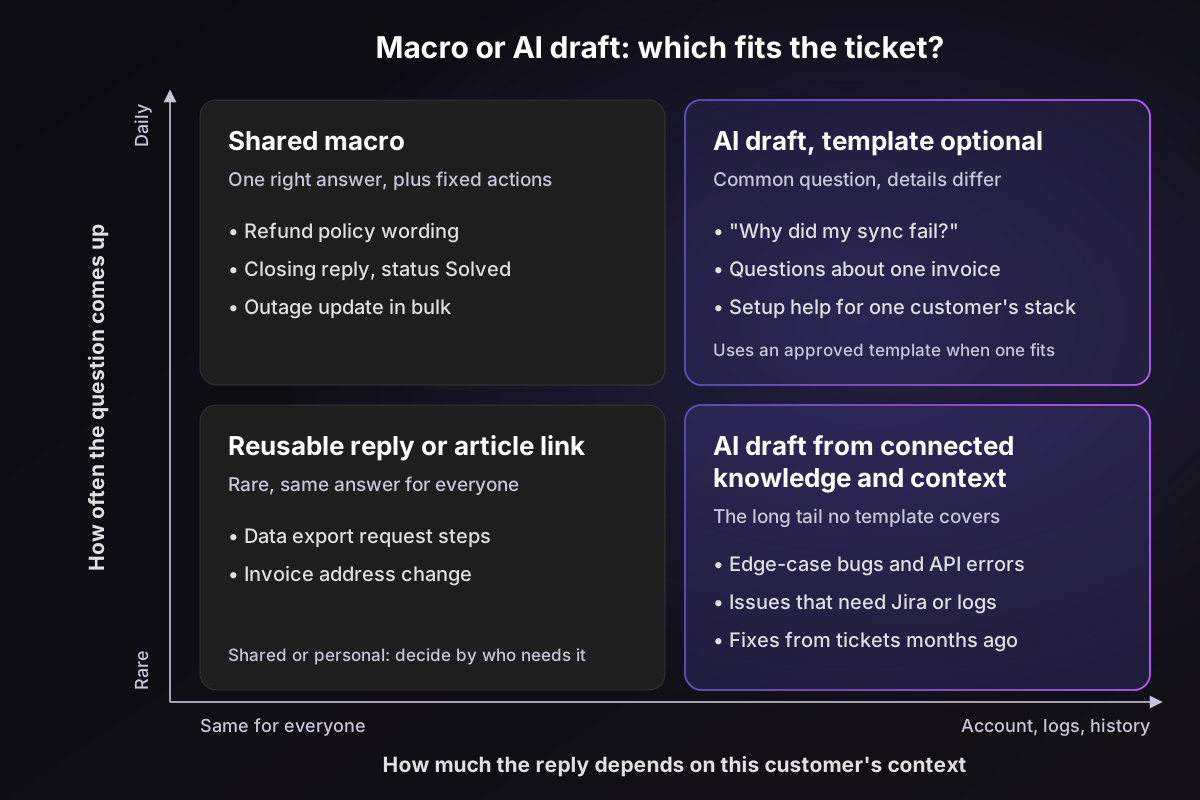
Keep a macro when:
- The answer must be word for word, such as legal, security or refund policy wording.
- The main job is the ticket actions, such as closing, escalating or routing.
- You're updating many tickets at once during an incident.
Let AI write the reply when:
- The answer depends on the customer's account, setup or history.
- The fix lives in a past ticket, an internal doc or a Jira issue.
- You keep creating "v2" and "v3" versions of the same macro for edge cases.
How Pluno AI Copilot replaces the long tail of reply macros
Pluno is an AI layer that runs inside your existing help desk, including Zendesk, Intercom, Salesforce Service Cloud, HubSpot, Jira Service Management and Freshdesk. It doesn't replace Zendesk, so your tickets, macros and reporting stay where they are. AI Copilot is the module that writes replies for your human agents.
Here's how it works on a Zendesk ticket. Copilot drafts a suggested reply, written for that conversation, and has it ready in the sidebar when the agent opens the ticket.
It draws on your past resolved tickets, help center, Confluence, Notion and Jira, and it writes a new draft each time the customer replies. The agent reads it, clicks Paste into editor, edits if needed and sends.
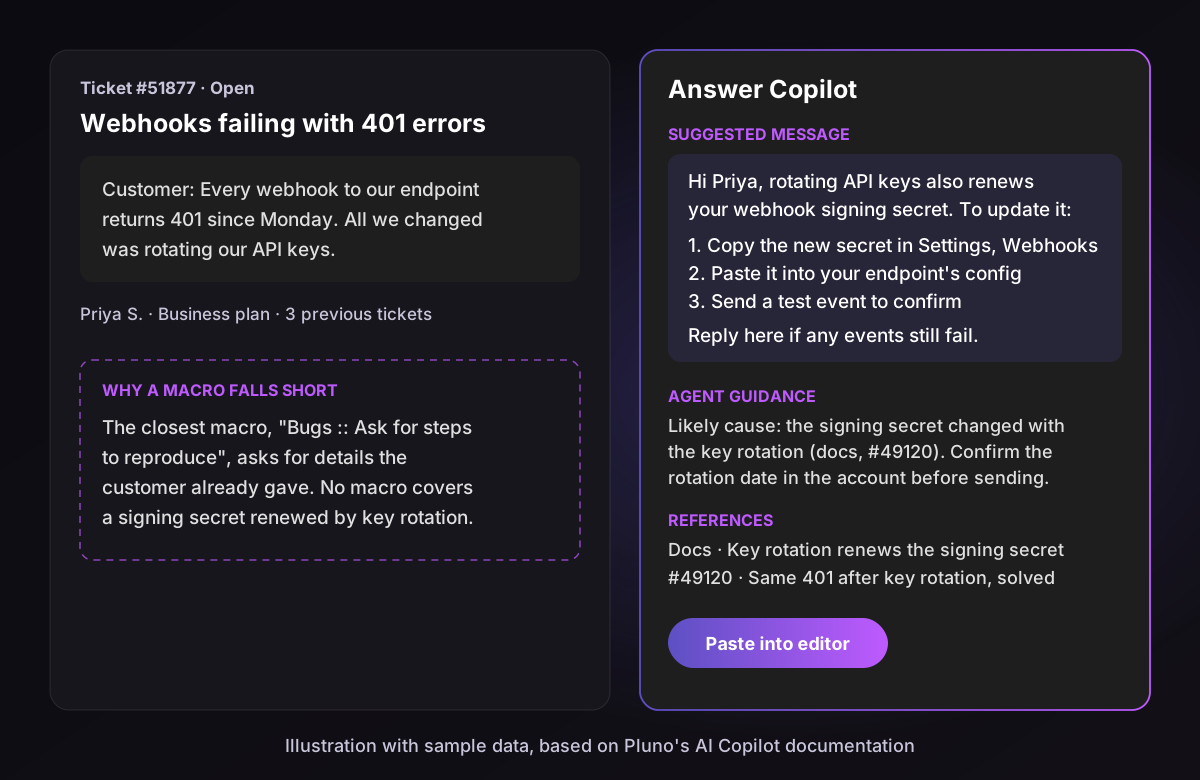
What Copilot adds compared with a macro library:
- A reply for each conversation: the draft uses the customer's details and the fix from similar solved tickets, not a template with a first-name placeholder.
- Agent guidance and references: a short summary of what Pluno found and the next step, plus the tickets and articles it used, so agents can check the answer quickly.
- Macros still count: if you keep macro templates in Confluence, Copilot bases its draft on the best match and names the macro in its guidance.
- Less upkeep: Copilot learns from tickets your team solves, so new answers show up without anyone writing a new macro.
- Tags and fields too: Pluno's AI Tagging & Field Filling fills tags, types and custom fields from the conversation, which covers the tagging half of many macros.
For a real-world number, Waste Vision's agents save 2 to 5 minutes on every ticket with AI Copilot, because they no longer dig through old tickets and documentation for the answer.
| Yardstick | Zendesk macros | Zendesk AI macro suggestions | Pluno AI Copilot |
|---|---|---|---|
| Fit to the ticket | Fixed text, plus placeholders | Picks a fixed macro from your library | Reply drafted for each conversation |
| Upkeep | Every macro edited by hand | Same library to maintain | Learns from newly solved tickets |
| Ticket actions | Status, tags, group, fields and more | Applies the macro's actions | Reply only; AI Tagging & Field Filling fills tags and fields |
| Knowledge it draws on | What someone typed into it | Past macro usage | Past tickets, help center, Confluence, Notion, Jira |
| Price | Included in every plan | Plan or add-on dependent; Copilot add-on $50 per agent a month | Included in the Pluno platform fee, from 249€ a month |
What Pluno costs, from Pluno pricing: the platform fee starts at 249€ a month for up to 500 tickets (210€ on annual billing). It includes AI Copilot with unlimited suggested replies per seat, plus the AI agent, AI Tagging & Field Filling and Escalation Copilot. There's no per-agent fee for Copilot.
If you want the setup details, my Zendesk AI Copilot setup guide walks through it. For a wider view of the market, see the best AI agents for Zendesk.
The bottom line
Zendesk macros are still the fastest way to apply a fixed answer and a set of ticket actions in one click. Build them with categories, a unique tag and placeholders, prune them every quarter, and export them through the API, since Admin Center has no export button.
Their limit is fixed text. For tickets that depend on the customer's account, logs or history, an AI copilot drafts the reply a macro never could. Keep a short library for policy wording and actions, and try Pluno AI Copilot on your own Zendesk tickets for everything else.
FAQ
What is a Zendesk macro?
A Zendesk macro is a saved set of actions an agent applies to a ticket with one click. It usually adds a reply and can also change the status, priority, group, assignee, tags and custom fields. Macros have no conditions, so they only run when an agent applies them.
How do I create my own macro in Zendesk?
Go to Admin Center > Workspaces > Agent tools > Macros and click Create macro. Name it, choose who can use it, add actions such as Comment/description and Status, then click Create. Agents can also open a ticket's options menu and choose Create as macro to save a personal macro.
How do I edit Zendesk macros?
Open Admin Center > Workspaces > Agent tools > Macros, click the macro and change its title, availability or actions, then save. Agents can edit their own personal macros, while shared macros need an admin or a custom role with macro rights.
How do I export all my macros from Zendesk?
Use the Macros API, because Zendesk has no export button. Call GET /api/v2/macros with an admin API token, follow the cursor pagination 100 macros at a time, and save the results as JSON or CSV. The script in this guide does both.
What's the difference between Zendesk macros and triggers?
A macro runs only when an agent applies it, and it has actions but no conditions. A trigger runs automatically whenever a ticket is created or updated and matches its conditions. Use macros for agent decisions and triggers for rules that should always fire.
Can you use macros in Zendesk messaging and chat?
Yes. When messaging is on, typing / in the composer shows both macros and shortcuts. Rich text formatting falls back to plain text in messaging channels, and you can't limit a macro to one channel.
How many macros can you have in Zendesk?
Zendesk allows up to 5,000 shared macros per account. In practice, a library becomes hard to search long before that, so most teams do better with a smaller, well-categorized set.
Does Zendesk suggest macros with AI?
Yes. Suggested macros recommends up to three shared macros on a ticket once you have enough macro usage history, and Admin copilot recommendations suggest new macros to admins. Both work from your existing library.
What can replace Zendesk macros?
An AI copilot can replace most reply macros. Pluno AI Copilot drafts a reply for each conversation from your past tickets, help center and internal docs inside the Zendesk sidebar. Keep macros for fixed policy wording and one-click ticket actions.