Most support teams turn on a few Zendesk automations, watch the backlog shrink a little, and call it done. Then volume grows, tickets get more complex, and the same manual work creeps back in.
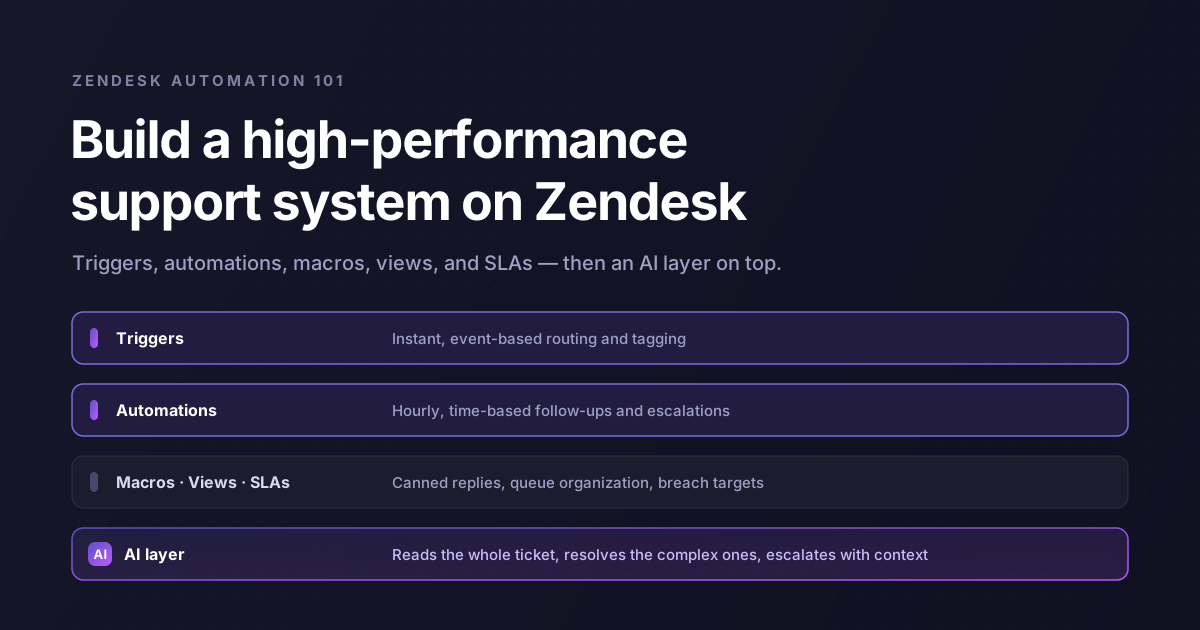
Zendesk gives you plenty of ways to stop that. Triggers, automations, macros, views, and SLAs can run most of your routine work on their own.
This guide is different. You'll get the exact automations to set up first, the conditions and actions to use, and the settings that make them work from day one — plus a clear map of where native rules stop and an AI layer like Pluno takes over.
Key Takeaways
- A Zendesk automation is one specific tool: a time-based rule that runs once an hour. Triggers, macros, views, and SLAs handle the rest of the work.
- Six Zendesk automation workflows cover what most teams need first: auto-close, the pending reminder and auto-solve pair, pre-emptive SLA escalation, an aging-ticket flag, tag-on-arrival routing, and a delayed satisfaction survey. Each one is built below with copy-ready conditions and actions.
- Without an off switch, a rule can keep firing on every hourly run until another condition or a Zendesk limit stops it. For time conditions, use "greater than" with a tag so each ticket gets handled once.
- Native rules sort and nudge. They can't read a screenshot, a log, or a complex question, so resolution still lands on a person. That ceiling shows up fastest for technical, B2B teams.
- An AI layer (such as Pluno or Zendesk's own AI agents) picks up where rules leave off. Get the native rules working first, then layer AI on top where tickets get complex.
What is Zendesk automation?
A Zendesk automation is a time-based rule that runs once every hour and acts on tickets that meet conditions you set. It handles time-driven tasks such as closing solved tickets, sending follow-up reminders, and flagging tickets that have gone unanswered for too long.
The word trips people up because it means two different things. Sometimes "Zendesk automation" refers to the specific Automations feature inside Zendesk. Sometimes it means automating your Zendesk across every tool the platform offers. This guide covers both, starting with the specific feature and building out to the full system with other features or third-party apps.
Zendesk Automations vs Triggers vs Macros vs the rest
Zendesk Automations are one tool in a set. Each one fires at a different moment and does a different job. Mixing them up is the most common reason an automated workflow misbehaves.
| Tool | When it fires | What it does | Who sets it up |
|---|---|---|---|
| Triggers | Instantly, when a ticket is created or updated | Event-based actions: assign, notify, tag, set priority | Admin |
| Automations | Once an hour, based on time | Follow-ups, escalations, auto-close after a set time | Admin |
| Macros | Manually, when an agent clicks | Canned multi-step replies and actions | Admin and agents |
| Views | Continuously | Filter and organize the queue | Admin |
| SLAs | On breach timing | Track and flag response and resolution targets | Admin |
| AI agents | On every message, on their own | Read context, draft or resolve, troubleshoot, escalate | Learns from tickets |
The one question almost everyone asks is the difference between a trigger and an automation. A trigger fires the instant a ticket is created or updated. An automation runs on a schedule, once an hour, and acts based on how much time has passed.
Use a trigger for anything that should happen right away. Use an automation for anything that should happen over time.
There's a useful trick that connects the two: automations can't see an event, only the state it leaves behind. So when you need a time-based rule that depends on something happening, you have a trigger add a tag the moment the event occurs, then the automation reads that tag on its hourly run. You'll use this pattern a lot.

How to build an automation in Zendesk
Every recipe below uses the same builder, so it's worth learning the mechanics once.
In Zendesk, go to Admin Center, click Objects and rules, then select Business rules > Automations and click Create automation. You can read Zendesk's own overview of how automations work for the full reference.
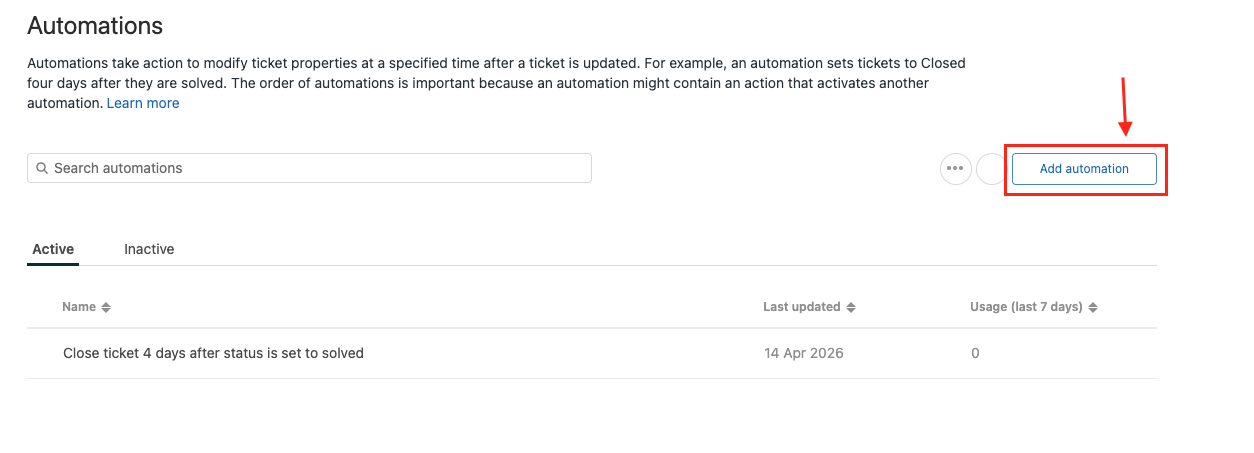
An automation has two parts. Conditions are the "if." Actions are the "then." When a ticket matches all your conditions on the hourly run, the actions fire.
Every automation also needs a built-in off switch. If nothing in the rule changes the ticket so it stops matching, the automation keeps firing on every hourly run until another condition or a Zendesk limit stops it. You give it an off switch in one of two ways:
- Add an action that changes the ticket so it no longer matches, like setting the status to Closed.
- Or have the automation add a tag and then check for that tag, so it skips any ticket it has already handled.
A few limits are worth knowing before you start:
- You can have up to 500 active automations at once.
- Automations run in order, top to bottom. An earlier one can change a ticket in a way that affects a later one, so the order matters.
- A ticket drops out of the hourly run after 100 automation events in its lifetime.
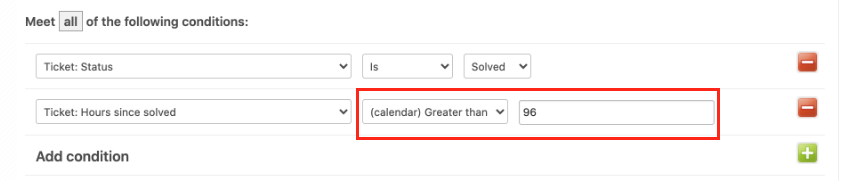
Pro tip: Two habits will save you most of the trial and error. First, use the preview before you save — the builder shows every ticket that currently matches your conditions, and if that list looks wrong, your conditions are wrong. Second, for time conditions, prefer "greater than" over "is," and pair it with a tag. If you set a rule to fire when "Hours since solved is 96" and the hourly run happens to skip that exact hour, the rule never fires. "Greater than 96" plus a tag that marks the ticket as handled is far more reliable.
6 Zendesk automation workflows you can build today
These are the workflows almost every team should set up first. Each one below provides the exact conditions and actions, along with the settings that make it work without guesswork. You can see all available fields in Zendesk's conditions and actions reference.
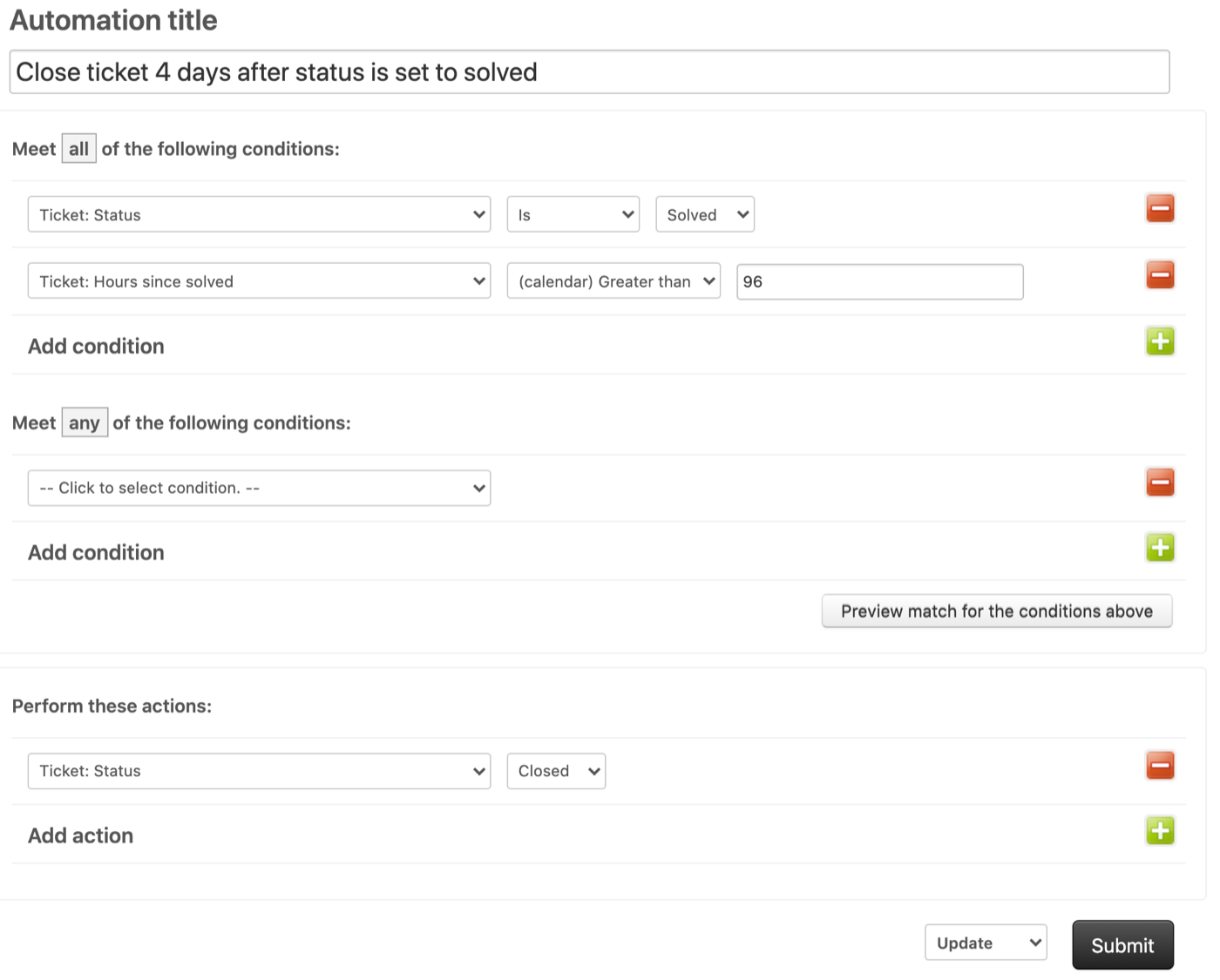
Auto-close solved tickets after 96 hours
This closes tickets a few days after they're solved, so your open queue reflects real work.
- Conditions: Status is Solved, and Hours since solved (calendar) greater than 96
- Actions: set Status to Closed
Ninety-six hours is Zendesk's own recommended minimum. It gives customers time to reply and to reopen the ticket if needed. The Closed action also switches off the Solved condition, so this rule cancels itself cleanly. Going shorter than 72 hours is the mistake to avoid, because it cuts the customer's reply window and creates duplicate tickets.
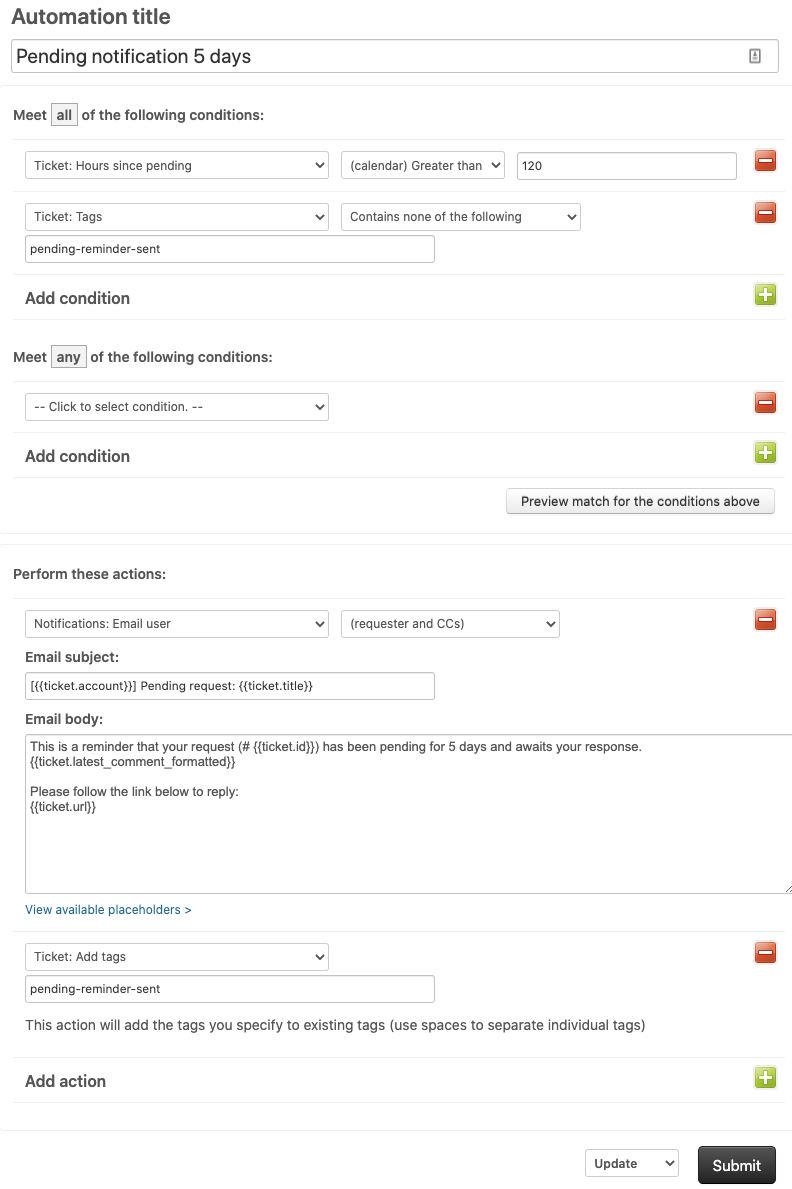
Remind, then auto-solve stale pending tickets
When you're waiting on the customer and they go quiet, two automations close the loop without an agent chasing it.
First, the reminder:
- Conditions: Status is Pending, Hours since pending (calendar) greater than 48, and Tags contains none of
reminder_sent - Actions: email the requester a short "do you still need help?" note, and add the tag
reminder_sent
Then the auto-solve:
- Conditions: Status is Pending, Hours since pending (calendar) greater than 120, and Tags contains
reminder_sent - Actions: set Status to Solved, and add the tag
auto_solved
Always send one reminder before you solve, never solve cold. The reminder_sent tag is what stops the first email from going out every single hour. Skip that tag check, and the customer gets the same reminder over and over.
Escalate before a ticket breaches its SLA
This raises priority and alerts the team while there's still time to fix the ticket.
- Conditions: Hours until next SLA breach (business) less than 2, and Priority less than Urgent
- Actions: set Priority to Urgent, and notify the group that owns the queue
Acting two hours early gives someone a real chance to respond. Notify the whole group so coverage doesn't depend on who happens to be online. This one needs active SLA policies. Waiting until after the breach is pointless because the metric is already lost by then.
Flag tickets that have been sitting open too long
This surfaces anything that's quietly aging in the queue.
- Conditions: Status is Open, Hours since open (calendar) greater than 24, and Tags contains none of
aging_alert - Actions: notify the group, and add the tag
aging_alert
The tag keeps the same ticket from pinging your team every hour. Start at 24 hours and tighten the window for urgent queues. Notifying one named agent is the common mistake here, because people take time off and the alert goes nowhere.
Tag on arrival with a trigger, then chase with an automation
The trigger sorts the ticket immediately. The automation steps in if it stalls.
- Trigger: when a ticket arrives matching a keyword or channel, add a tag (for example
billing) and set the group. - Automation conditions: Tags contains
billing, Status is New, Hours since created (calendar) greater than 2, and Tags contains none ofunassigned_alert - Automation actions: notify the group, and add the tag
unassigned_alert
Tag with the trigger, act on the tag with the automation. This pairing is how you handle anything time-based that depends on an event. The mistake to avoid is trying to route on keywords inside an automation, because by the hourly run the ticket may already be stale.
Native automations don't do true round-robin assignment on their own. For even distribution across a team, you'll need Zendesk's omnichannel routing or an app from the Marketplace.
Send the satisfaction survey a day after solving
This reaches the customer once they've actually experienced the fix.
- Conditions: Status is Solved, Hours since solved (calendar) greater than 24, and Tags contains none of
csat_sent - Actions: email the requester the survey, and add the tag
csat_sent
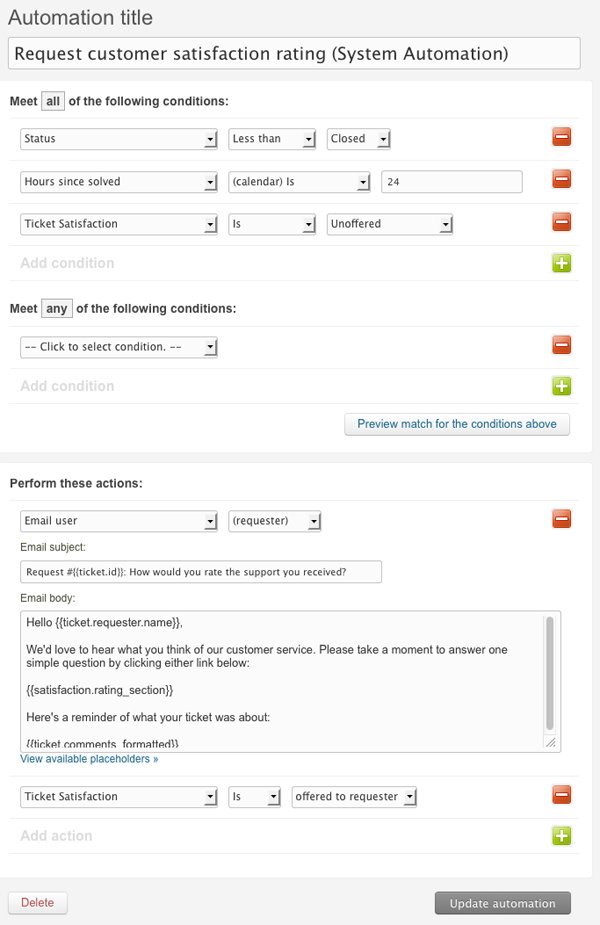
A day later beats an instant survey. Response rates and scores both come out higher, and the tag keeps it to a single send. Firing the survey the second you solve the ticket is the mistake, because the customer hasn't lived with the resolution yet and you capture noise.
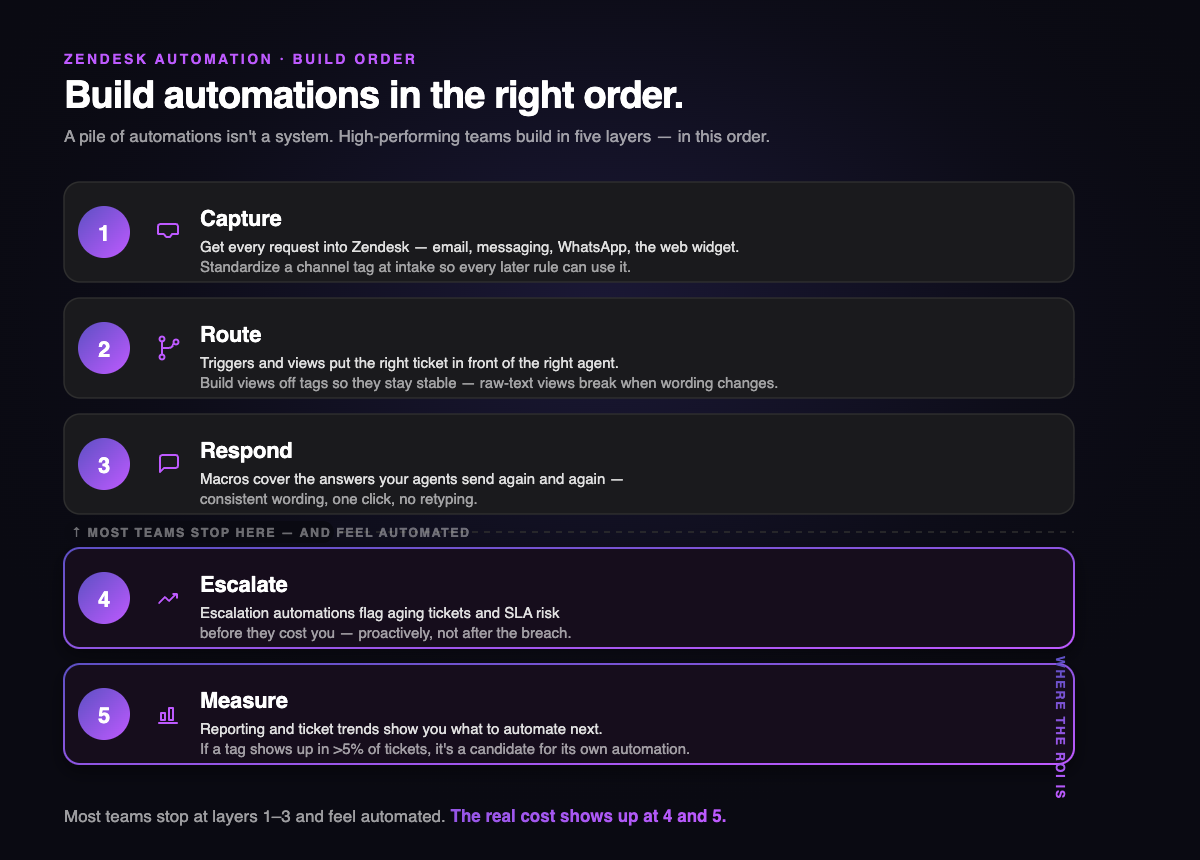
Build automations in the right order
A pile of automations isn't a system. The teams that get the most out of Zendesk build in layers, in this order:
- Capture. Get every request into Zendesk across your channels: email, messaging, WhatsApp, the web widget. Standardize a channel tag at intake so every later rule can use it.
- Route. Triggers and views put the right ticket in front of the right agent. Build views off tags so they stay stable. Raw-text views break the moment wording changes.
- Respond. Macros cover the answers your agents send again and again.
- Escalate. The escalation automations above flag aging tickets and SLA risk before they cost you.
- Measure. Reporting and ticket trends show you what to automate next. If a tag shows up in more than 5% of tickets, it's a candidate for its own automation.
Most teams stop at layers one through three and feel automated. The real cost shows up at four and five.
Where native Zendesk automation hits its limit
Zendesk's rules are excellent at what they do, and that's exactly the point. They have a job, and resolving tickets isn't it.
Automations run on the clock and act on conditions. They can't read a screenshot, a log file, or a paragraph where a customer explains their problem in their own words. Every rule is written and maintained by hand, and as your product gets more complex, the edge cases pile up faster than anyone can write rules for them. This is common in B2B software, where products change frequently, and the help center can't keep pace.
Macros have the same ceiling. They give an agent fixed text to send, but they don't adapt to the ticket in front of them. So the work that needs real understanding — the troubleshooting, the diagnosis, the genuinely complex question — still lands on a person.

Native Zendesk rules handle workflow hygiene: routing, reminders, SLA alerts, and queue cleanup. Pluno handles investigation, complex resolution, reply drafting, and engineering handoff.
The automations rules can't build
Pluno is an AI support agent for complex technical tickets that works inside Zendesk. It learns from resolved support tickets, help center content, internal docs, Jira, Slack, logs, APIs, and connected systems. It does what Zendesk's native AI agents aim to do, with a different wedge: resolved-ticket learning, technical troubleshooting, connected engineering context, and safe escalation. Here are the automations it builds that native rules can't, and how to set each one up.
Tagging and field fill that reads the whole ticket
Keyword rules match words. They miss what a customer actually means, and they can't read a phone call at all. Pluno's AI tagging reads the full ticket and fills the right Zendesk tags and fields, including the cases rules drop.
How to set it up:
- Turn on AI tagging and set it to run automatically when a ticket is created.
- Your existing Zendesk fields and tags appear in Pluno's dashboard. Switch on the ones you want filled.
- Write the logic in plain language. For example: if a customer says their card never arrived, add the
send_new_cardtag. - For phone tickets, turn on Call Insights first. Pluno transcribes the recording itself and uses that summary as the context for tagging.
Run it in manual mode for a day to check the tags it picks, then switch it to automatic. A single ticket can include multiple tags, so add a line for each case you care about. The trap to avoid is leaning on keyword triggers for anything nuanced, because you'll spend your week correcting tags by hand.
Reply drafts that adapt to the ticket
A macro gives an agent fixed text. Pluno's AI Copilot drops a ready draft into the ticket the moment an agent opens it, built for that specific conversation.
How to set it up:
- Turn on AI Copilot so a draft is waiting when the agent opens each ticket.
- It learns from resolved support tickets, help center content, internal docs, Jira, Slack, logs, APIs, and connected systems. There's no need to manually build decision trees for every path.
- Add a workflow in plain language to match your house style — for example, keeping replies to two short sentences.
- Agents edit the draft inline or ask the Copilot to adjust it before sending.
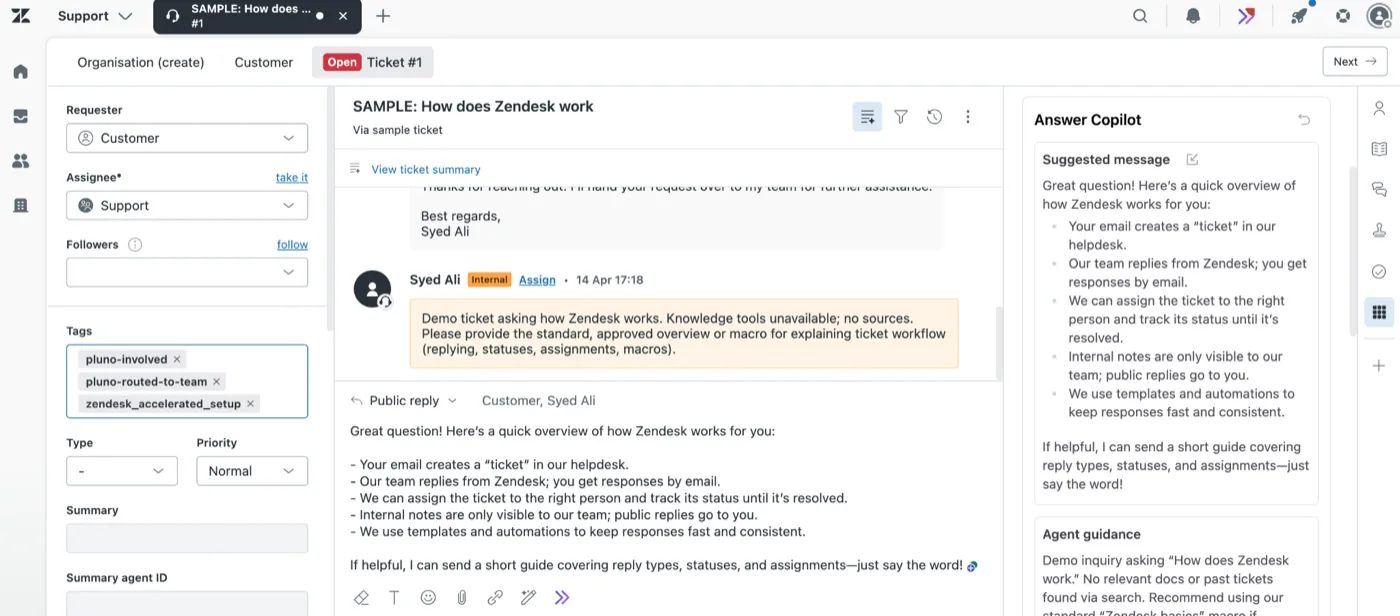
The draft is agent-facing, so nothing reaches a customer without a person sending it. Because drafts are agent-reviewed before sending, Copilot carries lower customer-facing risk than autonomous replies. It learns from real resolved tickets, so it carries phrasing your macro library never could, and it handles questions a fixed macro can't.
Autonomous resolution with a safe fallback
Some tickets the AI can close from start to finish. Others should be resolved by a human agent. Pluno's Deflection AI resolves the ones it's confident about and hands the rest to a human with full context, so you cut volume without forcing weak answers.
How to set it up:
- Turn on Deflection AI and give it a seat. It can reply under your brand or as a named assistant with its own avatar.
- Use Zendesk triggers to control what it handles. Start narrow — for example, SSO login issues or failed data imports only.
- Set your escalation rules. When a ticket requires account-specific data or a human decision, Pluno quietly escalates it and leaves an internal note explaining the issue.
On counting, Pluno is transparent. For billing, a ticket counts as resolved only when Pluno sent the last public reply and the customer didn't respond within 72 hours. Tickets that escalate to a human are never counted. Every resolved ticket gets tagged in Zendesk, so you can verify the work before you're billed.
Start with one category, build trust, then widen the scope. The mistake to avoid is pointing deflection at tickets that need a lookup it can't reach, like "what's my account balance" when your customer database isn't connected to Zendesk. Route those to a human with a trigger.
Automation that hands off tickets to the engineering team
When a customer reports something that turns out to be a real bug, Pluno turns it into a complete engineering ticket without an agent having to write the report by hand, and keeps both sides in sync.
How to set it up:
- The Troubleshooting Agent investigates using logs, code, recordings, and connected tools like Sentry, Linear, and your databases. Support uses it to diagnose customer-side fixes and confirm real bugs. Engineering uses it to debug faster and get recommended fixes.
- The Escalation Copilot opens the issue in Jira or Slack. Zendesk can connect to Jira, but Pluno fills the reproduction steps, impact, customer context, and troubleshooting history automatically.
- Updates sync both ways. An engineering update appears in the Zendesk ticket, and the customer's replies sync to the engineering side.
Bottom line
Zendesk automations are hourly, time-based rules that run alongside triggers, macros, views, and SLAs. They keep predictable workflows clean: routing, reminders, SLA alerts, and queue cleanup. They can't read context or resolve a complex ticket, and that ceiling shows up fastest for technical, B2B teams.
Set up the native rules for predictable workflows first. Then use Pluno where tickets require investigation, technical context, or engineering handoff. It learns from your resolved Zendesk tickets, so the fastest way to see the difference is to point it at your own support history.
Zendesk Automation FAQ
What is the difference between a trigger and an automation in Zendesk? A trigger fires immediately when a ticket is created or updated. An automation runs once an hour and acts based on how much time has passed. Use triggers for instant actions like routing and notifications, and automations for time-based work like follow-ups and auto-close.
How often do Zendesk automations run? Once every hour, on all non-closed tickets. The run starts at some point within each hour, so don't build anything that depends on exact timing.
How many automations can you have in Zendesk? Up to 500 active automations at a time, and each one must be under 65kb. They run in order from top to bottom, so an earlier automation can affect a later one.
Why does my Zendesk automation keep firing or emailing repeatedly? It's missing an off switch. Add an action that changes the ticket so it no longer matches the conditions, or add a tag the automation checks for and skips. Without one, the rule re-fires every hour.
What's the difference between Zendesk macros and automations? A macro is a set of actions an agent applies with a click, so it needs a human. An automation runs on its own, on a schedule. Macros are for repeatable replies agents send by hand; automations are for time-based work that should happen without anyone touching it.
What are the best AI tools to automate Zendesk beyond native rules? Native automations handle routing, tagging, and follow-ups, but they can't read a ticket or resolve a complex one. For that, teams add an AI support agent that works inside Zendesk. Pluno is built for technical, B2B support, where it learns from resolved tickets to draft replies, resolve tickets safely, and escalate to engineering with full context.