
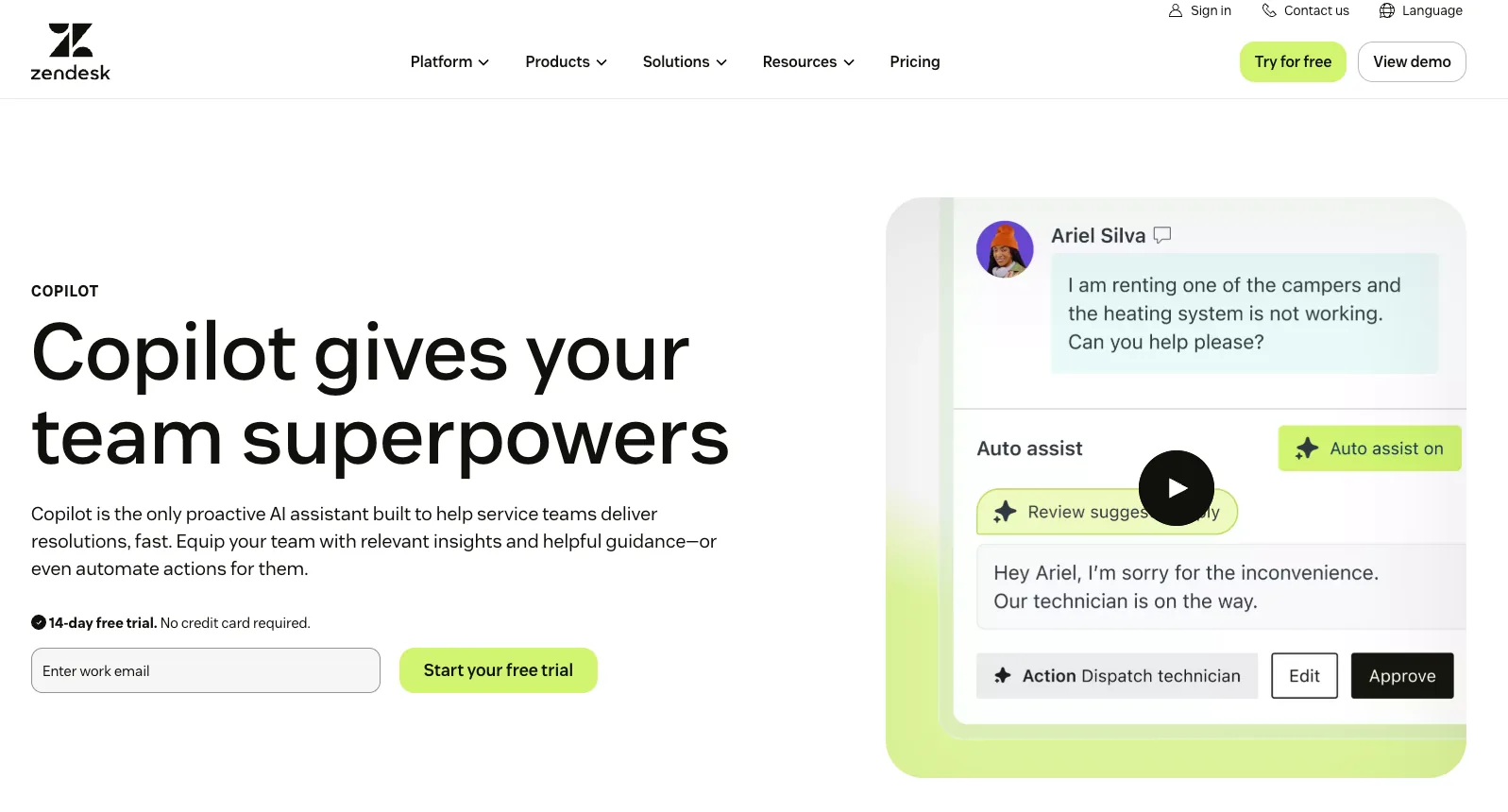
Zendesk AI Copilot is the agent-assist layer of Zendesk's AI stack. It runs within the Agent Workspace, suggesting replies, summarizing tickets, following procedures you define, and triggering actions in Zendesk.
Two things are worth knowing before you start configuring. Zendesk runs two separate AI products (Copilot and AI Agents) with separate training models and pricing. And Copilot itself has both free features that come with certain plans and paid features available as add-ons. Knowing what you're buying and what's already included in your plan saves time.
This guide covers what Zendesk AI Copilot is, how to properly set it up for the best results, configuration tips to get better responses faster, and how to push Copilot further when help-center-only training hits its ceiling.
Key Insights
If you only have a few minutes, here are the things that matter most.
- Zendesk has two AI products that don't share knowledge. Copilot is agent-assist (helps your humans behind the scenes). AI Agents are autonomous chatbots (talk directly to customers). Different add-ons, different pricing, different training models. If you buy both, you configure both.
- Suite Professional already includes some Copilot features for free. Ticket summaries, suggested macros, merging suggestions, and tone tools come with usage caps but no extra cost. Many smaller teams can run on the free tier for months before upgrading to the paid add-on.
- Setup takes 4 to 8 weeks. Auto-assist needs procedures, custom actions, ticket-tagging triggers, and iterative testing on live tickets. The configuration work is what creates value, and that's where the weeks go. Alternatives such as Pluno's AI Copilot, which you install from the Zendesk Marketplace, can be set up in under 10 minutes.
- Zendesk Copilot doesn't learn from your resolved past tickets. Its reasoning is grounded in macros, help center articles, and admin-written procedures. For teams where the real knowledge lives in solved tickets, Notion pages, Confluence, Slack threads, or Jira issues, this is the structural ceiling Copilot doesn't push past.
- For complex-ticket teams, Pluno's AI Copilot fills the gaps native Copilot leaves open. It's a Zendesk Marketplace add-on that trains on resolved tickets and integrates with Slack, Jira, Notion, and Confluence out of the box, helping support teams achieve greater efficiency and faster time-to-reply.
What Zendesk AI Copilot Actually Is (And What It Isn't)
Before getting into setup, it's worth slowing down on what Zendesk AI Copilot actually does, because the marketing pages and the day-to-day reality don't always match. Three things tend to surprise teams once they start using it:
- How Copilot fits next to Zendesk's other AI product
- What's inside the add-on versus what comes free with your plan
- The handful of capabilities that aren't there at all.
Zendesk Copilot vs AI Agents: What's the difference?
Copilot is agent assist. It works alongside your human team inside the Zendesk Agent Workspace, suggesting replies, summarizing tickets, and helping with routine actions. The human agent stays in the loop on every reply.
AI Agents are autonomous chatbots that talk directly to customers, with their own add-on and a per-resolution pricing model.
The part most teams miss is that they're trained separately. Knowledge configured for AI Agents doesn't automatically transfer to Copilot, and vice versa, so if you're paying for both, you're configuring both.
That said, both can run at the same time. The AI Agent handles deflection, and Copilot steps in to help your human agents on the tickets that get escalated.
What's included in the Copilot add-on?
According to Zendesk's documentation, the Copilot add-on covers three feature buckets.
Agent productivity features:
- Auto assist (suggests replies and actions based on procedures)
- Suggested first replies (drafts the first response from macros and help center articles)
- Ticket summaries (recap of public comments on a ticket)
- Expand and tone tools (turn bullets into full replies, adjust formality)
- Suggested macros (matches the right macro to the ticket content)
- Merging suggestions (proactively flags duplicate tickets)
- Generative AI for voice (transcribes and summarizes Zendesk Talk calls)
Routing and triage features:
- Intelligent triage (auto-detects intent, language, sentiment)
- Autoreplies with intelligent triage (sends a single AI-generated email reply when triage detects a confident intent)
- Internal note triggers (just-in-time guidance for tricky tickets)
Admin features:
- Macro suggestions for admins (suggests new shared macros based on agent reply patterns)
- AI-generated procedure drafts (auto-generate up to 3 procedure drafts per brand each week from your ticket data)
- Help center expand and tone (writing tools for content creation)
Where Zendesk AI Copilot stops short
There are a few limits real teams run into once they're using Copilot day-to-day.
- Copilot doesn't learn from your resolved past tickets in any deep way. Suggested replies pull from macros and help center articles. Auto assist follows admin-written procedures. The AI doesn't synthesize answers from your team's actual resolution history, which means recent fixes and edge cases that haven't been written up as articles are invisible to it.
- Copilot suggests a first reply, then hands the conversation back to manual macros. It generates a draft for a new ticket, but once the customer responds, the AI doesn't rerun in that context. Your agents are back to picking macros themselves for every follow-up message. The "AI assist" only covers the opening reply on each thread.
- Connection to outside knowledge is limited. Copilot stays inside Zendesk. It doesn't pull from Slack threads, Jira tickets, Notion docs, or internal API responses unless you build custom actions for each connection.
- Custom actions require API and dev work. Standard actions are limited to ticket field updates and a small set of Shopify operations. Anything else needs engineering.
How to Set Up Zendesk AI Copilot, Step by Step
There's a right order to set up Zendesk AI Copilot, and skipping ahead is the most common reason teams say "Copilot didn't work for us." The eight steps below take you from confirming plan eligibility to monitoring acceptance rates in Explore. Plan for 4 to 8 weeks if you want to do this properly, and pilot with one team before rolling it out to everyone.
Step 1: Confirm your plan is eligible
Go to Admin Center, then Account, then Billing, then Subscription.
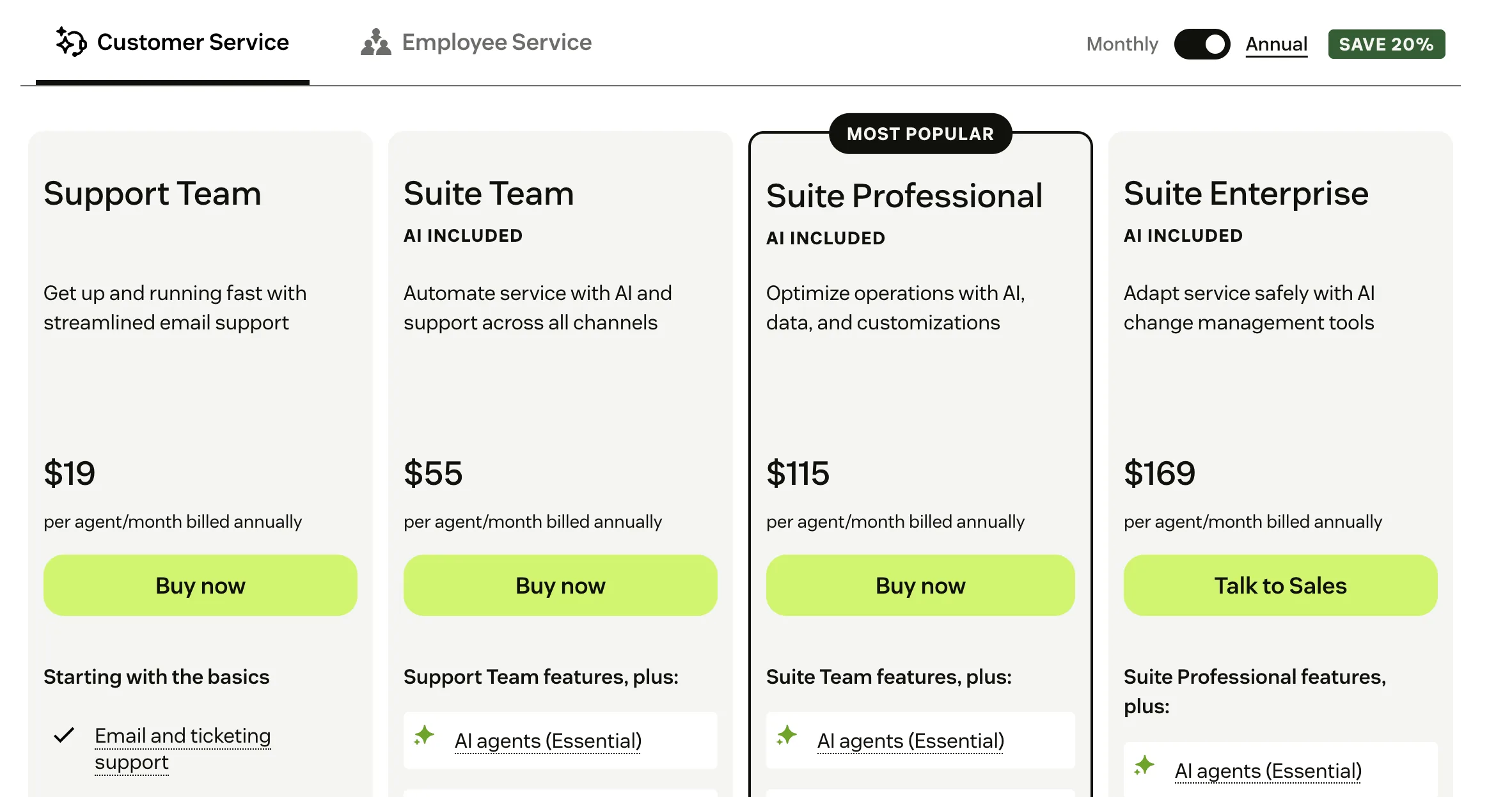
You need to be on the Suite Professional, Suite Enterprise, Support Professional, or Support Enterprise plans. If you're on the Suite Team or the Support Team, you'll need to upgrade your base plan first.
Step 2: Buy the add-on
If you have an online-assisted account, go to Admin Center, then Billing, then Subscription, click Manage, and add Copilot from the shopping cart.
If you have a managed or enterprise account, contact your Zendesk account representative.
If you're new to Suite Professional or Enterprise and know you want Copilot, the bundle saves money compared to buying it separately. Talk to sales for the bundle pricing.

After purchase, AI features appear in the Admin Center under the AI sidebar.
Step 3: Enable auto assist and configure access
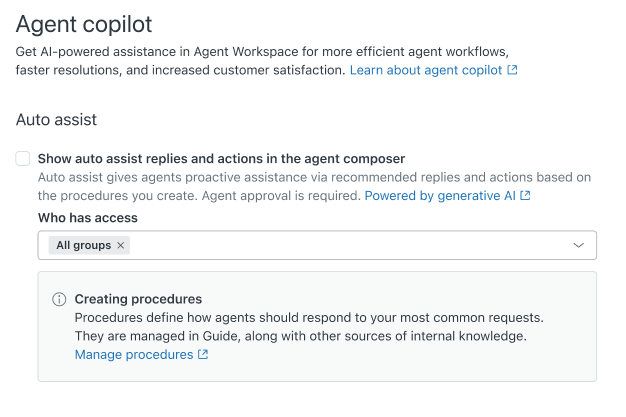
In Admin Center, click AI in the sidebar, then Agent Copilot, then Auto Assist.
Toggle "Show auto assist replies and actions in the agent composer."
In the "Who has access" field, search and select the agent groups that should see auto-assist suggestions. By default, all groups have access. That's too aggressive for testing. Limit to one pilot group first.
Step 4: Write your first procedure
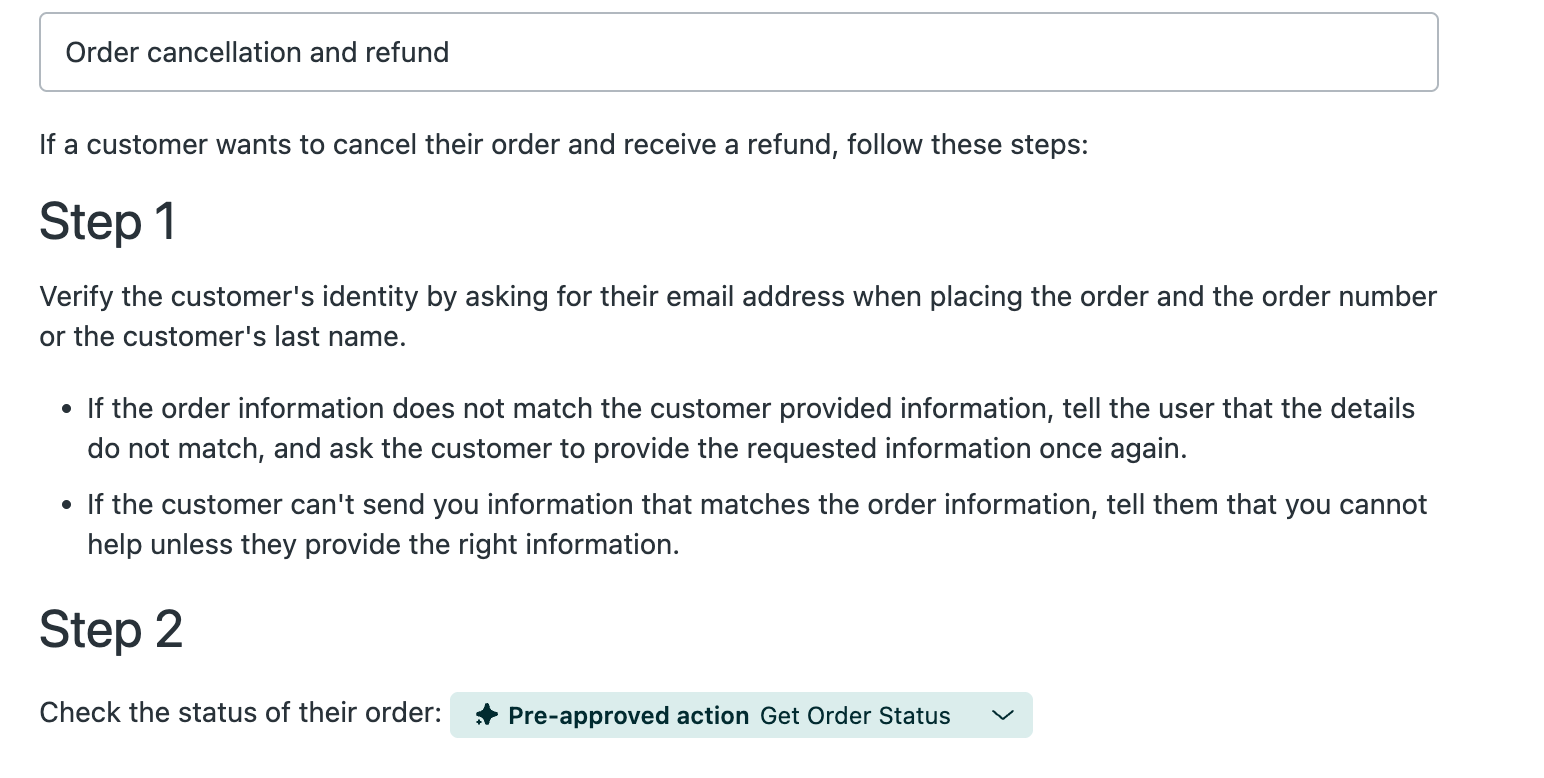
Procedures are step-by-step instructions Copilot follows when generating suggestions. They live in Knowledge Admin under Manage articles, then Procedures.
Pick one repetitive ticket type to start with, such as order cancellations, password resets, refund requests, and billing questions, which are all good first procedures.
Write the procedure as if you're onboarding a new agent. Describe what to ask, what to check, what action to take, and what to say.
Use consistent terminology throughout. If you have multiple words for the same thing (like "subscription" vs "plan"), pick one.
Include conditions if behavior changes by customer type. For example: "First check if the customer is on the free or paid plan, then proceed."
Zendesk now automatically generates procedure drafts from your ticket history each week (up to 3 per brand), and most admins miss them. Find them in Admin Center under AI, then Agent Copilot, then Auto Assist, or in the Recommendations page. Review, edit, publish. Much faster than writing from scratch.
Step 5: Set up actions
There are two types of actions: standard and custom.
- Standard actions require zero configuration. They cover ticket field updates, status changes, assignee and group changes, and Shopify operations such as order lookups, cancellations, and refunds.
- Custom actions require API setup. Create them in Admin Center under Apps and Integrations, then Actions. Each custom action needs a description that helps the AI extract the right inputs. Be specific. "The customer's 10-digit order number" works better than "order number."
Auto assist limits suggestions to 4 actions per turn, so plan procedures with this in mind.
Mark information-gathering actions (read-only API calls) as pre-approved. They'll execute automatically without bothering your support agent.
If your procedures need to read from other sources, such as Slack, Jira, Notion, Confluence, or other tools you use, native Zendesk actions get complicated quickly. Every external lookup is a custom API integration that engineering has to build and maintain.
This is where Pluno helps teams that don't want to spend engineering time on every connection. Pluno installs from the Zendesk Marketplace in under 10 minutes and ships with native integrations to Slack, Jira, Notion, and Confluence, so engineering doesn't have to build or maintain them. Updates sync both ways automatically, and it runs in the same Zendesk sidebar as native Copilot. If you have internal systems beyond the standard set, Pluno also supports custom API integrations, so you can extend it to your own product and platforms.
Step 6: Tag eligible tickets with triggers
Auto assist only runs on tickets that carry the agent_copilot_enabled tag. Without the tag, auto assist stays inactive on the ticket.
Best practice is to only tag tickets that match a procedure you've actually written. Tagged tickets without a matching procedure get generic suggestions, which is worse than no suggestions because agents lose trust in the tool.
Create a trigger in Admin Center under Objects and rules, then Business rules, then Triggers. Add the agent_copilot_enabled tag when the ticket matches the intent your procedure covers (for example, intent prediction = "Order cancellation").
Apply a procedure-specific tag too, like copilot_order_cancellation. You'll thank yourself when reporting in Explore later. Also, add a "ticket does not contain tag agent_copilot_enabled" condition so the trigger fires only once per ticket.
Step 7: Test before going live
Limit auto assist access to one pilot group only. Don't roll it out to the whole team yet.
Create test tickets via an external email address. Auto Assist won't reply to comments from agent emails on your account.
Try to solve the test ticket using Auto Assist's suggestions. If the suggestions are off, the procedure needs to be rewritten. Expect 3 to 5 rewrites per procedure before you get it right.
Zendesk doesn't offer a way to run Copilot against your historical tickets. The only test environment is live tickets, even when you limit access to a pilot group.
If a live-pilot rollout feels too risky, Pluno offers a separate simulation against your historical Zendesk tickets. The simulation is built around Pluno's Deflection AI module, but it also serves as a quality benchmark for your ticket history when you're evaluating any AI for support.
Step 8: Monitor performance in Explore
Once Copilot is live, you'll want to know whether it's actually helping your team or quietly making things worse. The trigger you built in Step 6 makes this measurable. Every ticket Copilot has assisted carries the agent_copilot_enabled tag, which provides a clear dividing line in Explore.
Build two calculated metrics (tickets with the tag and tickets without) and compare resolution time, CSAT, and first response time across the two groups. If Copilot isn't moving those numbers, something in your setup needs to be revisited.
The other metric worth watching weekly is procedure acceptance rate, which you'll find in the Copilot - Agent Productivity dashboard. It shows how often agents accept a suggestion without modifying it. Anything below 50% means the procedure needs to be rewritten. Anything above 80% indicates agents trust it, so you can safely expand it to additional groups or related intents.
How to Avoid a Complicated Zendesk AI Copilot Setup
If those eight steps feel like a lot, you're not wrong. Many teams running into the procedure-writing, custom-action, and trigger-tagging slog end up using Pluno's AI Copilot for Zendesk, which installs in minutes and reaches into past tickets and external tools that native Copilot doesn't touch.
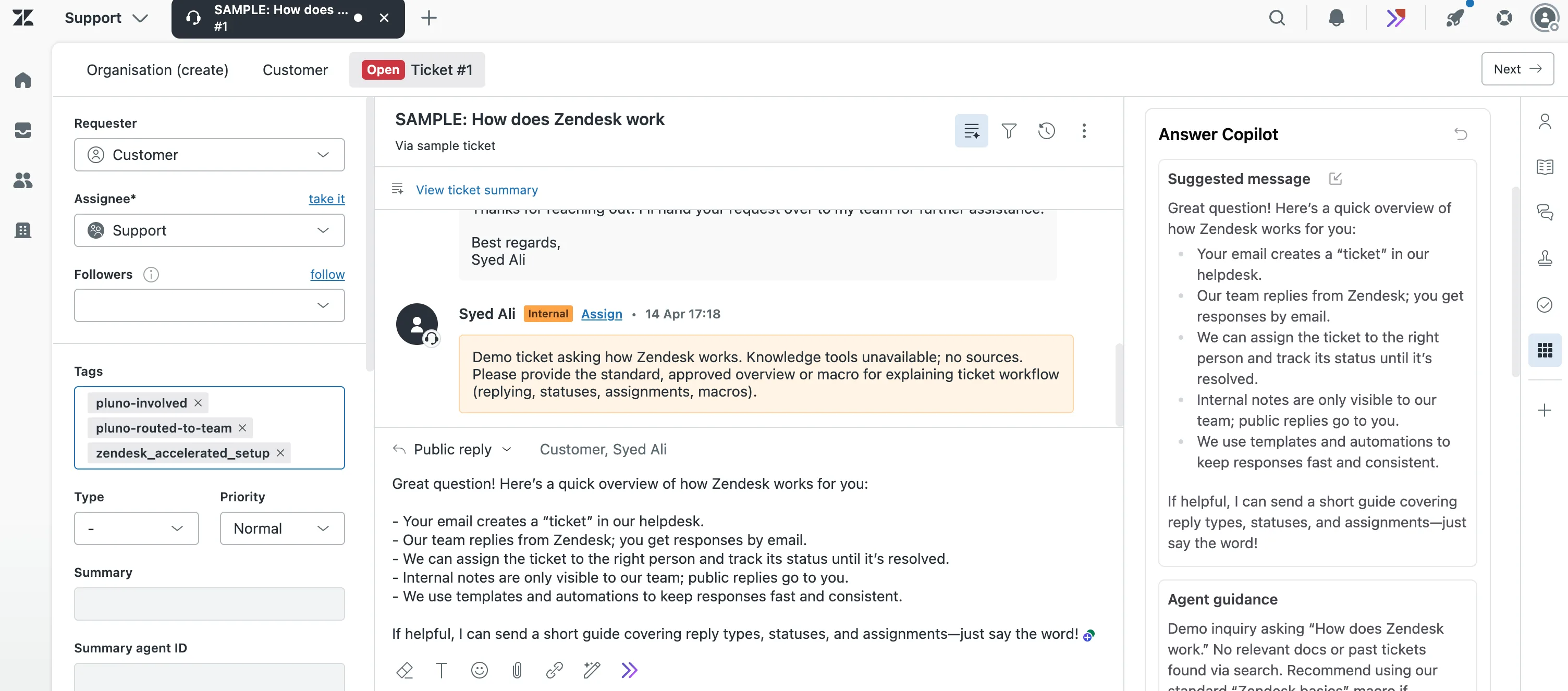
Pluno has an AI Copilot that runs inside Zendesk's Agent Workspace, just like native Zendesk Copilot. The difference is in how it's trained. Native Zendesk's Copilot relies on macros, help center articles, and admin-written procedures.
Pluno trains its Copilot automatically on your resolved tickets and connects to Slack, Jira, Notion, Confluence, and other documentation tools out of the box. Your team's actual resolution history (where the long-tail edge cases and recent fixes live) becomes the AI's source of reasoning alongside your help center.
Pluno's AI Copilot replaces the paid native Copilot add-on for complex-ticket teams. The free Copilot features that come with Suite Professional (ticket summaries, suggested macros, merging suggestions) can remain as workspace utilities. Pluno also lets you buy any number of seats you want, so you're not forced to pay for every agent on your team.
How to set up Pluno's AI Copilot in 3 easy steps
The whole process is three steps:
- Install from the Zendesk Marketplace: search for Pluno, click Install, then connect your account.
- Connect any extra knowledge sources. Past tickets and help center are automatic. If you also use Notion, Google Docs, or have internal PDFs and CSVs, drag and drop them into the Pluno dashboard. You can also connect Jira, Confluence, and other tools through native integrations or APIs.
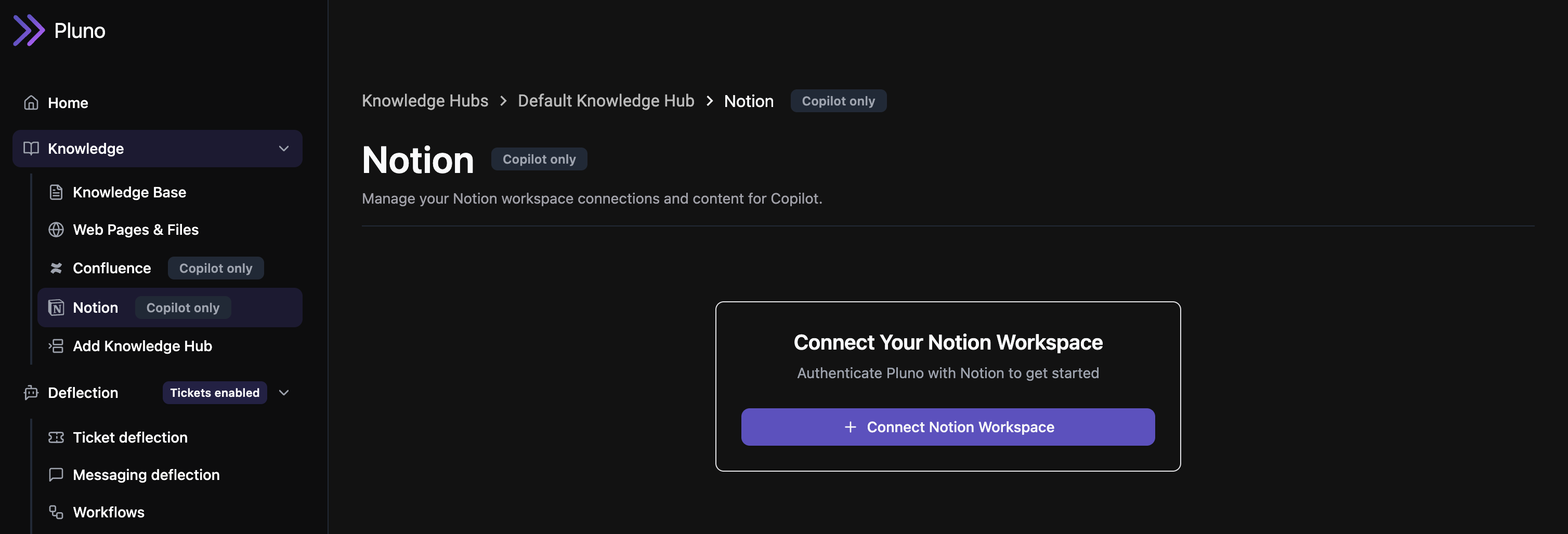
- Wait for training. Pluno learns from your resolved tickets in the background. Most teams see useful suggestions the same day, with full training complete within a day or so, depending on ticket volume.
That's it. No procedures to write, no triggers to configure, and no required engineering work for the standard setup. The 14-day trial is free and includes every module, so you can compare side by side with native Zendesk Copilot before committing.
"The transition has been pretty smooth. It was pretty much just plug and play."
Joseph D'Appuzo, Customer Support Manager at Smartness
Tips and Tricks to Get the Most Out of Zendesk AI Copilot
Configuration is where most Copilot value is won or lost. The tips below cover the choices and underused features that separate teams getting real productivity gains from teams that quietly turn Copilot off after a quarter.
1. Use intelligent triage to gate which tickets reach Copilot
Intelligent triage is the most underused feature in the Copilot add-on. It detects intent, language, and sentiment on every incoming ticket, and you can use those predictions to drive your trigger logic.
The practical pattern is to tag a ticket with agent_copilot_enabled only when triage detects an intent you've actually written a procedure for. Tickets with no matching procedure remain untagged, and your agents handle them as usual without seeing generic Copilot suggestions.
This avoids the most common Copilot failure mode, in which agents lose trust because they keep seeing irrelevant suggestions on tickets for which the AI has no real guidance. Filtering at the trigger level means agents see Copilot suggestions only when they are likely to be useful.
2. Group similar intents under one procedure
Don't write a separate procedure for every minor variation. Auto assist works best when a single procedure covers a class of issues, using conditions to handle differences.
The clearest example is subscription cancellation. Monthly, annual, and trial cancellations are functionally the same conversation with different details. One procedure that says "check the customer's plan type, then proceed with the matching cancellation flow" beats three procedures that mostly duplicate each other.
You'll have less to maintain, the AI will have a cleaner mental model, and acceptance rates tend to be higher because the procedure sees more relevant tickets.
3. Use communication guidelines to enforce brand voice
Procedures define what Copilot does. Communication guidelines define how it sounds. They're configured separately, in different parts of Admin Center, and most teams set up procedures without ever touching communication guidelines.
Set tone (formal versus casual), reply length, sign-off conventions, and language preferences in Admin Center under AI, then Communication guidelines. Each brand gets its own guidelines. Skip this, and every Copilot suggestion ends up sounding like the LLM's default voice, which is usually a bit too long, a bit too formal, and doesn't match how your team actually writes.
4. Treat your help center as Copilot's main fuel
Suggested first replies, ticket summaries, expand and tone tools, and a chunk of auto-assist all pull from your help center. If your help center is stale or wrong, every Copilot suggestion is downstream of that.
Audit help center articles as frequently as possible. Archive anything outdated. Update articles where the product has changed since they were written. Zendesk's help center expansion and tone tools, which are also part of the Copilot add-on, make this faster than rewriting from scratch.
However, if you have a lot of documentation that lives in Notion, Google Docs, Confluence, Jira, Slack, or other tools and migrating it into the help center isn't realistic, this is where using other AI Copilots such as Pluno becomes the practical path, since it connects to those sources directly without requiring you to rebuild your knowledge in Zendesk or keep it permanently in sync. We cover this in the Pluno section below.
5. Set up autoreplies with intelligent triage
Most teams set up Copilot for the agent workspace and stop there. The Copilot add-on also includes autoreplies with intelligent triage, which can send a single AI-generated email reply before any agent touches the ticket.
The setup is more involved than auto assist. Triage has to detect a clean intent, the autoreply has to be confident enough to actually answer the question, and you need a fallback path for when the autoreply gets it wrong. For high-volume FAQ-style email categories (where is my order, how do I reset my password, what's your refund policy), this can take a meaningful share of one-shot email tickets off your team's plate.
Autoreplies are not the same as Zendesk's AI Agents add-on. AI Agents handle full multi-turn conversations across channels. Copilot autoreplies send a single email response, and if the customer replies, the conversation moves to a human agent. For teams that need conversational AI deflection across chat, messaging, and follow-up emails, AI Agents (or a Marketplace alternative) is still the right tool.
6. Plan multi-brand setups carefully
Most of Copilot's configuration is brand-scoped. Procedures, communication guidelines, AI-generated procedure drafts, and intelligent triage models are all per-brand. If you run multiple brands on the same Zendesk instance because of acquisitions, regional variations, or product-line splits, you're configuring Copilot once per brand rather than once for the whole instance.
Plan for this upfront. Build your procedures so you can copy and adapt them across brands instead of starting from scratch each time. Keep a shared internal doc with the standard procedure structure your team uses. And configure communication guidelines per brand on day one. Brand voice is the most visible difference between two Copilot setups, so retrofitting it later is painful.
How to Resolve the Complex Tickets Zendesk Copilot Can't
By now, native Zendesk Copilot's structural limits have come up a few times:
- It doesn't learn from your resolved tickets.
- It doesn't natively connect to Slack, Jira, Confluence, Notion, or other internal tools.
- It doesn't offer a simulation mode for testing on historical data.
- It takes 4 to 8 weeks of admin time to set up properly.
These are the trade-offs Zendesk made when designing Copilot around procedures, macros, and the help center.
The places where those trade-offs hurt most (complex tickets, fragmented knowledge, fast rollouts, low-risk testing) are exactly what Pluno was built to address.
Pluno installs directly from the Zendesk Marketplace in under 10 minutes, runs in the same Agent Workspace as native Copilot, and trains on your team's actual resolution history and internal data alongside your help center.
The rest of this section walks through what it fills in, when it fits, and how to test it without committing.
What Pluno fills in
- Trained on your past resolved tickets. Every solved ticket becomes part of the AI's reasoning. Troubleshooting paths, diagnostic questions, edge-case workarounds. This is the structural difference from how Zendesk Copilot works.
- Connects to Slack, Jira, Notion, and other internal tools. Standard integrations cover the major sources out of the box. For internal systems beyond the standard set, Pluno also supports custom API integrations.
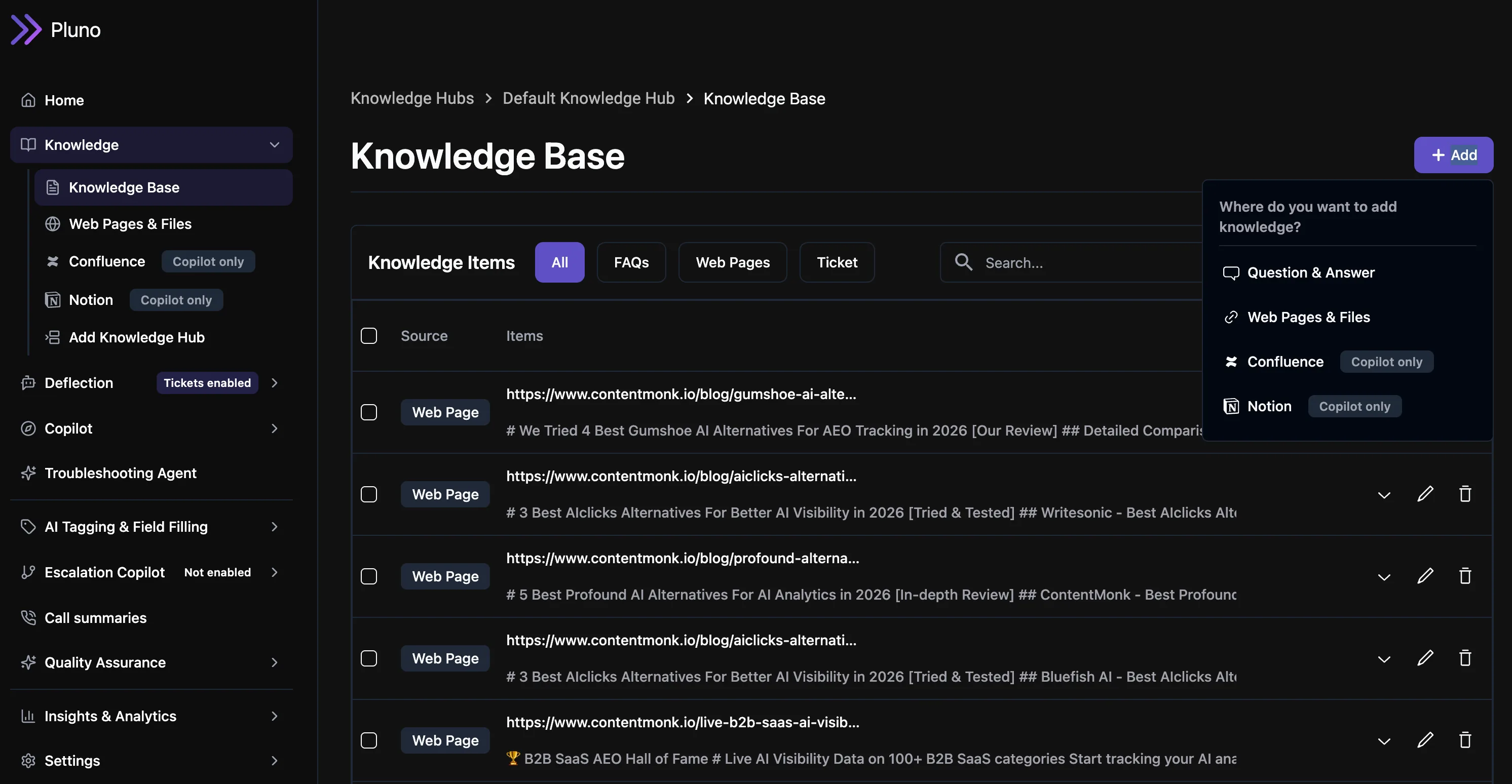
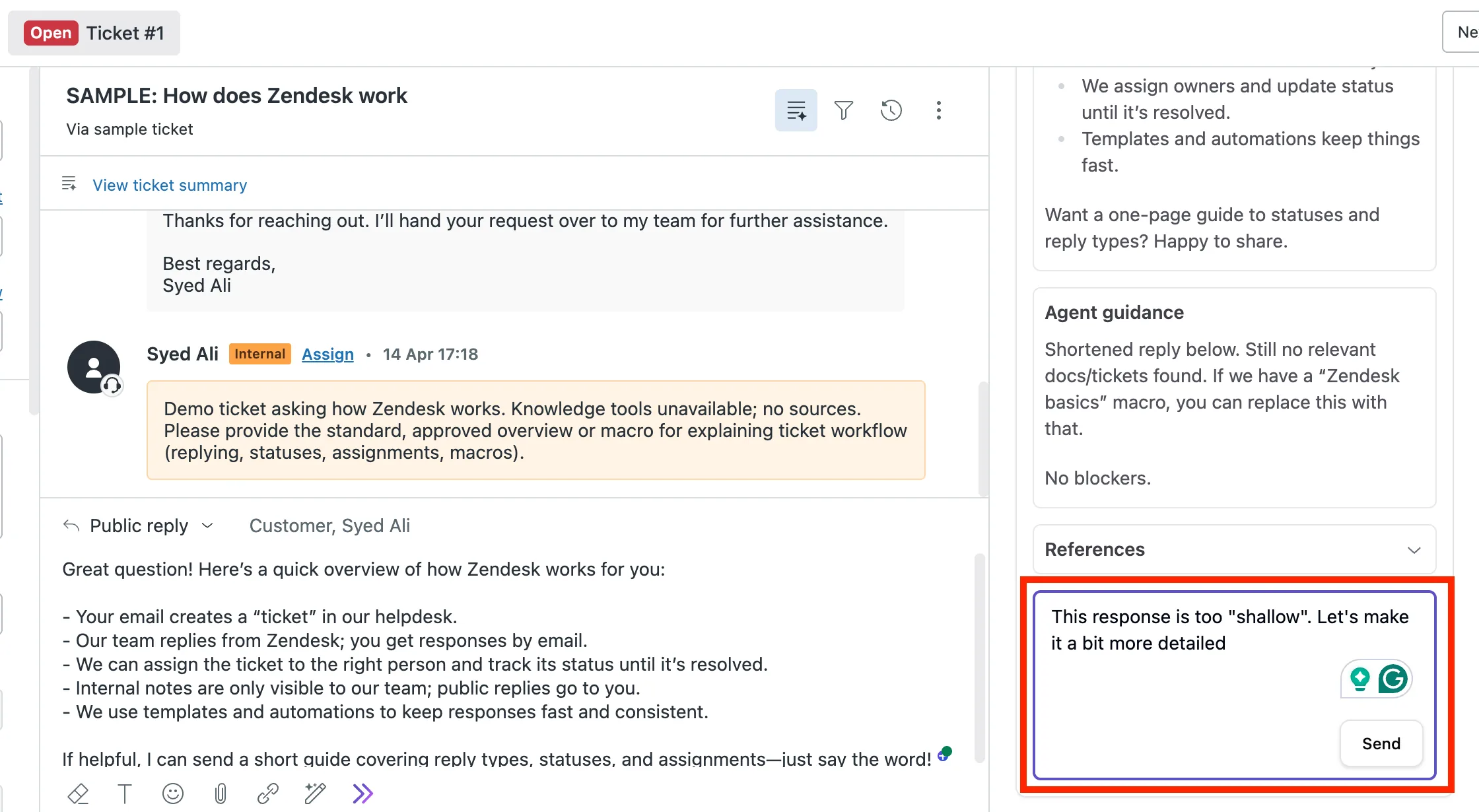
- Reasoning transparency. Every suggestion shows the sources used and the logic behind the answer. Agents can chat with the Copilot in the sidebar to refine.
- Simulation against your past tickets. A separate simulation runs against your historical Zendesk tickets to forecast resolution rate before going live. It's built around Pluno's Deflection AI module and works as a quality benchmark on ticket history.
- Setup measured in minutes. Pluno installs in under 10 minutes and learns from your historical tickets automatically once connected.
The full Pluno platform covers AI Copilot (agent assist), Deflection AI (autonomous ticket resolution), Escalation Copilot (Slack and Jira sync, currently free on the Marketplace), AI Tagging, QA (automated quality scoring on closed tickets), Trends and Topics (cluster analysis on ticket volume), and Call Summaries (template-based summaries on Zendesk Talk tickets). Most teams start with AI Copilot or Escalation Copilot and grow into Deflection AI once they trust the quality.
When Pluno fits
Pluno's AI Copilot replaces the paid Zendesk Copilot add-on for teams that need cross-system context and reasoning trained on resolved tickets. The free Copilot features that come with Suite Professional (ticket summaries, suggested macros, merging suggestions) can stay in place as a workspace utility.
For teams whose tickets are technically complex (B2B SaaS, technical products, multi-system support), this keeps the agent experience simple. Agents get one reasoning layer in the sidebar, trained on the team's actual resolution history, with native connections to the tools where the rest of your knowledge lives.
"The internal copilot… is really helpful especially for new hires when we're maybe a little bit stuck on what should my next troubleshooting step be."
Sarala Conlan, Sr. Customer Support Manager at Kojo
Frequently Asked Questions About Zendesk AI Copilot (FAQ)
Is Zendesk AI Copilot worth $50 per agent per month?
It depends on what you compare it to. If you're already on Suite Professional and your support team writes a lot of macros and help center articles, the auto assist features pay for themselves quickly through faster first replies and consistent tone. If your tickets are technically complex and your knowledge lives mostly in resolved tickets and engineering tools, Zendesk Copilot alone won't capture that. A Marketplace alternative like Pluno's AI Copilot is built for that case, or budget for a longer setup window if you stay on native Copilot.
Does Zendesk AI Copilot use my past tickets to learn?
Not in the way most teams expect. Zendesk Copilot's reasoning is grounded in macros, help center articles, and admin-written procedures. It can use ticket history for some features (like merging suggestions and macro suggestions for admins), but it doesn't synthesize answers from past resolved tickets the way a tool trained on ticket history would. This is the most common confusion. Tools like Pluno fill this specific gap.
Can I use Zendesk AI Copilot on Suite Team?
No. The Copilot add-on requires Suite Professional, Suite Enterprise, Support Professional, or Support Enterprise. If you're on Suite Team ($55 per agent per month), you'd need to upgrade to Suite Professional ($115 per agent per month) before you could even buy the add-on. That puts the real entry cost at about $165 per agent per month once you factor in the upgrade.
How long does it take to set up Zendesk AI Copilot?
Plan for 4 to 8 weeks for a typical mid-size team. The work is in writing procedures, building custom actions, configuring triggers, testing on a pilot group, and iterating. Larger enterprise rollouts often run 3 months and may include paid implementation services from Zendesk ($5K to $20K). Compare that to Pluno's under-10-minute install plus a day or so for the AI to learn from your ticket history.
What's the difference between Zendesk AI Copilot and Zendesk AI Agents?
Copilot is agent assist. It works alongside your human team inside the Agent Workspace. AI Agents are autonomous chatbots that talk directly to customers. They're separate add-ons with separate pricing (per-seat for Copilot, per-resolution for AI Agents). Knowledge configured for one doesn't automatically transfer to the other. Most teams that want full AI coverage run both layers: a deflection AI (Zendesk AI Agents or Pluno's Deflection AI) for tickets the AI can resolve on its own, plus a copilot (Zendesk AI Copilot or Pluno's AI Copilot) for the tickets that need human handling.
Can I test Zendesk AI Copilot on historical tickets before turning it on?
No. Zendesk doesn't offer a way to run Copilot against past tickets. The only test environment is live tickets, even when you limit access to a pilot group. If you need to forecast performance before going live, Pluno offers a separate simulation against your ticket history that's built around its Deflection AI module and works as a quality benchmark.
Does Zendesk Copilot support email tickets and chat tickets equally?
It works on both, but auto assist is optimized for messaging and chat first. Email tickets must originate from an address that isn't tied to any agent in your Zendesk account, and the auto-assist flow is built around ongoing conversation. Long formal email threads don't trigger it as reliably. For email-heavy support, you'll get more value from suggested first replies, ticket summaries, and macro suggestions than from full auto assist procedures.
Can Copilot perform actions automatically without agent approval?
Yes, but only for actions you mark as pre-approved in a procedure. This is best reserved for read-only actions like checking order status or looking up customer info. Anything that changes data (refunds, cancellations, account changes) should keep agent approval as a safety net. Auto assist limits suggestions to four actions max per turn.
What languages does Zendesk Copilot support?
Auto assist works in any language supported by OpenAI, which covers most major languages. Procedures can be written in one language and Copilot adapts suggestions to the language of the customer conversation. Communication guidelines work the same way. Intelligent triage detects language as part of its standard output, which is useful for routing tickets to language-specific teams.
Does Zendesk Copilot work with Jira, Slack, or Notion?
Not natively. Zendesk Copilot stays inside Zendesk and connects to external tools through custom actions, which require API setup and engineering work. For teams that need their AI to pull context from Jira (open bugs), Slack (engineering discussions), or Notion (internal docs), Pluno offers these connections out of the box. Pluno's Copilot runs parallel searches across past tickets, help center, Slack, Jira, Notion, and APIs in the same Zendesk sidebar.