Your support team is fast in Zendesk and fluent in Slack. The trouble is the gap between them. Engineers reply in Slack threads that never make it into the ticket. Tickets get assigned to someone who is heads-down in Slack and misses them. New tickets pile up while agents context-switch between tabs.
The Zendesk Slack Integration is built to close that gap. It connects your Slack workspace to Zendesk so your support team can create tickets, receive notifications, add internal notes, and run Side Conversations without leaving Slack. Used well, it cuts response time and keeps the trail of customer support interactions inside the ticket. Used badly, it floods every Slack channel with noise until people mute it.
This guide walks through how the Slack for Zendesk integration works, how to set it up, where it falls short on complex tickets, and what to add when it does. For the other tools you can connect, see our Zendesk integration overview.
TL;DR
- What it does: the official Slack for Zendesk app sends ticket notifications to Slack, lets anyone create tickets from Slack, powers Side Conversations, and adds an optional Answer Bot. It is free for Zendesk users.
- How to set it up: install the Zendesk app in Slack, connect the workspace in the Zendesk admin center, invite @Zendesk to channels, then create triggers that notify only on high-priority events.
- Where Pluno fits: if complex tickets dominate your queue, add an AI support agent like Pluno that learns from past tickets and connects to Slack, Jira, APIs, and internal docs.
What the Zendesk Slack Integration Is
The Zendesk Slack Integration is the official Slack app for Zendesk Support. It connects a Zendesk account to a Slack workspace and lets your support team run common ticket actions from inside Slack channels. The Slack for Zendesk Support integration is a Built by Zendesk integration and its Answer Bot for Slack feature is free within the integration, but you still need eligible Zendesk and Slack accounts, and some broader Zendesk capabilities depend on plan tier.
In practice, the Slack and Zendesk app does four things:
-
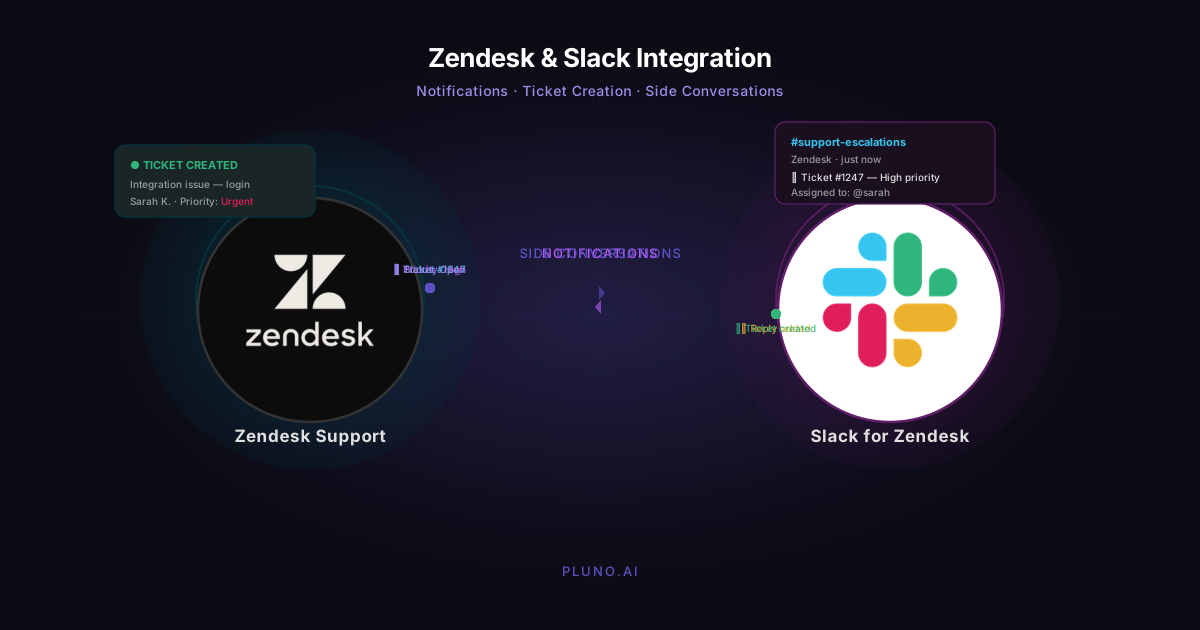
Sends Slack notifications when tickets are created or updated, based on Zendesk triggers.
-
Lets users create tickets directly from Slack with /zendesk, Slack message actions, the Zendesk app in the Slack sidebar, or @Zendesk mentions in Slack Connect channels.
-
Powers Side Conversations so agents can start Slack threads from a ticket without leaving the ticket.
-
Optionally adds an Answer Bot that suggests knowledge base articles in Slack channels.
Availability and language support depend on your Zendesk bot setup; Zendesk notes that Answer Bot for Slack applies to customers with qualifying AI agent configurations and does not support article suggestions in Slack for Chinese, Korean, Japanese, or Thai.
It is not a full ticketing system replacement. Slack stays where conversations and collaboration happen. Zendesk stays the system of record for tickets, SLA, and reporting.
Why Slack and Zendesk Together Matter for Complex Support
Complex tickets rarely resolve inside the help center. They need engineers, account context, billing data, or a check on a recent deploy. That knowledge typically lives in Slack threads, Jira tickets, and internal docs.
If your support process keeps that knowledge stuck in Slack, three things happen.
First, agents waste time chasing engineers across direct messages and channels. Second, the resolution never makes it back into the ticket, so future agents repeat the work. Third, customer support tickets sit longer in pending status, dragging out resolution time and customer experience.
A well-configured Zendesk Slack integration helps with the first two by keeping escalation threads tied to the ticket and routing the right notifications into the right Slack channels. It does not, by itself, solve the third. For that you typically need escalation rules, ownership norms, and sometimes AI on top.
How the Slack for Zendesk App Works
The Slack for Zendesk integration runs four core capabilities. Each maps to a different moment in the support process.
Ticket notifications in Slack
Zendesk triggers can post notifications to a Slack channel whenever a ticket is created, updated, or changes priority. Notifications run one-way (Zendesk → Slack) and are configured per trigger, so each rule maps to its own Slack channel.
Ticket creation from Slack
Agents and other Slack users can create a ticket without leaving Slack in four ways:
-
Slash command: Agents can type /zendesk in an eligible Slack channel, then select Create a ticket from the menu. This works in any channel where the Zendesk app has been invited.
-
Message actions: Click the actions menu on a Slack message and pick "Create Zendesk ticket" to convert that message into a ticket.
-
Zendesk app in Slack: Open the Zendesk app from the Slack sidebar and create a ticket from there.
-
Slack Connect mention: In a Slack Connect channel where the Zendesk app has been invited, users can mention @Zendesk to create a ticket.
In the create new ticket form, agents can set a subject, more detailed description, requester, group, brand, and ticket form. After submit, the ticket appears in Zendesk Support like any other ticket and is linked back into the Slack thread.
Side Conversations for Slack
Side Conversations let an agent open a Slack thread from inside a Zendesk ticket. The agent picks Slack as the conversation type, selects a Slack channel, and writes a message. Replies in that Slack thread show up in the ticket's context panel, and ticket events are recorded automatically. This is how you initiate Slack threads from within a Zendesk ticket without cluttering the public conversation with the customer.
Answer Bot in Slack
Answer Bot listens on selected Slack channels and replies with relevant knowledge base articles. It is most useful in internal #ask-support channels or in customer-facing Slack Connect channels for top accounts. It deflects repetitive questions before they become tickets.
Availability and language support depend on your Zendesk bot setup; Zendesk notes that Answer Bot for Slack applies to customers with qualifying AI agent configurations and does not support article suggestions in Slack for Chinese, Korean, Japanese, or Thai.
Bi-directional sync, with limits
The integration supports two-way workflow actions in limited areas: Zendesk can send ticket notifications into Slack, and Slack users can create tickets or add internal notes/comments back to Zendesk. It is not a full two-way ticket editor: closing tickets and editing ticket fields still require Zendesk Support. The integration supports some Slack Connect and Enterprise Grid scenarios, including ticket creation in Slack Connect channels via @Zendesk but it does not support organization-shared channels in Enterprise Grid, and Zendesk says the integration cannot be installed on a shared Slack workspace you do not own (Zendesk Support).
Common Approaches Teams Take
There is no single right way to wire Slack and Zendesk. The four most common patterns are below.
| Approach | What it does | Best for | Watch out for |
|---|---|---|---|
| Native notifications only | Pipes ticket events into Slack channels via triggers | Small teams, low ticket volume | Channel turning into noise |
| Native + Side Conversations | Adds Slack threads inside tickets for collaboration | Teams escalating to engineering or ops | Side Conversations not enabled per Slack workspace |
| Native + Answer Bot | Adds article suggestions in Slack channels | Internal #ask-support, common questions | Help center coverage gaps |
| Native + AI support agent | Adds an AI agent that learns from past tickets and runs across Zendesk, Slack, and Jira | Complex products with high escalation rates | Vendor selection, change management |
The first two patterns are usually enough for simpler products. The last is worth considering when more than a quarter of your tickets need an engineer or a deep diagnostic step.
Where Each Approach Falls Short
Each pattern has a specific failure mode. Knowing them up front saves you a painful rebuild later.

Native notifications often turn into noise. If you notify a Slack channel for every ticket event, agents start ignoring the channel within weeks. Filter aggressively. Only notify for high-priority tickets or specific status changes that need a human in the next 15 minutes.
Side Conversations work, but only if turned on. Side Conversations require activation per Slack workspace, and many teams forget this step. They also do not solve the underlying problem that engineers may answer in their own preferred Slack channel and never use the ticket thread. A documented "always reply in the ticket thread" norm matters more than the feature itself.
Answer Bot deflects only what the help center already covers. Answer Bot can deflect repetitive questions when the answer exists in your Guide knowledge base, but its performance depends heavily on help center coverage and tuning (Zendesk Support). That is real value, but it leaves the long tail of complex tickets untouched. Anything that needs internal knowledge, an API check, or troubleshooting steps will still escalate to an agent.
KB-first AI agents (Fin, Ada, Zendesk AI) plateau on complex products. Many AI support agents can use help center content and, increasingly, external knowledge sources. But they are only as useful as the sources, permissions, integrations, and workflows they can access. When a ticket needs context from past tickets, Slack discussions, Jira issues, Sentry, Datadog, or an internal API, the agent needs reliable access to that context or it will hallucinate or escalate. Their answers can also be hard to trust when nobody can see which source the answer came from.
Flow-based bots get stale fast. Decision-tree bots are cheap to run, but they require constant work to maintain. Every product change forces a rewrite of paths and conditions. Adoption tends to drop as soon as the maintenance budget does.
What to Look For in a Slack-Zendesk Workflow
Before you set up the slack zendesk integration (or layer something on top), decide which of these capabilities you actually need.
Notification discipline. Targeted Slack notifications for high-priority events, not every status change. Separate channels for separate jobs (escalations, VIP, on-call).
Ticket creation without leaving Slack. Slash commands, message actions, and quick capture so internal teams can file customer inquiries without breaking flow.
Slack threads tied to tickets. Side Conversations or an equivalent so context stays attached to the ticket.
Limited two-way workflow. Zendesk ticket events should trigger the right Slack notifications, and Slack-side collaboration should be captured through internal notes or Side Conversations where appropriate.
Knowledge across boundaries. For complex products, a layer that can read past tickets, internal docs, Jira, and APIs, not just the help center.
Safe escalation. A handoff path that includes ticket history, customer context, and reproduction details, so engineers do not have to ask the same questions twice.
If you need only the first four, the native slack integration is enough. If you need the last two, you will probably want to add an AI support agent that connects Zendesk, Slack, and engineering systems.
This is the gap Pluno is built for. Most AI support agents stop at the help center. Pluno is an AI support agent for complex products that learns from past tickets, gathers diagnostic context, and runs inside Zendesk while connecting to Slack, Jira, APIs, and internal documentation. When confidence is low, it escalates with full context instead of guessing.
How to Set Up the Zendesk Slack Integration
You need administrator permissions in both Zendesk and Slack, plus permission to install apps into the Slack workspace. The flow below is the standard install for a single Slack workspace (Zendesk Support).
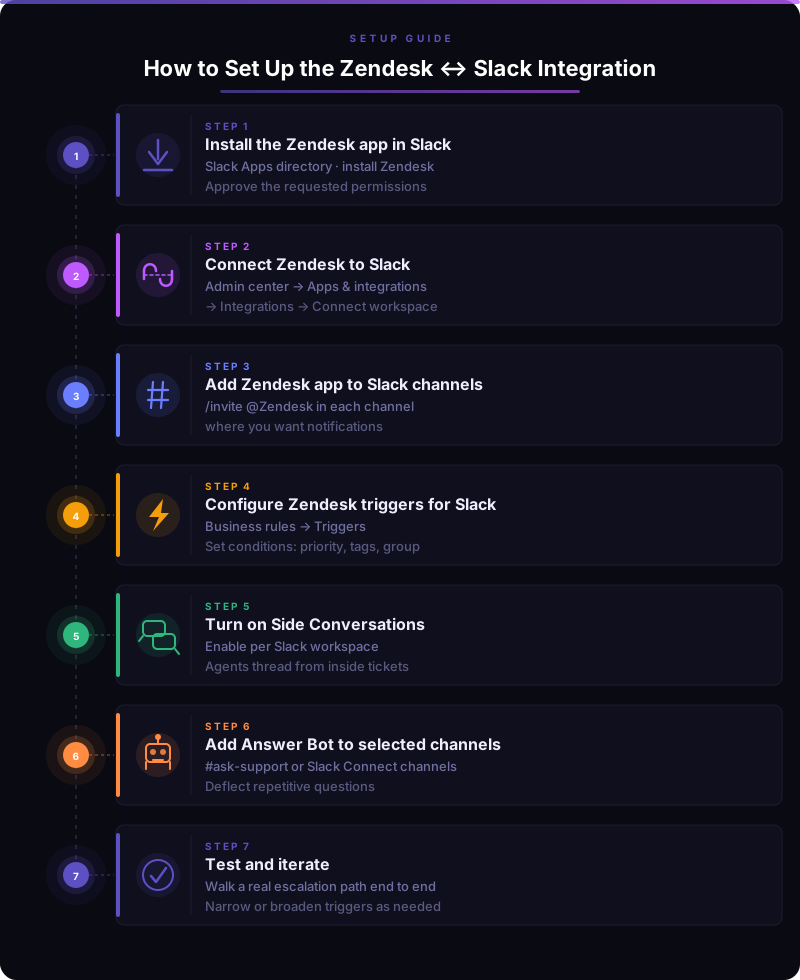
Step 1: Install the Zendesk app in Slack
Sign into your Slack workspace and install the Zendesk app from the Slack Apps directory. Approve the requested permissions. If your team uses a single Slack workspace, this is the only one you need to connect.
Step 2: Connect Zendesk to Slack from the Zendesk admin center
Open the Zendesk admin center. Click Apps and integrations in the sidebar, then go to Integrations. Find Slack in the drop down list and click View, then Connect workspace. Pick the Slack workspace you want to link in the drop down menu, then click Allow. Zendesk recommends a dedicated Zendesk user for the integration to avoid permission drift.
Step 3: Add the Zendesk app to the right Slack channels
In each Slack channel where you want notifications, run /invite @Zendesk. The slash command also works for private channels. Only channels with the Zendesk app installed will appear when you configure triggers.
A common channel layout:
-
#support-escalations for urgent bugs and high-priority customer inquiries
-
#vip-support for top-tier accounts
-
#ask-support for internal questions, paired with Answer Bot
-
#ticket-firehose (optional, opt-in) for low-priority observability
Step 4: Configure Zendesk triggers for Slack
Open Zendesk admin center and go to Objects and rules, then Business rules > Triggers. Create a new trigger, name it after the Slack workspace and Slack channel (for example "High priority -> #support-escalations"), and set the conditions that should fire it. Common conditions:
-
Priority is Urgent or High
-
Status changed to Open after Pending
-
Tags include outage or vip
-
Group is a specific Zendesk group
In Actions, pick Notify Zendesk integration and select the Slack workspace. Choose the Slack channel from the drop down list. Save. Repeat for each rule that needs its own channel.
Customize and filter notifications by critical types. The fastest way to wreck adoption is to send notifications for every ticket update. Be picky.
Step 5: Turn on Side Conversations for Slack
Side Conversations must be enabled per Slack workspace. Once on, agents can open the context panel inside a ticket, click the Side Conversations icon, click the plus sign, choose Slack, pick a channel, and post. Replies appear in the ticket as a side conversation thread, recorded as ticket events.
Step 6: Add Answer Bot to selected Slack channels
In Zendesk admin center, configure Answer Bot for Slack to listen on the channels where it makes sense (typically #ask-support or a Slack Connect channel for a key customer). Pick the brand, the user segment, and any topic restrictions. Test with a real internal question before broadcasting it across the company.
Step 7: Test and iterate
Start a Slack Side Conversation from a test ticket. Reply in the Slack thread and confirm the reply appears in the ticket as a side conversation event. Separately, test adding an internal note from a Slack ticket notification. Use /zendesk, then select Create a ticket from the menu and confirm the new ticket reaches the right Zendesk group. Walk a real escalation path end to end.
If a trigger over-notifies, narrow the condition. If a channel is silent, broaden it. The first two weeks are configuration, not failure.
Expected Outcomes and How to Measure Them
The Zendesk Slack integration is a means, not an end. The outcomes that typically improve are below, with a measurable proxy for each.
| Outcome | What to track | Source of truth |
|---|---|---|
| Faster first response on urgent issues | First response time on priority = Urgent or High | Zendesk Insights / Explore |
| Less time chasing engineers | Average time in pending status for escalated tickets | Zendesk Explore |
| Cleaner ticket history | Percent of escalated tickets with a Side Conversation attached | Zendesk Explore |
| Fewer repetitive questions | Article suggestion engagement or deflection from Slack | Zendesk bot / AI agent reporting |
| Lower notification fatigue | Slack channel mute rate, agent survey | Slack analytics, internal poll |
Set a baseline before you change triggers. Re-measure 30 and 90 days after install. If first response time drops on urgent tickets and the escalation queue clears faster, the slack integration is doing its job. If notification fatigue is rising, your triggers are wrong, not the tool.
FAQ
How do I integrate Slack with Zendesk?
Install the Zendesk app from the Slack Apps directory, connect the Slack workspace from the Zendesk admin center under Apps and integrations > Integrations, invite @Zendesk to each Slack channel that needs notifications, and create Zendesk triggers that notify the chosen Slack channels.
Is the Slack for Zendesk integration free?
Yes. The official slack zendesk integration is free for Zendesk users. You still need a Zendesk subscription and a Slack workspace, paid or free. Some advanced features such as multi-brand support depend on your Zendesk plan tier.
Can I create Zendesk tickets from Slack?
Yes. Agents can create tickets directly from Slack using /zendesk, the message actions menu, the Zendesk app in the Slack sidebar, or by mentioning @Zendesk in a Slack Connect channel.
Can I close a Zendesk ticket from Slack?
Not in the native app. You can create tickets and add internal notes or comments from supported Slack workflows, but closing tickets and editing ticket fields still have to happen in Zendesk Support.
What is the difference between Side Conversations and a Slack notification?
A Slack notification is a one-way message posted to a Slack channel when a Zendesk trigger fires. A Side Conversation is a Slack thread initiated from inside a ticket and tied to that ticket, so replies in Slack are recorded as ticket events. Side Conversations keep the trail of internal teams' input attached to the customer's ticket.
Does the Zendesk Slack integration support Slack Connect?
Yes, with limits. Zendesk supports ticket creation in Slack Connect channels via @Zendesk, but shared Slack workspaces and Enterprise Grid organization-shared channels are not supported. For Side Conversations in Slack Connect, Zendesk says the channel should be owned by your workspace; side conversations won't work in a Slack Connect channel owned by an external workspace.
How do I avoid notification fatigue in Slack channels?
Only notify for high-priority tickets or specific status changes. Use separate Slack channels for separate jobs, name triggers after their channel, and review the noise level monthly. If a channel is muted by most agents, the trigger is too broad.
What should I add when the native integration is not enough?
If complex tickets dominate your queue, the native slack zendesk integration is a foundation, not a finished system. Adding an AI support agent that learns from past tickets and connects to Slack, Jira, APIs, and internal documentation typically reduces escalations and shortens resolution time. Pluno is one example of this category, built for complex products and designed to escalate safely with full context when confidence is low.
Next Step
If your team is already running the Zendesk Slack integration but still loses time on complex tickets and engineering escalations, that is not a Slack problem and not a Zendesk problem. It is a knowledge problem.
Pluno is an AI support agent for complex products. We learn from past tickets, gather diagnostic context, run inside Zendesk, and connect to Slack, Jira, APIs, and internal documentation. We assist your human agents, manage cross-team escalations, and escalate safely when confidence is low.
If that sounds like the layer you have been missing on top of your slack and zendesk setup, we are happy to run a free simulation against your real ticket history.