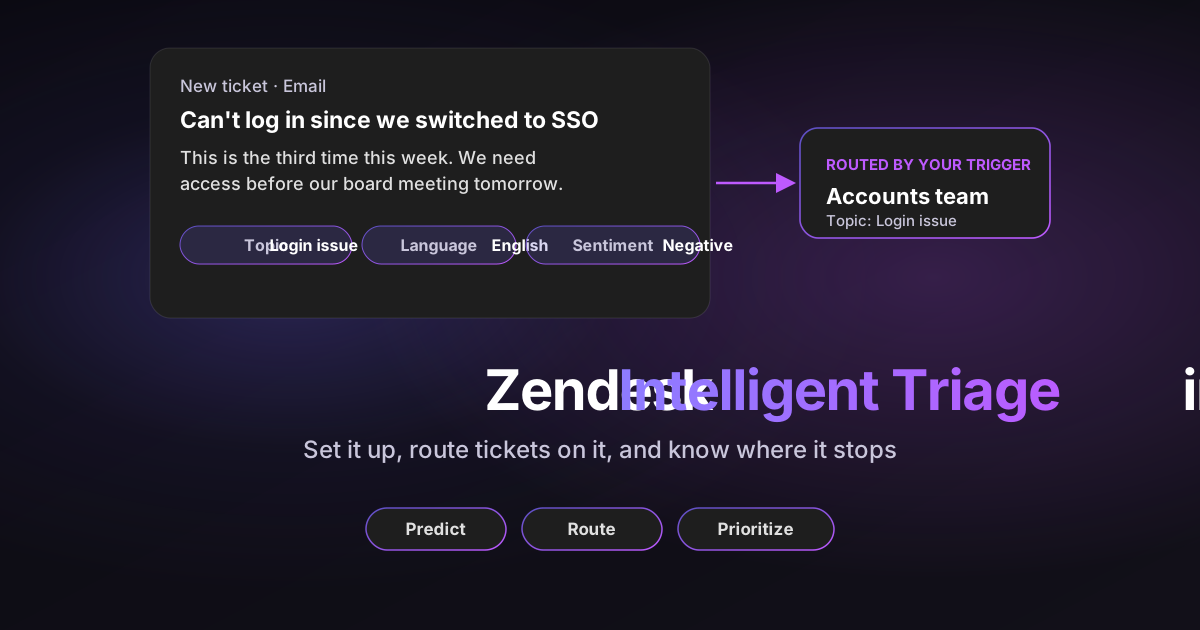
Zendesk intelligent triage reads each new ticket and labels it with a topic, a sentiment and a language. Your triggers can then send it to the right team without a person sorting the queue. A frustrated customer with a login problem reaches your accounts team, near the top of the queue, before anyone opens the ticket.
This guide covers what intelligent triage classifies, what it costs after Zendesk's July 2026 change, and how to set it up. Most of it is a complete routing setup you can copy: trigger order, exact conditions, a fallback for tickets that don't route, and a way to test accuracy before you rely on it.
Sources: every Zendesk fact links to Zendesk's help center or US pricing page, checked on October 22, 2026. The graphics are illustrations with sample data.
Disclosure: I work at Pluno, which sells an AI layer for help desks, including AI Tagging & Field Filling, which classifies Zendesk tickets for routing.
TL;DR
- What it does: intelligent triage classifies each new ticket by topic, sentiment and language, each with a High, Medium or Low confidence. Entities can also copy a value, such as a product name, into one of your fields.
- Price: classifications are free on Suite and Support Professional plans and up, but only for reporting. Using them in triggers and other workflows needs the Copilot add-on at $50 per agent a month, paid yearly. Team plans get neither.
- Setup: Admin Center > AI > Intelligent triage. Turn it on, then test accuracy on about two weeks of tickets before you route on it.
- Routing: order your triggers and give each job its own guard tag. Use "Status category is New", with an exception for tickets that start as Open, and send everything that doesn't route to a "Needs triage" view.
- Main limit: topic and sentiment come from the first message unless you turn on dynamic classification, and correcting a field doesn't retrain the model.
- Alternative: if you route on your own product categories, Pluno AI Tagging & Field Filling fills your own fields for your existing triggers, with no Copilot add-on.
What is Zendesk intelligent triage, and how does it speed up routing?
Zendesk intelligent triage is AI that classifies new tickets so you can route, prioritize and report on them automatically. Zendesk says it classifies tickets "by topic, sentiment, language, and entities, such as product names", writing each result to a ticket field that triggers and views can read.
The time saved comes from skipping the manual sort. Zendesk estimates 30 to 60 seconds saved on each request. If that held for every one of 4,000 monthly tickets, it would add up to roughly 33 to 67 agent hours; treat that as an upper bound, not a measured result for your queue.
| Classification | What it holds | Confidence field | What it reads |
|---|---|---|---|
| Topic (formerly Intent) | What the customer wants, for example Billing::Refund::Refund request | High, Medium or Low | Subject and first public message, or the latest message with dynamic classification |
| Sentiment | Very positive, Positive, Neutral, Negative or Very negative | High, Medium or Low | Same as topic |
| Language | About 150 detected languages | High, Medium or Low | First message only; never updated |
| Entities | A value you define, such as a product name or order number, copied into one of your custom fields | No confidence field | All public interactions by default, or only the first |
Confidence levels come from Zendesk's field reference, and entity behavior from its entity guide. Sentiment is calibrated for support, so a ticket isn't marked negative just because the customer has a problem.
About the name: Zendesk renamed "intent" to "topic" in June 2026. As of October 22, 2026, accounts that bought Copilot before June 11, 2026 may still see "Intent" and "Intent confidence" in fields, triggers, views and the ticket API. I use "topic" throughout.
If you only need tags from keywords, my Zendesk auto tagging guide covers the free option.
How much does Zendesk intelligent triage cost in 2026?
Zendesk intelligent triage classifications are free on Suite and Support Professional plans and up, for reporting only. To use them in triggers, automations or routing, you need the Copilot add-on, as Zendesk's July 2026 announcement confirms.
The free classifications arrived in a July 2026 rollout. Professional customers who finish the onboarding guide get them "at no additional cost", and workflows built during a past Copilot trial stop running once the trial ends.
Here's how it maps to Zendesk's pricing page:
| Plan | Price per agent a month (annual / monthly) | Intelligent triage |
|---|---|---|
| Support Team | $19 / $25 | Not included |
| Suite Team | $55 / $69 | Not included |
| Suite Professional | $115 / $149 | Classifications for reporting |
| Suite Professional + Copilot | $115 + $50 (Copilot paid yearly) | Classifications plus workflows and routing |
| Suite Enterprise + Copilot | Talk to Sales | Full intelligent triage |
For a 20-agent team on Suite Professional with annual billing, that's $2,300 a month in seats plus $1,000 for Copilot to route on triage. Copilot also adds auto assist and other agent AI, so you're paying for a bundle, not triage alone. Zendesk offers a 30-day Copilot trial, and my Zendesk AI pricing breakdown covers the full bill.
How to set up intelligent triage in Zendesk
You set up Zendesk intelligent triage in Admin Center, one classification at a time. With the Copilot add-on, all three are on by default; without it, they stay off until you finish the onboarding guide, according to Zendesk's setup article.
- Finish onboarding (Professional plans only). Complete Zendesk's intelligent triage onboarding guide. Without Copilot, this is what turns classifications on.
- Open the settings. Go to Admin Center > AI > Intelligent triage, choose Topic, Sentiment or Language, and click Manage settings.
- Pick channels. Email, web form, the API, the Web Widget, WhatsApp and Facebook Messenger are on by default. Voice works on post-call transcripts if transcripts are shown on tickets.
- Decide on dynamic classification. Tick it to have topic and sentiment re-evaluated on new customer messages. It only affects tickets created after you turn it on.
- Set exclusions. Tick the exclusion box to skip tickets that agents create.
- Show context to agents. Tick Ticket context to show the topic or sentiment in the ticket header, then click Save.
- Add the fields to your forms. With more than one ticket form, add the triage fields under Objects and rules > Tickets > Forms. With a single form, they appear automatically.
Add custom topics for your own categories
Custom topics add categories that Zendesk's prebuilt list doesn't have. Go to Admin Center > AI > Intelligent triage > Topic > Create topic, then give it a name and a description of what belongs in it. You can create up to 500 custom topics, and they classify as soon as you activate them.
Write the description carefully before you activate a topic, because overlapping topics cause low-confidence or wrong classifications. Zendesk's topic recommendations suggest new topics weekly and flag conflicts between existing ones.
Editing works differently from what you might expect. Zendesk says small name changes don't alter how tickets are classified, so use edits for wording and translations only. When a topic keeps catching two different requests, create a separate custom topic for the second one rather than rewriting the first.
Set up entities to fill product or order fields
Entities copy a specific value from the ticket into one of your custom fields. Go to Admin Center > AI > Intelligent triage > Entity > Add entity, choose a drop-down, multi-select or regex field, and map its values. Each value can have up to 30 synonyms.
By default, entities update the field from all public interactions, not only the first message. Matching is word-based, so "Mondo" matches "Mondo Phone3" but not "MondoPhone3", and entities only work in the language you created them in.
How to test intelligent triage before you route on it
Test before you route: Zendesk recommends about two weeks of data before changing workflows, and I'd use that time to measure accuracy on your own tickets. Zendesk publishes no accuracy figure that I could find, so your sample is the only evidence you'll have.
- Turn on classifications, with no routing. Let triage label tickets for two weeks while your current routing stays as it is.
- Pull a sample. Take about 100 classified tickets from the topics you plan to route on, spread across channels and confidence levels.
- Review them blind. Have a team lead record the correct topic and team for each ticket before looking at triage's answer.
- Calculate agreement. Divide the tickets where triage matched the reviewer by the tickets reviewed, per topic and per confidence level.
- Pick what to automate. Route only the topics and confidence levels that clear your bar, and leave the rest to the fallback view below.
A sample of 100 gives you a rough signal, not a precise accuracy rate. Topics with few tickets in the sample need a larger sample before you trust them.
What Zendesk ticket routing automation needs first
Zendesk ticket routing automation with intelligent triage works in two steps: triage writes the fields, then your rules read them and assign the ticket. Check these prerequisites before you build anything, because they decide what your routing can do.
- Copilot add-on. Triage conditions in triggers, automations and skill rules require it.
- A routing method on your plan. Zendesk gives you three ways to route: triggers, skills-based routing and Zendesk omnichannel routing.
- Plan limits on omnichannel routing. It's available on all Suite plans, but routing by priority and skills needs Professional or higher, and routing by SLA needs Growth or higher.
- The auto-routing tag for email. With the standard omnichannel queue, email tickets need a group and the auto-routing tag (
auto-routingby default) before they're assigned. Custom queues don't need the tag. - Skills on the ticket. If skills should affect assignment, a skill rule or trigger must add them to the ticket first.
The timing trap: classifications aren't on the ticket at the moment it's created. A trigger that combines "Ticket is Created" with a triage condition won't fire as expected on most channels, so Zendesk recommends "Status category is New". If some of your channels create tickets as Open, Zendesk says to use a different condition; I use "Status category is Open" plus "Agent replies less than 1" for those.
A complete Zendesk AI ticket routing setup to copy
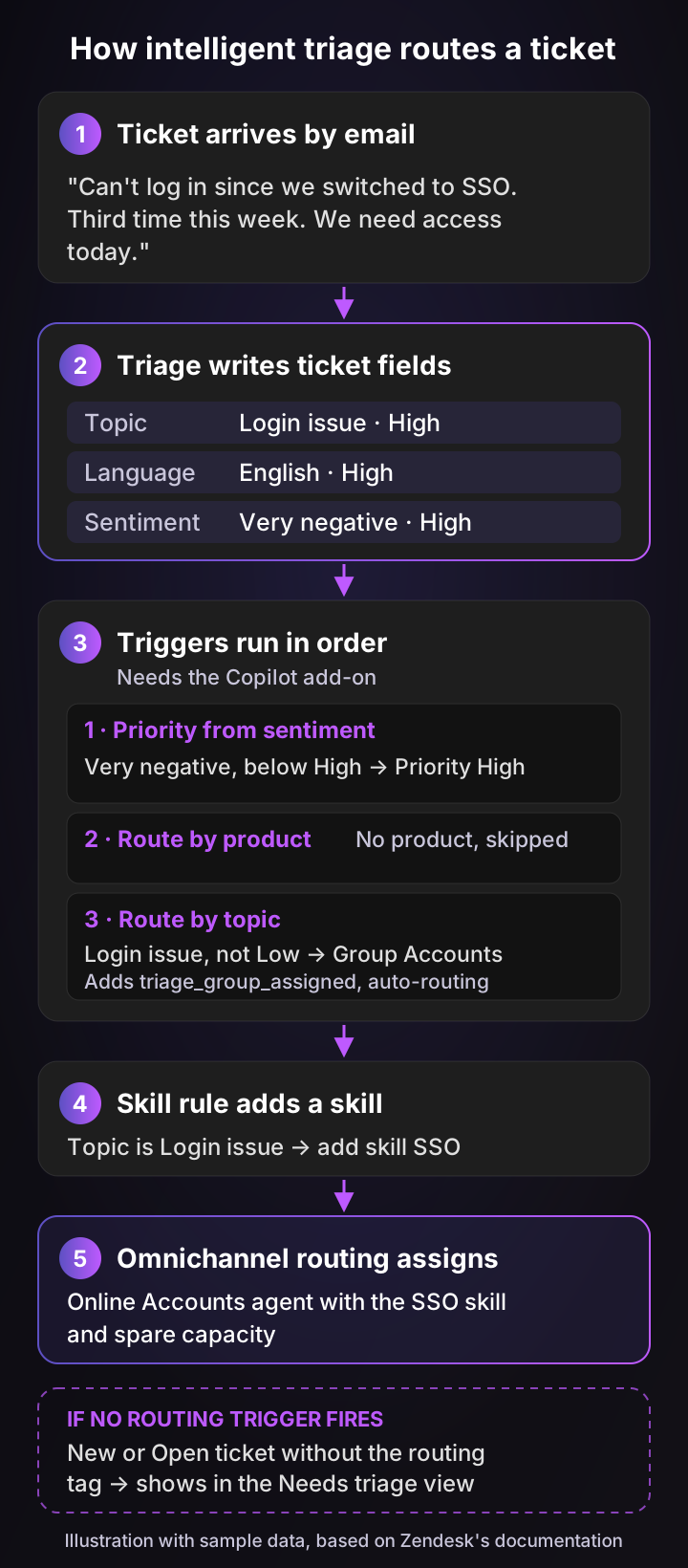
This setup combines five rules that work together: priority, product routing, topic routing, language skills and a fallback. It follows the patterns in Zendesk's example triggers and use cases, with two changes: each job gets its own guard tag, and the order is fixed.
Why two guard tags: setting priority and choosing a group are independent jobs, and both should happen. If both rules shared one tag, whichever fired first would block the other. Use triage_priority_set for priority and triage_group_assigned for routing.
Trigger order: Zendesk fires triggers in the order they're listed. Put them in a "Triage routing" category in this order:
| Position | Trigger | Job |
|---|---|---|
| 1 | Triage: priority from sentiment | Raise priority for very negative tickets |
| 2 | Triage: route by product | Route tickets that name a product |
| 3 | Triage: route by topic | Route everything else that classified confidently |
| 4 | Triage: spam | Move spam out of the queue |
Language routing happens in a skill rule, and the fallback is a view, so neither needs a trigger position.
1. Priority from sentiment
Negative sentiment is a service recovery signal: the customer is upset and needs a faster, more careful reply. It isn't a measure of operational impact, so keep outages and severity on their own rules, such as an incident tag.
- ALL: Status category is New; Sentiment is Very negative; Sentiment confidence is High; Priority is less than High; Tags contain none of
triage_priority_set. - Actions: Priority is High; Add tags
triage_priority_set.
"Priority is less than High" means this rule never downgrades a ticket that's already High or Urgent. On Professional plans and up, omnichannel routing can then offer higher-priority tickets first.
2. Route by product
Product routing goes first because a product field is a stronger signal than a topic. Set up an entity that fills a "Product" drop-down, as described above.
- ALL: Status category is New; Product is Analytics; Tags contain none of
triage_group_assigned. - Actions: Group is Analytics support; Add tags
triage_group_assignedandauto-routing.
Create one trigger per product team. Because entities can update the field on later replies, the guard tag matters here: once a group is set, a later product mention won't move the ticket again.
3. Route by topic
Topic routing catches the confidently classified tickets that product routing didn't.
- ALL: Status category is New; Topic confidence is not Low; Tags contain none of
triage_group_assigned. - ANY: Topic is Account::Login::Login issue; Topic is Account::Access::Password reset (examples only; pick the topic names from your account).
- Actions: Group is Accounts; Add tags
triage_group_assignedandauto-routing.
Build one trigger per group, listing its topics under ANY. Ten triggers are far easier to audit than eighty, and the guard tag makes the first match final.
4. Language skills and their fallback
Language routing works best with skills, because groups rarely map to languages. Skills and skill rules need Professional or higher.
- Skill rule: Language is Spanish, then add the skill Spanish.
- Required or optional: a required skill never times out, so the ticket waits for a Spanish-speaking agent. An optional skill drops after your skills timeout, and the ticket goes to any available agent in the group.
Choose required only if you staff that language through all your support hours. Otherwise make it optional, set a timeout that matches your first reply target, and pair it with a localized auto-reply. For messaging and calls, the timeout only runs while no agent with the skill is available.
5. The fallback view
The fallback is defined by one explicit state: the ticket has no triage_group_assigned tag. That covers every ticket the triggers didn't route, whatever the reason.
- View "Needs triage", ALL: Status category is less than Pending (so New and Open tickets); Tags contain none of
triage_group_assigned.
This catches tickets with no classification, low confidence, a confident topic that no trigger covers, and tickets that a default trigger already put in a general group. It also catches tickets created as Open.
Have the triage owner route these with a macro that sets the group and adds triage_group_assigned, so they leave the view. Before you go live, bulk-add the tag to your existing open backlog, so the view starts with only new tickets.
Bonus, spam: Zendesk ships a Spam topic. A fourth trigger with "Topic is Spam" and High confidence can add a tag and move those tickets to a review group before anyone answers them.
For tickets that start as Open: copy rules 1 to 3 and replace "Status category is New" with "Status category is Open" plus "Agent replies less than 1". For simpler triggers that don't use AI, my Zendesk automation guide covers the basics.
How to measure intelligent triage routing
Measure routing with Zendesk's prebuilt "Zendesk Copilot: Intelligent triage" dashboard, plus a few reports of your own. The dashboard has tabs for overview, topic, entity, language and sentiment, built on the Intelligent triage dataset.
That dataset only keeps the values the AI assigned. To see current values after agents or triggers change them, Zendesk points you to custom reports on the Support: Tickets, Support: Updates history or Chat: Messaging tickets datasets.
Track these alongside the dashboard:
- Correct first assignment rate: tickets whose first group was right, divided by tickets reviewed in your weekly sample.
- Reassignment rate: tickets moved to a different group after routing, from Support: Updates history.
- Time to the correct team: creation to assignment in the group that solved the ticket.
- Fallback queue: how many tickets sit in "Needs triage" and how old the oldest one is.
- Observed correction rate: corrected tickets divided by reviewed classified tickets. It counts the errors someone noticed, not the model's total error rate.
The dashboard's comparison of enriched tickets with all tickets is useful context, but it isn't a controlled test. Enriched tickets can differ in channel and complexity, so don't read the gap as the effect of triage alone.
Zendesk intelligent triage limits to plan around
Zendesk intelligent triage does one job well, which is a fast first classification. These are the limits Zendesk documents:
- Topic and sentiment start from the first message. Most classifications use the first message only; dynamic classification can update topic and sentiment, language never changes, and entities read all public interactions by default.
- Internal notes are ignored. Your agents' findings don't change the topic.
- Corrections don't retrain it. Agents can change the field values, but that doesn't teach the model.
- Some tickets get nothing. Tickets created before you turned it on, imported tickets and tickets that start with an internal note get no classifications.
- Topic and sentiment cover about 30 languages. Detection covers far more, but topic and sentiment have a shorter list, and triage values appear in English when you build triggers, views and reports.
- Renaming a topic doesn't change what it detects. A new name keeps the old detection behind it, and existing triggers and tags keep the old name.
- Deactivated topics stop appearing on new tickets. Zendesk stops detecting them, so review any triggers, views and automations that depend on the topic.
These matter most for technical B2B queues, where the first message often describes a symptom rather than the cause.
What support teams say about Zendesk intelligent triage
Users praise how triage surfaces urgent tickets, and admins push back on misclassification and how little they can steer it. Most of the critical quotes below come from Zendesk Community feature requests, so they lean negative by nature, and some predate the June 2026 rename:
“The Intelligent Triage feature is a game-changer, automatically identifying customer intent and sentiment so I can prioritize urgent issues at a glance. It has transformed my workflow from reactive to proactive...”
“We've used the quality recommendations feature, worked through intent definitions, and reduced overlap. After all of that, we're still seeing a meaningful volume of misclassified tickets.”
“Currently, intent detection is based only on public messages written by customers. These messages are often incomplete, unclear, or describe symptoms rather than the underlying issue.”
“The custom intent is understandably being applied to both types of requests despite my attempts to include exclusionary statements in the intent description.”
“In Zendesk Support – Agent Workspace, AI Copilot Intelligent Triage intents are always shown in English, even when agents use a different UI language.”
One hypothesis worth testing on your own sample: triage may do better when the first message names the request ("refund my order") than when it describes a symptom ("the dashboard is blank"). These quotes suggest it, but they're anecdotes, not a measured boundary.
Which classification option fits your queue?
You can combine all three options below, so treat this as a checklist of jobs rather than a choice of one tool. Start with the fields you already have, because routing on stored data needs no AI at all.
| You need to | Native triggers | Intelligent triage (with Copilot) | Pluno AI Tagging & Field Filling |
|---|---|---|---|
| Route on data you already store, such as plan tier, region or brand | Yes, on any plan | Not needed | Not needed |
| Classify what a ticket is about into common topics | Keyword conditions only | Prebuilt topics | Your own drop-down fields |
| Classify into your product's own categories | Keyword conditions only | Up to 500 custom topics | Your own fields, with an instruction per field |
| Detect language or sentiment for routing | No | Built in | As your own fields, if you add them |
| Copy a product name or order number into a field | No | Entities | Your own fields, with an instruction per field |
| Fill type, priority, ticket form and required fields | By keyword only | No, triage writes its own fields | Yes |
| Run on Zendesk Team plans | Yes | No | Yes, with the routing features of your plan |
| Cost | Included | $50 per agent a month (Copilot, paid yearly) | Pluno platform fee from 249€ a month, or standalone from 99€ a month |
A trigger that combines a stored organization field with a triage topic is often all you need. AI field filling earns its place when the category has to be read from the message, follows rules specific to your product, or has to weigh several signals at once.
How Pluno's AI field filling routes Zendesk tickets
Pluno is an AI layer that runs inside your existing help desk, including Zendesk, Intercom, Salesforce Service Cloud, HubSpot, Jira Service Management and Freshdesk. AI Tagging & Field Filling is its classification module: Pluno supplies the classifications, and your team keeps its own Zendesk routing rules.
Pluno chooses the ticket form and fills type, priority, tags and your custom fields, following an instruction you write for each field. Your triggers, views and SLAs then work from those fields with whatever routing features your Zendesk plan includes, and no Copilot add-on is needed.
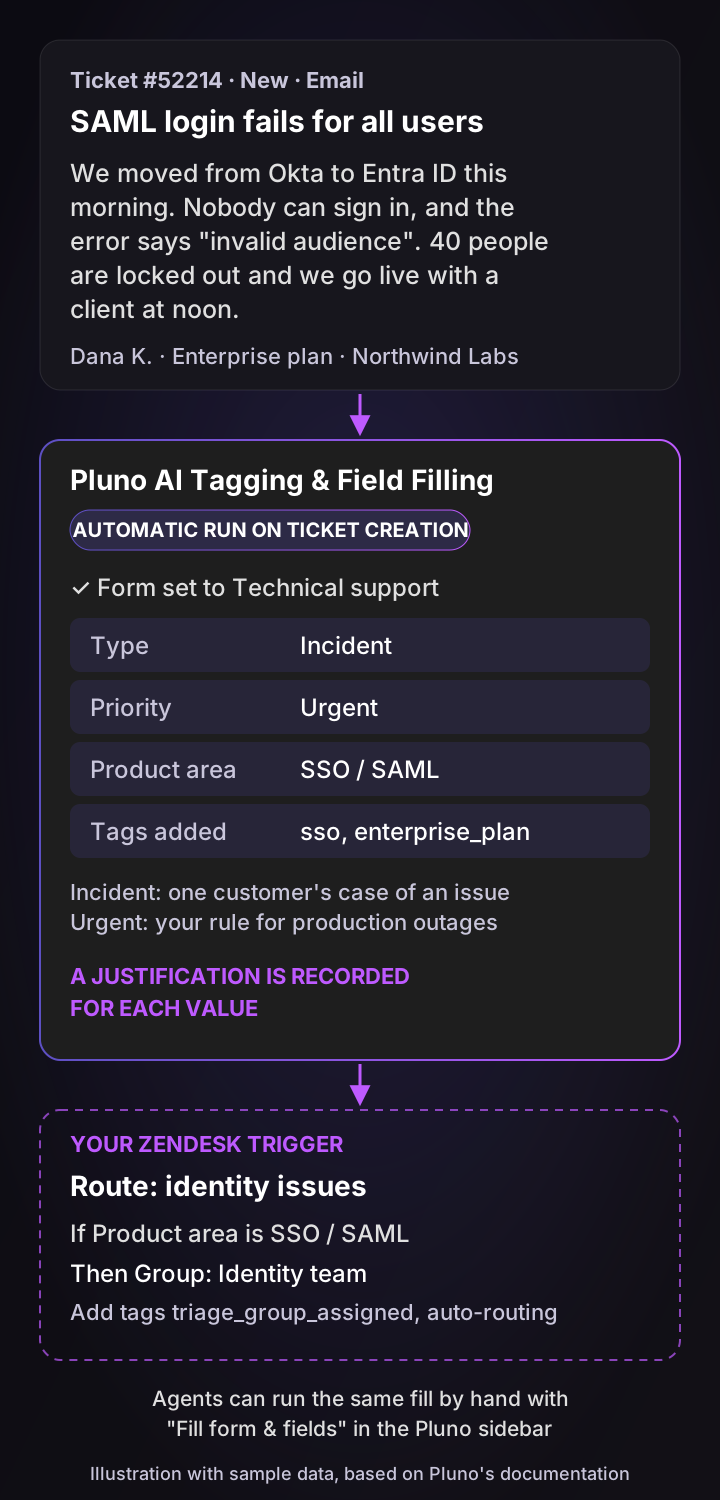
When it runs: on ticket creation, at resolution if you switch that on, after a call summary is posted, before Deflection AI solves a ticket, and on demand from the sidebar. It doesn't watch the conversation continuously; each run reads the ticket as it stands at that moment.
What each run reads: the subject, the most recent messages, the current field values, user and organization fields, and the requester's recent ticket subjects. It reads Shopify data too if you connect it.
How it handles your data:
- Your rules per field: for example, "Only set priority to Urgent if the customer mentions a production outage."
- Agent values stay: automatic runs never overwrite a value an agent set. The sidebar button can, because an agent asked for it.
- Evidence first: optional fields stay empty unless the ticket gives clear evidence, and tags are only ever added.
- Required fields: a field Zendesk requires to solve a ticket is always filled; with no basis for a value, a drop-down gets its first option, so make that option a neutral "Other".
- A reason for each value: Pluno records a justification for every value it sets, which helps when you review classification quality.
Smartness, a lodging tech company, had an agent constantly watching Zendesk views to catch misclassified tickets and pull them into the right queue. With Pluno, its team no longer babysits views to catch misrouted tickets.
To compare the two fairly, I use five yardsticks: what each classifies, how much control you have over the categories, what it reads, how it routes, and what it costs.
| Yardstick | Zendesk intelligent triage | Pluno AI Tagging & Field Filling |
|---|---|---|
| What it classifies | Topic, sentiment and language into its own fields; entities into your fields | Form, type, priority, tags and your custom fields |
| Control over categories | Prebuilt topics plus up to 500 custom topics with descriptions | Your own fields and options, with a written instruction per field |
| What it reads | Topic and sentiment: first message, or latest with dynamic classification; language: first message; entities: all public interactions by default | Each run: subject, recent messages, current fields, user and organization fields, recent ticket subjects |
| How it routes | Your triggers, skills and omnichannel routing, with the Copilot add-on | Your triggers, skills and omnichannel routing, within your Zendesk plan |
| Price | Free for reporting on Professional and up; $50 per agent a month (Copilot, paid yearly) to route | Included in the Pluno platform fee, or standalone from 99€ a month |
What Pluno costs, from Pluno pricing: AI Tagging & Field Filling is included in the Pluno platform fee, which scales with ticket volume, from 249€ a month for up to 500 tickets, or 210€ a month billed annually. It's also sold on its own: Starter is 99€ a month for up to 4,000 tickets, Growth is 199€ a month for up to 10,000 tickets, and larger volumes get custom pricing. Neither is priced per agent.
Classification is usually the first step. Pluno's Deflection AI can then resolve tickets on its own from your past tickets and docs. Escalation Copilot sends engineering issues with the full context to where your engineering and product teams work, such as Slack, Jira, Linear, Microsoft Teams or incident.io.
The bottom line
Zendesk intelligent triage is a solid way to set up automated ticket routing for familiar, high-volume requests, as long as you budget for the Copilot add-on. Test it on two weeks of tickets, route only the topics that clear your bar, and give every unrouted ticket a home in a "Needs triage" view.
If your routing depends on categories specific to your product, fill your own fields instead and keep the triggers you already have. Try Pluno AI Tagging & Field Filling on your Zendesk tickets to see how it classifies them.
FAQ
What is Zendesk intelligent triage?
Zendesk intelligent triage is AI that classifies new tickets by topic, sentiment and language, each written to a ticket field with a High, Medium or Low confidence field. Entities are a separate feature that copies values such as product names into your own custom fields. Triggers, views and reports can use all of these.
Is Zendesk intelligent triage free?
Partly: since July 2026, classifications are included at no extra cost on Suite and Support Professional plans and up, for reporting only. Using them in triggers, automations or routing requires the Copilot add-on at $50 per agent a month, paid yearly. Team plans don't include intelligent triage.
Which product automates Zendesk ticket routing?
Zendesk itself routes with triggers, skills and omnichannel routing, and intelligent triage can feed them classifications if you have the Copilot add-on. Pluno AI Tagging & Field Filling is a third-party option: it fills your own Zendesk fields from each conversation, and your existing triggers route on them within your Zendesk plan.
What's the difference between intent and topic in Zendesk?
They're the same classification. Zendesk renamed intent to topic in June 2026. As of October 22, 2026, accounts that bought Copilot before June 11, 2026 may still see "Intent" in fields, triggers and the ticket API.
Can I create custom topics in intelligent triage?
Yes: go to Admin Center > AI > Intelligent triage > Topic > Create topic, and add a name and description. You can create up to 500 custom topics. Editing a topic's name later doesn't change what it detects, so create a new topic for a genuinely different request.
Why don't some tickets have intelligent triage classifications?
Tickets created before you turned it on, imported tickets, tickets that start with an internal note, and tickets from channels you didn't select get none. Also, classifications arrive just after a ticket is created, so triggers should use "Status category is New" rather than "Ticket is Created". For tickets that start as Open, use another condition, such as "Status category is Open" with "Agent replies less than 1".
Does intelligent triage work in languages other than English?
Language detection covers about 150 languages, and topic and sentiment classification support about 30. Entities only work in the language you created them in, and triage values appear in English when you build triggers, views and reports.
What is the difference between Zendesk auto tagging and intelligent triage?
Auto tagging is a free feature that adds up to three tags based on keywords in the ticket. Intelligent triage uses AI to classify topic, sentiment and language into dedicated fields with confidence levels, which makes it better suited to routing, but routing on it needs the Copilot add-on.