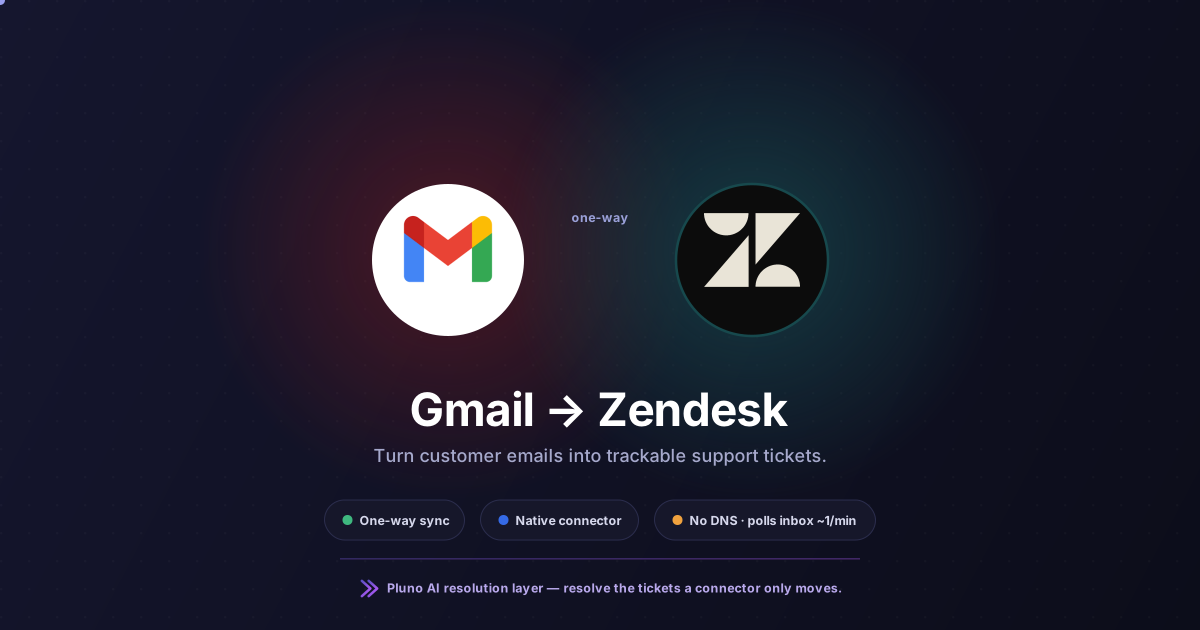
Connect Gmail to Zendesk so that customer emails become trackable tickets. You have three main paths: the native Gmail connector, email forwarding with an SMTP relay, or a no-code automation tool. The right choice depends on volume, whether you need two way synchronization, and how complex your tickets are. This guide walks each option, the setup, and the limits.
Quick definition. The Zendesk Gmail integration converts incoming Gmail messages into Zendesk support tickets. The native Gmail connector polls your inbox about once a minute and creates a ticket from each new email — a one-way sync from Gmail into Zendesk (Zendesk help).
TL;DR
The native Gmail connector is the lowest-effort way to integrate Gmail with Zendesk, since it needs no DNS work. It polls your Gmail inbox about once a minute and converts new emails into tickets. It is one-way only, so ticket changes do not sync back to Gmail.
For professional addresses and high volume, forwarding plus an authenticated SMTP relay gives you outbound domain control and raises the consumer Gmail send cap. For mirroring actions both directions, a no-code tool like Zapier or Albato adds two way synchronization. None of these resolve tickets. That job belongs to your agents, or to an AI layer on top.
What the Zendesk Gmail integration actually does
The Zendesk Gmail integration turns incoming Gmail messages into support tickets inside Zendesk. Customers keep emailing your normal address, while your support team works from a structured help desk instead of a shared inbox.
The integration removes inbox clutter and manual data entry. Each support email becomes a ticket with status, SLAs, assignment, and reporting attached. Zendesk also consolidates customer interactions from other channels, so email sits beside chat, voice, and messaging in one view.
Here is the part most guides skip. The Zendesk Gmail integration is a transport and organization layer. It moves email into tickets and centralizes the conversation. It does not read context, diagnose the issue, or write the reply. That distinction shapes every decision below.
Why the integration matters for support teams
A shared Gmail inbox breaks down once two or three customer support agents work it. Replies collide, messages get marked read and forgotten, and nobody can report on reply speed. The integration fixes the operational layer by letting Zendesk automatically create a ticket for every email.
Once email becomes a Zendesk ticket, you get accountability. You can route a support request to the right queue, trigger an acknowledgment, escalate by priority, and measure first response time. Automated ticket creation also speeds up response times by removing manual triage from the front of every conversation.
For a growing B2B SaaS team, the stakes rise with volume. At a few hundred tickets a month, a tidy inbox survives. Past a thousand, you need ticket triggers, tags, and a system of record. That is when the Gmail connector stops being optional.
How Zendesk works with Gmail out of the box
The native Gmail connector is Zendesk's default, documented path for connecting Gmail to your help desk. The flow is simple and the learning curve for customers is near zero.
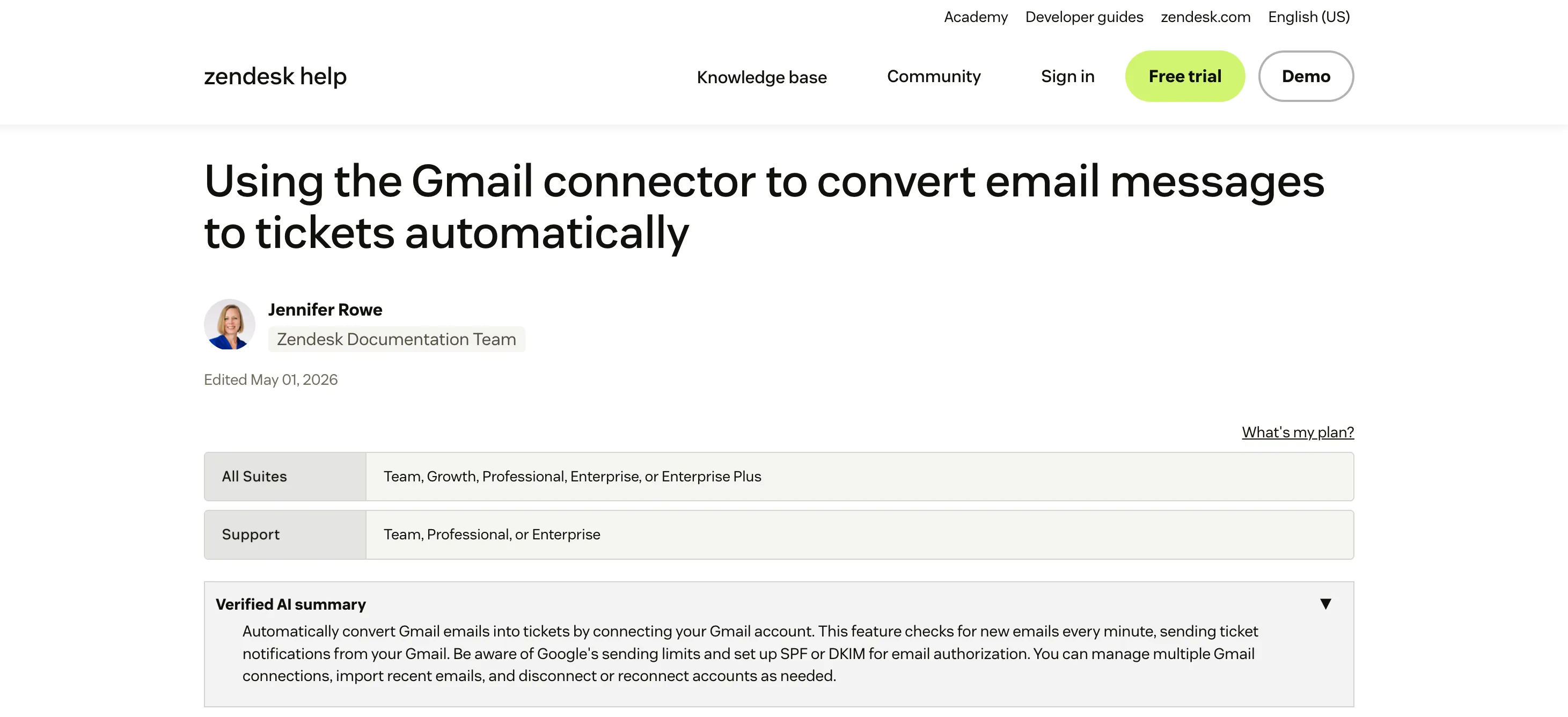
Source: Zendesk Help Center
-
A customer emails your Gmail or Google Workspace address, for example support@company.com.
-
Zendesk periodically checks your Gmail inbox for new messages, roughly every minute.
-
Each new, unread email is imported and converted into a ticket.
-
Agents reply from Zendesk, and the customer sees a normal threaded Gmail reply.
During setup you can create tickets from the last 300 emails, so the connector can sync a slice of historical data rather than starting empty. Outbound notifications are sent through Zendesk's mail servers by default, or through Gmail if you enable the "Send email via Gmail" option (Zendesk help).
In this model your Gmail inbox becomes a forwarding layer. End users stay in Gmail, agents live in Zendesk, and all customer emails are centralized in one help desk for a comprehensive view of every interaction.
Three ways to integrate Gmail with Zendesk
Most teams pick one of three connection paths. They trade setup effort against control and deliverability.

1. Native Gmail connector. You link a Gmail account directly from Zendesk's Admin Center under Channels, in your email settings. Zendesk polls the inbox and creates tickets. It is the lowest-effort setup and needs no DNS changes, which makes it a clean fit for a single customer support inbox.
2. Email forwarding with an SMTP relay. You forward mail from Google Workspace to your Zendesk support address, then authenticate outbound mail with SPF, DKIM, and DMARC. This keeps your domain branding and moves you off the consumer Gmail send cap, though the relay carries its own Workspace sending limits. It suits professional addresses and higher volume.
3. No-code automation tools. Platforms like Zapier and Albato connect Gmail and Zendesk through triggers and actions, so you can build custom workflows without engineering. You can create a "Zap" to integrate Gmail and Zendesk, and Albato allows integration setup without technical skills required. Gmail triggers include receiving a new email, starring or marking a message important, or matching a specific search query or label, and these can feed email triggers and routing rules on the Zendesk side.
The table below summarizes the tradeoffs so you can match an approach to your situation.
| Approach | Setup effort | Two way synchronization | Commercial mechanics | Best for |
|---|---|---|---|---|
| Native Gmail connector | Lowest, no DNS | No, one-way Gmail to Zendesk | Included with Zendesk; 1,500 notification cap, then falls back to Zendesk servers | A single support inbox, small teams |
| Forwarding + SMTP relay | Higher, DNS required | No, but full outbound control | Included; relay lifts the consumer Gmail cap but has its own Workspace limits | Professional addresses, high volume, compliance |
| No-code automation (Zapier, Albato) | Medium, visual builder | Yes, with two automations | Zapier free tier is 100 tasks/mo with 15-min polling; Professional starts around $19.99/mo billed annually for 750 tasks, billed per action (Zapier pricing) | Custom routing, mirroring changes both ways |
Where each approach falls short
Every option carries a constraint worth naming before you build on it.
The native connector is one-way. Actions in Zendesk, such as solving a ticket, adding an internal note, or changing status, do not reflect back in Gmail. Starring or labeling a message in Gmail also does not update the Zendesk ticket. If your team wants Gmail and Zendesk to stay mirrored, the native connector alone will not do it.
Volume hits a ceiling. Google Workspace accounts can send about 2,000 messages per day, while consumer Gmail accounts are generally limited to around 500 (Google Workspace help). Zendesk caps connector notifications at roughly 1,500 in 24 hours to stay under Google's rate limit, then temporarily switches to its own mail servers (Zendesk help). During an incident spike, that matters.
Attachments and edge cases need watching. When "Send email via Gmail" is on, messages with real attachments are sent through Zendesk servers instead (Zendesk help). Some emails also land in the Suspended Tickets queue, typically flagged as spam, auto-replies, or malformed mail. Review that suspended ticket queue a few times a week to rescue legitimate support requests.
No-code tools add fragility. Two way synchronization usually needs two automations with unique IDs and filters to prevent infinite loops. Each automation is another moving part that can silently break when Gmail or Zendesk settings change. Document who owns each one and what it touches.
What to look for before you commit
Match the integration to your ticket complexity, not just your inbox size. Run through these decision criteria before you configure anything.
Honest off-ramp 1: simple inbox, native connector is enough. If you handle straightforward email tickets like password resets, shipping questions, and basic billing through one inbox, the native Gmail connector covers you. Do not add automation tools or an AI layer you do not need.
Honest off-ramp 2: high volume or compliance, go SMTP relay. If you send near Gmail's daily caps or work in a regulated industry, authenticated SMTP relay gives you full outbound domain control and avoids send limits. It needs more DNS work and IT involvement, and that tradeoff is worth it at scale.
Honest off-ramp 3: you only need mirroring, add a no-code tool. If your gap is purely keeping Gmail and Zendesk in sync, Zapier or Albato solves it without any AI. Just price the task volume first, since per-action billing climbs with ticket count.
The criteria change when responses require real investigation. If agents must reference contracts, runbooks, past tickets, and product docs for each reply, the bottleneck is no longer transport. It is resolution. That is a knowledge problem, not a connector problem, and no email integration fixes it.

This is where an AI layer earns its place. An AI support agent such as Pluno sits inside Zendesk, learns from your past resolved tickets, and gathers the diagnostic context a reply needs. Its AI Tagging and Field Filling can auto-categorize and route a new ticket the moment Gmail creates it, and its copilot can draft a grounded reply for the agent to review. When confidence is low, it escalates to a human with full context instead of guessing. That keeps the workflow honest: automate what is safe, hand off what is not.
Where this kind of AI layer falls short. It is not a Gmail to Zendesk connector, and it will not replace forwarding or "Send email via Gmail." It does not mirror Gmail labels or push Zendesk ticket status back into your inbox. If your only goal is moving emails into tickets, this is the wrong tool, and an AI layer adds cost and setup you do not need.
Not for: a single low-volume Gmail inbox, simple FAQ-style support, or teams that do not run Zendesk as their support workspace. An AI agent starts to pay off only when tickets need diagnosis, past-ticket context, internal knowledge, or safe escalation.
How to set up the Gmail connector step by step
Here is the integration process for the native connector, which is the most common starting point.
In Zendesk:
-
Open Admin Center and click Channels in the sidebar.
-
Select Talk and email, then Email.
-
Click Add address, then Connect external address, and choose the Gmail connector.
-
Authorize the Gmail account you want to link.
-
Decide whether to import the last 300 emails as tickets.
In Gmail or Google Workspace (for forwarding setups):
-
In Gmail settings, add your Zendesk support address, such as support@company.zendesk.com, as a forwarding destination and complete verification.
-
Choose "keep Gmail's copy" so you retain a backup in the original inbox.
-
In your domain DNS, configure SPF and DKIM so relayed mail avoids spam filters. Add DMARC for stricter authentication.
To enable branded outbound mail:
-
In Zendesk, add your Gmail address as a support address under Channels and Email.
-
Enable email pass-through so replies display your company address, not a zendesk.com domain.
Once connected, every new email to that Gmail address becomes a Zendesk ticket, and agent replies appear as normal threaded messages in the customer's inbox. Pilot with a subset of agents before you cut the whole team over.
Expected outcomes and how to measure them
A working integration should change three numbers. Track them before and after go-live so you can prove the value and spot regressions.
First response time. Tickets created automatically should be acknowledged faster than a manually triaged inbox. Watch for the connector's one-minute polling delay, which is normal.
Resolution time and reopen rate. Centralizing email in Zendesk should cut the time agents spend hunting for context. If resolution time stays flat, the bottleneck is knowledge, not organization, and that points toward an AI layer.
Suspended and bounced tickets. Monitor the suspended ticket queue and Zendesk's email logs. A rising bounce rate or notification-limit warning is your early signal that volume is outgrowing the native connector.
If you add AI on top, expand the same dashboard. Measure deflection rate, draft acceptance, and CSAT alongside response times. Start with AI-generated drafts on low-risk tickets, keep a human in the loop, and only widen scope once the numbers hold. For deeper comparisons, see how the native tooling stacks up against an AI agent in the Zendesk AI vs Pluno breakdown, or browse the best AI agents for Zendesk in 2026.
FAQ
How do I connect an email to Zendesk? Open Admin Center, go to Channels, then Talk and email, then Email. Click Add address and choose Connect external address with the Gmail connector, or add your address and set up forwarding from Google Workspace. The connector starts converting new emails into tickets within about a minute.
Does Zendesk fully sync with Gmail labels and folders? No. The native connector is one-way, from Gmail to Zendesk. There is no native full label or status two way synchronization, so labeling or archiving in Gmail will not update the ticket. You need a no-code automation to mirror changes between platforms.
What is the +1 Gmail trick? It is plus addressing. Gmail ignores everything between a plus sign and the @ symbol, so support+billing@company.com still reaches support@company.com. Teams use these tagged aliases with Gmail filters to sort or route mail, which can feed cleaner ticket triggers into your Zendesk integration. Workspace admins can disable plus addressing on custom domains, so test it before relying on it.
Is Gmail SMTP or IMAP? Both, because they do different jobs. SMTP sends outbound mail, while IMAP (or POP) retrieves incoming mail. A forwarding-plus-relay Zendesk setup leans on SMTP for branded outbound notifications.
Is the Gmail API free? Standard use of the Gmail API is currently free, though Google has signaled that projects exceeding quota limits may incur charges later in 2026 (Gmail API quotas). The native Zendesk connector does not require you to manage the API yourself.
Can I keep answering from Gmail instead of Zendesk? You can, but you lose ticket tracking, SLA monitoring, collaboration, and unified reporting. Replies sent from Gmail will not link to Zendesk ticket comments, and you lose the mobile apps and automation that make a help desk worth running.
What happens when a new user emails for the first time? Zendesk creates a new user record from the sender's name and email. You can enrich that profile with triggers based on domain or tags, for example tagging every message from a VIP client domain for priority routing.
Next step
Start with the simplest connection path that fits your volume and compliance needs, then pilot with a few agents before rolling out. For most teams, the native Gmail connector plus a couple of ticket triggers is the right first move, and you may not need anything more.
Then measure. Watch first response time, the suspended ticket queue, and resolution time. If email transport improves but complex tickets still stall, the gap is knowledge, not the integration, and that is worth investigating before you change anything else.
When you reach that point, it is worth seeing what an AI agent trained on your own tickets can do. Teams often run a simulation on real Zendesk tickets to compare resolution rates first, with no migration required.