
Quick answer: The HubSpot Zendesk integration links your CRM and helpdesk so customer info, ticket events, and account context flow between both tools. Two official apps power it. HubSpot for Zendesk Support (built by Zendesk) sends ticket activity into the HubSpot contact timeline. Data Sync by HubSpot syncs Zendesk users, organizations, and tickets with HubSpot contacts, companies, and tickets. Users and organizations can sync both ways depending on your sync settings; ticket sync runs one way into HubSpot, and archived tickets do not sync.
Support tickets pile up. Your sales team books a renewal call, not knowing the customer just opened a critical bug. Marketing pings a contact whose last three Zendesk tickets are about a broken integration. This is what happens when your CRM and helpdesk do not talk.
A proper HubSpot integration with Zendesk closes that gap. The catch: most teams stop at the native zendesk app, hit its limits, and guess.
This guide shows how it works in 2026, how to set it up, and where common setups fail. It is written for Heads of Support, Support Ops, and CX leaders running Zendesk on a HubSpot CRM.
TL;DR
Connecting HubSpot and Zendesk gives sales teams visibility into support ticket history. With custom mappings, support agents can surface HubSpot context (customer value, lifecycle stage, plan tier, or other mapped fields) alongside Zendesk cases for more personalized service. The Zendesk-built app pushes ticket events into HubSpot as timeline activity on the matching or newly created contact. The HubSpot-built Data Sync app syncs Zendesk users, organizations, and tickets with HubSpot contacts, companies, and tickets. User and organization sync can run two-way; ticket sync is one-way, and archived tickets do not sync. Advanced custom mappings require Data Hub Starter or higher. The integration is powerful for visibility, but it does not resolve complex tickets on its own. That is where AI sits on top.
What is the HubSpot Zendesk integration?
The HubSpot-Zendesk connection is a set of official apps that link HubSpot CRM with the Zendesk Support helpdesk so sales, marketing, and support work from one source of truth. Two official options sit on the Zendesk Marketplace and the HubSpot App Marketplace, alongside several similar apps from third-party developers.
Bidirectional syncing means updates to contacts and companies in either HubSpot or Zendesk show up in both tools, so the information stays consistent. Ticket syncing runs one way from Zendesk into HubSpot.
HubSpot for Zendesk Support was built by Zendesk. It sends ticket activity into HubSpot, so new tickets, status changes, and CSAT ratings appear as a timeline event on the matching or newly created contact.
Data Sync by HubSpot was built by HubSpot. It syncs Zendesk users, organizations, and tickets with HubSpot contacts, companies, and tickets. Users and organizations can sync two-way. Ticket sync into HubSpot is one-way, and archived tickets are excluded. Optional Smart Transfer adds conversation history next to the record.
Both apps are free to install and can be used together because they solve different jobs.
Why connect HubSpot and Zendesk
The promise is one shared customer view across the business, with less manual data transfer.
For customer support teams. Reps see synced requester or organization fields next to each ticket. Deal status, customer value, plan tier, and renewal date are not native Zendesk user or organization fields. Teams usually mirror those values into mapped HubSpot contact or company properties, sync them into Zendesk user or organization fields, or surface them through an iPaaS or sidebar app.
For sales teams. A HubSpot contact record can show Zendesk support history alongside open deals, so reps spot unresolved issues before a renewal call. Sales teams can manage customer information across platforms, converting leads from HubSpot into actionable conversations in Zendesk without manual data transfer.
For marketing teams. Marketers can build customer lists from Zendesk ticket properties and ticket tags, and personalize campaigns based on queries and feedback logged in Zendesk while keeping customer details in HubSpot current.
For revenue ops, sales, and support together. Bidirectional user-to-contact and organization-to-company sync can keep HubSpot contacts and companies aligned with Zendesk users and organizations within minutes after the initial sync. Ticket sync is different: Zendesk tickets sync one way into HubSpot, and archived tickets do not sync. To automatically create Zendesk tickets when a new lead, contact, or form submission is captured in HubSpot, use an iPaaS automation, HubSpot workflow action, or custom API setup rather than native Data Sync ticket sync. The new lead's details can then be attached to the Zendesk ticket if the iPaaS or workflow maps those fields, giving support visibility into customer history.
Automation beyond native sync
The official apps cover timeline visibility and record syncing. If customer support teams want new HubSpot leads, form submissions, or contact changes to automatically create Zendesk support tickets, they need an automation layer such as Zapier, Make, Workato, HubSpot workflow actions, or a custom API setup. This is useful for making sure no customer inquiry is missed, but it is separate from HubSpot Data Sync's native ticket sync, which runs from Zendesk into HubSpot.
When a Zendesk ticket is created, solved, or rated, the Zendesk-built app can add that event to the HubSpot contact timeline with status and ticket details. To update a structured HubSpot contact property based on a Zendesk status change, use HubSpot workflows, Data Sync mappings where supported, or an iPaaS or custom API workflow.
How the HubSpot integration works
What the Zendesk-built app does
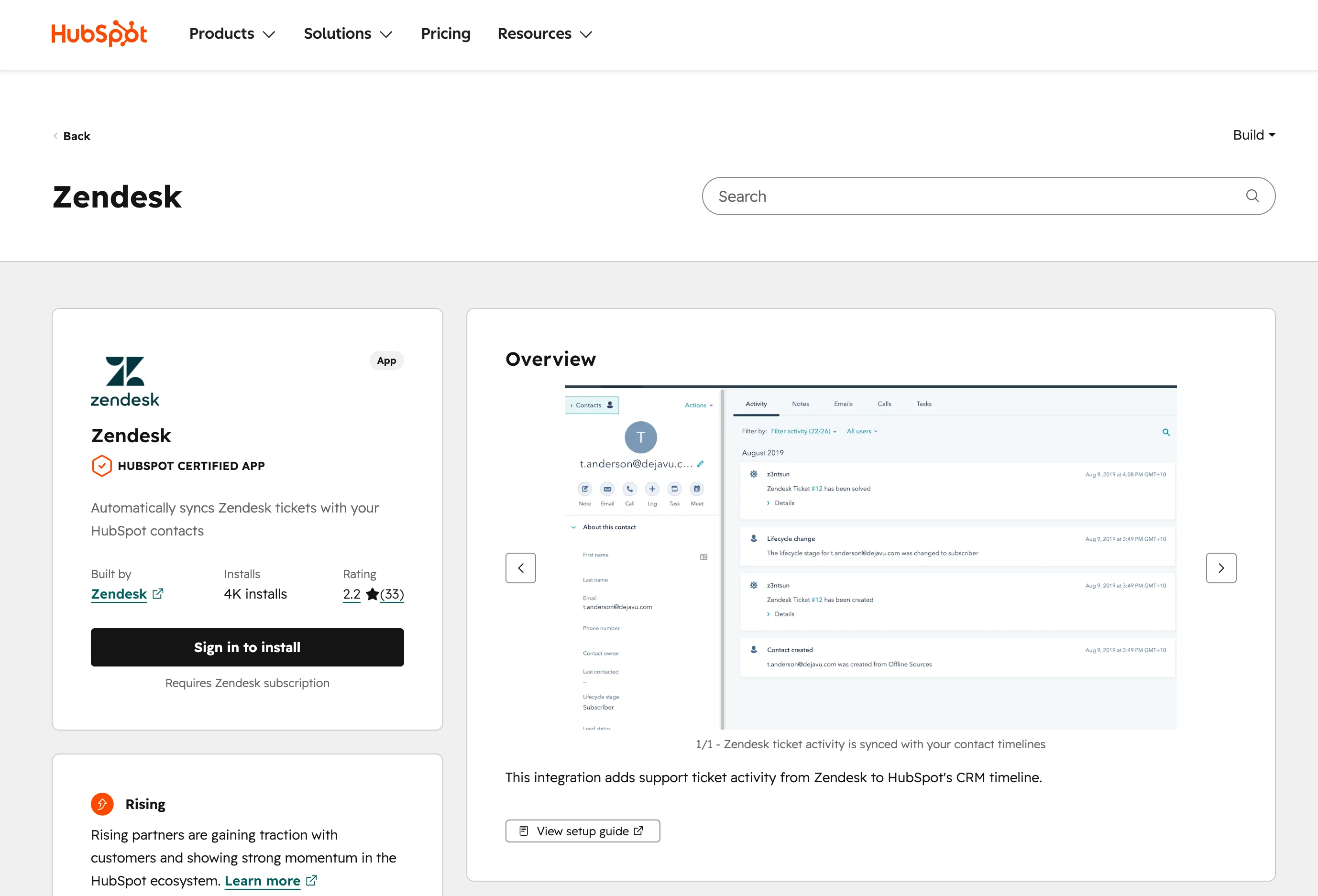
When you install it, three Zendesk triggers and one webhook are created in your Zendesk account, each firing on a specific event:
- [Hubspot Integration] - Ticket Created fires on new ticket
- [Hubspot Integration] - Ticket Solved fires on solved
- [Hubspot Integration] - Ticket CSAT Rating Submitted fires on rating
The trigger sends a payload to HubSpot. Matching is by email: if the requester email does not match a HubSpot contact, the app creates a new contact with email only. First and last name are not synced. The ticket shows up as a timeline activity with title, ticket status, conversation, group, assignee, ticket tags, and a link back to Zendesk. The JSON payload cannot be changed.
What the HubSpot-built Data Sync app does
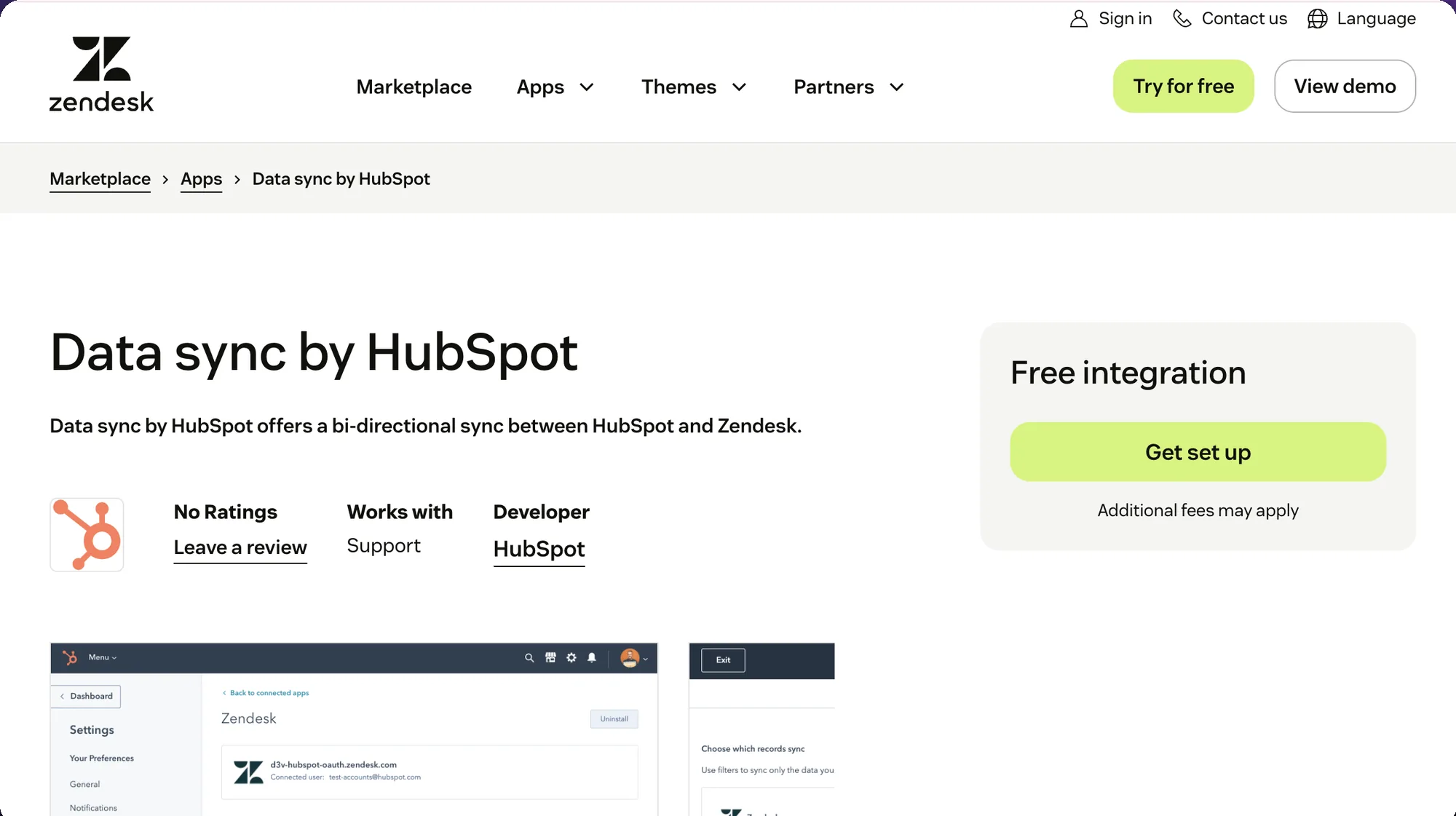
Data Sync runs on HubSpot's sync engine. After the initial sync, HubSpot checks for changes every five minutes, and records sync within 10 minutes.
It keeps HubSpot contacts aligned with Zendesk users, HubSpot companies with Zendesk organizations, and HubSpot tickets with Zendesk tickets. User-to-contact and organization-to-company sync can run one-way or both ways. Zendesk ticket sync is one-way; archived tickets are excluded.
Optional Smart Transfer moves Zendesk conversation history into HubSpot. Advanced custom field mappings require Data Hub Starter or higher.
The Zendesk-built app handles ticket timeline events. The HubSpot-built app handles record syncing across contacts, companies, and tickets. Most teams run both.
The two official HubSpot-Zendesk connector options compared

| Feature | Zendesk-built HubSpot app | HubSpot Data Sync app |
|---|---|---|
| Ticket visibility | Zendesk ticket events in HubSpot contact timeline | Zendesk tickets sync to HubSpot tickets one-way |
| Conversation history | Timeline activity may show the ticket conversation | Optional Smart Transfer conversation history; archived tickets do not sync |
| Contacts and users | Creates or uses HubSpot contacts by requester email only | Zendesk users to HubSpot contacts, two-way option |
| Companies and organizations | Not the core function | Zendesk organizations to HubSpot companies, two-way option |
| Custom mappings | Payload cannot be customized | Custom mappings need Data Hub Starter or higher |
| Cost | Free to install | Free default sync; paid HubSpot tier needed for advanced mapping |
| Best for | Visibility into ticket activity inside the CRM | Keeping records current and aligning ticket objects |
In practice, most teams install both because they solve different problems. Ticket sync runs one way from Zendesk to HubSpot. Contact data can sync both ways.
Common approaches and where each fails
Four common patterns, each with a failure mode.
1. Manual context lookup. A rep opens a Zendesk ticket, then opens HubSpot in another tab. Where it fails: 30 to 90 seconds per ticket, and both teams end up with different versions of the truth.
2. Native Zendesk-built app only. Install HubSpot for Zendesk Support and let the three Zendesk triggers fire. Where it fails: email-only matching can create duplicates when requester emails do not match cleanly. The payload cannot be customized.
3. Native app plus Data Sync. Pair the Zendesk-built timeline integration with Data Sync to align users, organizations, and tickets. Where it fails: ticket sync is one-way, archived tickets are excluded, and advanced mapping needs Data Hub Starter or higher.
4. Custom iPaaS automation. Use Zapier, Make, Workato, or similar. Common rules include creating a Zendesk ticket from a HubSpot form submission, logging Zendesk feedback into HubSpot, or updating a HubSpot property on case changes. Where it fails: custom automation is fragile, breaks on API changes, and is hard to audit.
What to look for in a strong setup
Evaluate any HubSpot integration with Zendesk against five questions.
1. Does it match records reliably? Email-only matching covers many cases, but plan for shared inboxes, address changes, and duplicates. Without a plan, existing contacts split into duplicates or new email-only records get created where one should have matched.
2. Does it cover companies, not just contacts? A bidirectional user-to-contact and organization-to-company sync prevents drift between customer details in HubSpot and how Zendesk groups requesters.
3. Are rules and triggers reversible? Look for triggers, sync rules, and property updates you can pause, audit, or roll back.
4. Does it expose the right case details in the right place? Sales should not switch tabs to view open requests. Support should not switch tabs to view plan tier or other context.
5. Does it help resolve tickets, or just move them? Moving a ticket between systems does not solve it. For many B2B SaaS support teams, the bottleneck is not only the customer record. It is diagnosing the issue, finding the right past resolution, and escalating with enough detail.
Tools like Pluno fit at that resolution layer. We cover it below.
Record matching and contact creation
Decide upfront how the integration should treat each existing record. Search existing contacts in HubSpot by requester email, then search the same requester in your Zendesk account. If the email matches, the activity attaches to the existing contact; if not, the app creates a new record with email only. Review new contacts weekly so shared inboxes, address changes, and duplicates do not pollute existing data.
This matters for customer support teams: bad matching creates messy records fast. One customer can end up with an existing contact in HubSpot, a new contact from Zendesk, and a separate account record nobody trusts.
How to set up the integration
You need admin access in both tools. The Zendesk-built app supports all HubSpot subscriptions and paid Zendesk Support and Suite plans. HubSpot Data Sync has its own Zendesk subscription requirements.
Step 1: Install HubSpot for Zendesk Support
Go to the Zendesk setup URL, enter your Zendesk subdomain, then authorize the Zendesk app and the HubSpot app.
After install, check Zendesk triggers for three new entries ([Hubspot Integration] - Ticket Created, [Hubspot Integration] - Ticket Solved, [Hubspot Integration] - Ticket CSAT Rating Submitted) plus a HubSpot Integration webhook. Do not test the webhook from the Admin Center; that fires an invalid JSON call and disconnects the integration.
Step 2: Test the ticket trigger flow
Create a new ticket in Zendesk using an email that already exists as a HubSpot contact. In HubSpot, open the contact, go to Activities, click Filter activity, and select the Zendesk checkbox. Create, solve, and rate the ticket to confirm all three event types appear.
If nothing appears, first confirm setup completion, that HubSpot CRM is up to date, and that the Zendesk activity filter is enabled. Then check the triggers and webhook. Tickets submitted through a HubSpot form can sometimes land as suspended tickets in Zendesk.
Step 3: Install Data Sync by HubSpot
In the HubSpot App Marketplace, search for Zendesk and pick Data Sync by HubSpot. Install and authorize. Configure syncs for the objects you need:
- Zendesk users to HubSpot contacts
- Zendesk organizations to HubSpot companies
- Zendesk tickets to HubSpot tickets
User-to-contact and organization-to-company sync can run one-way or two-way. Zendesk ticket sync into HubSpot is one-way. Decide whether to enable Smart Transfer for conversation history.
Step 4: Configure custom field mappings if needed
To sync a custom HubSpot property (plan tier, renewal date) to a Zendesk user or organization field, you need HubSpot Data Hub Starter or higher. Add the mapping in sync settings.
For deal-stage or customer-value logic, mirror deal data onto a HubSpot contact or account property, then map that field to Zendesk, or use an iPaaS or sidebar app.
Step 5: Set triggers and automation rules
Triggers first, rules second. Zendesk triggers send created, solved, and CSAT events into HubSpot. HubSpot workflows can create notifications, create tasks, update properties, or alert the account owner. Add more automation only once the trigger and workflow logic is clear, reversible, and easy to audit.
Useful pattern: when a Zendesk ticket syncs into HubSpot for a high-value customer, notify the account owner before a renewal call. To create a Zendesk request from a HubSpot event like a closed deal, use an iPaaS automation or HubSpot workflow action.
Comments, notes, and conversation history
Decide which conversation details should live in HubSpot. The Zendesk-built app shows conversation context inside the HubSpot timeline activity. Smart Transfer can add Zendesk conversation history to the HubSpot ticket record. If a public comment, internal note, or billing comment should trigger a task or notification, treat that as an automation requirement, not a default sync setting.
For example, a billing comment can create a task for the account owner, while an internal note about a bug can create a follow-up for the customer service team. If payments run on Stripe, the same logic applies to our Zendesk Stripe integration guide, which surfaces invoices, disputes, and subscriptions on the ticket.
Step 6: Audit and iterate
After the initial sync, audit for a week. Check that requests match the right contacts, no duplicates are created, organization records are aligned, and triggers fire only when intended.
Records and fields to audit
| Item | What to check |
|---|---|
| Existing contact | Does the requester email attach to the right contact in HubSpot? |
| New record | Did the integration create a new record because no match existed? |
| Account record | Does the Zendesk organization map to the right HubSpot account? |
| Custom property | Are plan tier, renewal date, or customer segment stored in a mapped property? |
| Conversation details | Are comments, notes, status, tags, and assignee visible where the team needs them? |
Source checklist
Keep these official docs open while setting up: Zendesk's setup guide for the Zendesk-built HubSpot integration, HubSpot's Zendesk Data Sync listing, and HubSpot's Data Sync documentation. These cover triggers and webhook, contact timeline events, requester-email contact creation, Smart Transfer, one-way ticket sync, archived-ticket exclusion, sync timing, and custom mapping requirements.
Where AI fits in
Connecting HubSpot and Zendesk gives teams visibility: sales sees support history, support sees customer context, ops keeps records cleaner. Visibility is not the same as resolution.

AI is now a C-suite priority for support teams: Gartner reported in February 2026 that 91% of customer service and support leaders feel pressure from executive leadership to implement AI, with leaders looking to improve first-contact resolution, reduce customer effort, and create better service journeys.
Complex B2B SaaS tickets usually need more than a help-center answer. Reps need to know what similar customers asked, which troubleshooting steps worked, what engineering investigated, and when to escalate. That context lives across past tickets, internal docs, Slack, Jira, and APIs.
Flow-based bots follow prewritten paths and often fail outside the script.
AI copilots in Zendesk and Intercom help reps find answers, draft replies, summarize tickets, and take guided next steps, but they are primarily agent-assist tools rather than a fully autonomous resolution layer.
KB-first AI agents are now branded as handling complex queries too. The practical difference is how they get the evidence: mainly from curated support content, or also from past resolved tickets, internal escalation patterns, and technical systems. For a head-to-head look at the current options, see our best AI agents for Zendesk in 2026 comparison.
Hiring more people scales linearly with cost.
This is where Pluno fits. Pluno is an AI support agent for complex products. It runs inside Zendesk, learns from past resolved tickets, and gathers evidence from connected systems like Slack, Jira, APIs, and documentation. With enough evidence, it resolves or drafts the answer. Without it, it escalates with a summary, evidence, and next steps instead of guessing. If HubSpot data is synced into Zendesk via Data Sync or an API, that customer context becomes part of the process.
When a ticket needs another team, Pluno routes it to Jira or Slack, mediates updates back to Zendesk, and prompts follow-ups so support stays on top. We go deeper on why this works better than a simple sync in native Zendesk-Jira integration vs Pluno AI.
The right metric is not deflection alone, but accurate resolution with safe escalation. The integration is the customer-context layer. Pluno is the resolution layer.
Outcomes and metrics
Track these metrics quarterly.
Match quality. Percent of new Zendesk tickets that match an existing HubSpot contact. Treat 90 percent within 30 days as a practical target.
Sync health. Track failed syncs, duplicate contact creation, archived-ticket gaps, and trigger misfires.
Time saved per ticket. A strong setup cuts tab-switching and lookup by 30 seconds to 2 minutes.
First response time. Integration alone improves response time modestly. An AI layer drives larger gains.
Resolution rate. Track first-contact resolution, total resolution, and AI resolution rate separately. Use your own baseline rather than vendor headline rates. For reference, Pluno teams report an average AI resolution rate of 65 percent and roughly 48 percent freed team capacity (customer benchmarks). Innovorder, a Pluno customer in B2B hardware and software support, reports a 67 percent resolution rate and first response time dropping from one hour to under a minute.
Escalation quality. Track escalation rate, completeness, and how often support has to chase updates.
Quality and safety. Track CSAT, reopen rate, wrong-answer rate, and override rate. AI should reduce workload without increasing bad resolutions.
Cost per resolved ticket. The metric your CFO cares about, and the one that justifies AI investment when integration plateaus.
FAQ
Is the HubSpot integration with Zendesk free?
Both official apps are free to install, but they require eligible HubSpot and Zendesk accounts. The Zendesk-built app is available to all HubSpot subscriptions; HubSpot Data Sync supports default mappings out of the box, and advanced custom mappings require Data Hub Starter or higher.
Is the HubSpot Zendesk integration bidirectional?
Partly. The Zendesk-built timeline app is one-way. Data Sync can sync Zendesk users with HubSpot contacts and Zendesk organizations with HubSpot companies in both directions. Zendesk ticket sync into HubSpot is one-way, and archived tickets do not sync.
Can I create a HubSpot ticket from a Zendesk ticket?
The Zendesk-built timeline app does not create HubSpot ticket objects. Data Sync can sync Zendesk tickets into HubSpot tickets one-way; archived tickets are excluded. For custom ticket creation or HubSpot-to-Zendesk creation, use iPaaS or custom API.
Why are some Zendesk tickets not appearing in HubSpot?
Check the basics: did setup reach the completion screen, is the Zendesk box ticked under "Filter activity," and are the three Zendesk triggers and webhook active? For Data Sync issues, confirm the object is mapped, the connected Zendesk user can access those tickets, and the sync is not paused. The Zendesk-built app shows tickets only on the contact timeline, not the company timeline or deal view.
Can I sync Zendesk ticket tags into HubSpot?
The Zendesk-built timeline event can show ticket tags. If you need those tags as a structured HubSpot property for lists, workflows, or reporting, you may need Data Sync custom mappings or another automation layer. Pair this with a clean Zendesk auto-tagging setup so the tags arriving in HubSpot are actually useful for segmentation.
Do I need both connectors?
Most teams install both. The Zendesk-built app handles ticket events. Data Sync keeps users, contacts, organizations, companies, and HubSpot ticket records aligned.
Can the integration handle complex troubleshooting tickets?
The integration moves context; it does not resolve cases. KB-only AI setups can struggle when the answer depends on past tickets, engineering context, or customer-specific troubleshooting history. Pluno is built for those cases: it learns from past resolved tickets and escalates safely with evidence and next steps when human action is needed.