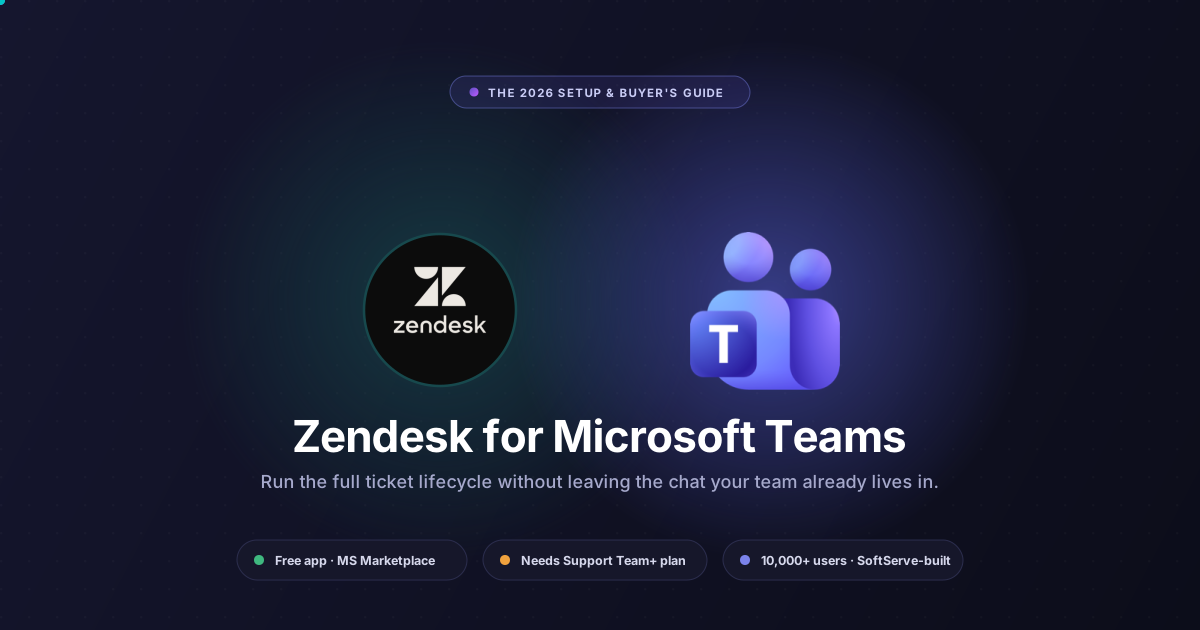
The Zendesk Microsoft Teams integration wires your ticketing system straight into your team's chat workspace. Agents create, view and update tickets without leaving the conversation. Installing the Microsoft Teams app costs nothing, though you will need at least the Zendesk Support Team plan. Once an admin clears the Microsoft 365 plus Zendesk permissions, the rest is a short setup task. From then on, real-time notifications, internal notes, public replies and article recommendations all land in the channels your people already live in.
Reviewed for accuracy against Zendesk, Microsoft and SoftServe documentation in June 2026 by the Pluno support-operations team. Plan names shift, prices move; verify against the official Zendesk pricing page before you budget.
Internal support teams bleed time on one quiet tax. A question lands in Teams, yet the record of truth sits over in Zendesk. So someone copies the message, opens a browser, files a support ticket, then flips back to reply. Repeat that across hundreds of teams conversations a week, and the constant app-hopping drags resolution down. The integration shuts that gap by pulling tickets into the place where the conversation already happens. Ahead: what it delivers, how the plumbing works, what you pay, how to switch it on, plus where it runs out of road.
Which path should you choose?
Before the details, four realistic paths. Most teams land on one fast.

-
Path 1: Use the native Zendesk app. Right when your team already lives in Microsoft Teams. You can create, view and update tickets, post internal notes or public replies, surface article recommendations, then field notifications without switching apps.
-
Path 2: Use the native app only, nothing more. Right when volume stays modest, your knowledge base is clean and the real gap is visibility, not resolution quality.
-
Path 3: Consider a different help desk. Worth a look only if Zendesk has no firm hold on you, and a simpler ticketing experience inside Teams sounds better (HappyFox, for one).
-
Path 4: Add an AI layer. Right when hard tickets demand context a help-center bot cannot reach: past cases, diagnostics, Jira, Slack, APIs.
The native integration is the hero here. Paths 2 and 3 are honest off-ramps that need nothing from Pluno. The rest helps you confirm which one fits.
What you get from the Zendesk Microsoft Teams integration
In short: agents run the full ticket lifecycle inside Teams, while managers gain visibility in the channels they already watch.
The integration bridges Zendesk Support with Microsoft Teams, so support tickets, notifications and knowledge base content pour into one workspace. Per the Zendesk help center, here is what lives inside Microsoft Teams:
-
Create, view and update tickets. Turn a teams conversation into a ticket, then change its status, priority, assignee or supported fields.
-
Add internal notes and public replies. Keep everything in one thread: private notes for teammates, customer-facing replies for the requester.
-
Get real-time notifications. Ping any Teams channel or DM, filtered by status, priority, type or recent updates.
-
Surface article recommendations. The built-in bot answers common questions with help center articles. That is Zendesk's Answer Bot, now folded into Zendesk AI.
-
See personal ticket lists. Pull every open or closed personal ticket into one view inside Teams.
-
Pin Zendesk ticket views as tabs. Drop filtered lists like "My open tickets," "Unassigned" or "High priority" into a single Microsoft Teams workspace (agents only).

This is an official app: funded by Zendesk, built by SoftServe, available on the Microsoft commercial marketplace at no extra cost. SoftServe reports more than 10,000 users within roughly the first few months of release. Light agents, who hold no paid seat, can view tickets, then add internal notes; public replies, full actions and pinned views still require a licensed seat. That mirrors how light-agent permissions work across Zendesk, so other departments join the conversation at no extra license cost.
Why centralizing tickets in Teams matters
The payoff is simple: fewer context switches, which tends to quicken first response and resolution.
Once ticket actions live inside Teams, agents quit bouncing between browser and chat for routine work. Managers gain ticket visibility right in the channel, no status-chasing required. Zendesk frames the integration around team collaboration, pitching it as a way to resolve tickets faster and simplify employee workflows. The real mechanism stays humble: keep the request, the discussion, the ticket together in one spot.
The value is real, but bounded. It changes where work happens, not whether your hardest tickets get solved or a thin knowledge base improves. Pitch it to leadership as a workflow upgrade, never an automation engine.
How the integration actually works
Under the hood, three things connect: your Zendesk instance, the Teams messaging surface, plus an identity handshake through Microsoft Entra ID (formerly Azure AD).

During install, an admin grants the permissions needed to act on tickets and post into channels, all laid out in the Zendesk for Teams setup guide. You point it at a specific Zendesk subdomain (say, support.yourcompany.zendesk.com), then authorize the link. From there, a Teams messaging extension surfaces ticket actions on any message, while Zendesk pushes events (new, updated, reassigned) into your channels as notifications you set up.
Two pieces trip people up. Article recommendations don't work out of the box; you switch the bot on in Zendesk, then point it at a help center. Notifications, meanwhile, run event-driven, so without rules they pile noise into busy channels. Both are configuration choices, not defaults.
Comparing your options
The right path comes down to volume, complexity and how technical your tickets run. The table maps all four before we get into detail.
| Approach | Best for | Where it falls short |
|---|---|---|
| Native Zendesk for Teams app | Teams-first IT/HR/Ops desks wanting official, supported ticket actions in chat | Some advanced admin workflows still need the full Zendesk workspace |
| Third-party connectors (Zapier, etc.) | Light, custom notify-only flows | Brittle, limited two-way actions, extra subscription and maintenance |
| A different help desk with native Teams support (e.g., HappyFox) | Teams not committed to Zendesk that want help desk actions inside Teams | A platform switch, not an add-on to Zendesk |
| An AI layer on top (e.g., Pluno) | Teams with complex, technical tickets where answers live in past tickets, Slack, or Jira | Adds a tool to evaluate; not for simple FAQ tickets or low volume |
Native app, where it wins: it is official, free to install, run by SoftServe, which covers hosting, security plus 24/7 support. It handles the full ticket lifecycle, internal notes, public replies, real-time notifications and pinned views.
Native app, where it falls short: it mirrors Zendesk into Teams without extending the platform underneath. A few advanced admin workflows will still send you back to the full Zendesk workspace. Answer Bot, for its part, deflects only as well as your help center reads.
HappyFox, a fair alternative: it earns a look if Zendesk has no firm grip on you, and you would rather run help desk actions inside Microsoft Teams. Its official Teams integration lets you spin up tickets, post replies or private notes, edit properties such as status or priority, fire rule-based alerts to a channel, then search the knowledge base. One caveat, common to third-party Teams apps: by HappyFox's own docs, those alerts default to public channels, a Microsoft-side limit. Read it as a platform choice, not a Zendesk add-on.
AI layer, where it fits: plenty of first AI deployments, the integration's Answer Bot included, lean on help center content. That covers password resets, policy lookups, the easy stuff. It buckles on the complex cases, where answers hide in past tickets, internal docs, Slack or engineering systems. Call that an AI-resolution gap, not a platform problem.
What to look for before you commit
Match the approach to your tickets, not to the feature list. Three questions sort most teams.
Do your people actually live in Teams? If yes, the native integration sharpens ticket visibility while trimming latency. If Teams isn't your hub (you run Slack-first, or email-only for customers), the payoff shrinks, so skip it with a clear conscience.
How clean is your help center? If your knowledge base stays tidy and volume runs modest, the native integration plus Answer Bot usually does the job. Nothing more required.
How complex are your tickets? If most cases are repeat FAQs, native deflection has it handled. If the hard ones demand diagnostic steps, past-ticket knowledge or cross-team escalation, line up an AI layer that reads beyond your help center.
Here is the one spot where an AI layer like Pluno earns a concrete mention, but only once the native app fixes visibility and leaves resolution unsolved. Pluno is an AI support agent built for complex products. It runs with Zendesk, learning from resolved tickets rather than help center articles alone. To gather the context a tough case needs, it reaches into Slack, Jira, APIs, documentation systems, then escalates with that evidence whenever confidence dips, never guessing.

In a Teams-first setup, slot Pluno beside the native Zendesk Teams app, not in place of it. By its own numbers, Pluno resolves 500,000-plus complex tickets a month, averaging roughly a 65% resolution rate. For one customer, Innovorder, the figure climbs to 67% on cases spanning software and hardware. Read those as Pluno's self-reported stats, then pilot on your real queue before you trust them.
Where Pluno falls short: if your only goal is seeing Zendesk tickets inside Microsoft Teams, skip it; the native app already nails that. It's also overkill for simple FAQ queues, thin ticket volume, or anyone who just wants a lightweight notification connector.
Not for: shops that don't run Zendesk, queues too thin on history to learn from, anyone who needs Microsoft Teams notifications alone, or bargain hunters chasing the cheapest bot.
A caution on commercial mechanics: the app is free; the subscriptions behind it are not. Zendesk lists Support Team at $19 per agent each month, Suite Team at $55, Suite Professional at $115, plus a $50 Copilot add-on, all billed annually. Zendesk also meters its AI agents by automated resolution on top of that, so model the usage, not only the seat count.
How to install and configure Zendesk for Microsoft Teams
Installation moves fast once permissions and licenses line up; it is no multi-day project. You will want Microsoft Teams admin rights, Zendesk admin credentials, plus a qualifying plan, all spelled out in the setup guide.

-
Find the app. Inside Microsoft Teams, open the apps tab in the bottom-left corner, search "Zendesk," then pick the official listing.
-
Install and grant permissions. Add it to a team or chat, then approve the requested scopes through Microsoft Entra ID. An admin on both the Microsoft 365 and Zendesk sides finishes this step.
-
Connect your Zendesk subdomain. Type the address (say, support.yourcompany.zendesk.com), sign in with admin credentials, then click connect to authorize the workspace mapping.
-
Configure channel notifications. Pick which channels catch which events: new, updated, reassigned, high priority. In the settings tab, set notification preferences, then choose which Zendesk ticket views show up as tabs.
-
Enable article recommendations. Switch the bot on in Zendesk, link it to your help center, then confirm which brands or language defaults get surfaced.
-
Pilot before you scale. Start with one or two groups (IT and HR fit nicely). Watch the noise, tighten the rules, collect agent feedback, then widen the rollout.
One practical tip: begin with escalations plus SLA breaches, nothing else. Adding alerts later is painless; clawing back a channel you have already spammed is not.
Expected outcomes and how to measure them
Pin down what success looks like before launch, then measure it in Zendesk, never in Teams.
Teams hands you visibility, not reporting, so track outcomes in Zendesk dashboards rather than channel chatter. Useful baselines: first response time, time to resolution, tickets per agent, internal-escalation share, Answer Bot deflection. Capture two to four weeks of pre-rollout numbers for a fair comparison.
Set honest targets. Fewer context switches buy you modest gains in response plus handle time, with some extra deflection when the help center is solid. Don't bank on the native integration moving resolution rate on complex tickets; that calls for an AI layer that can diagnose, then pull context. Give it a 60–90 day trial before you standardize.
FAQ
Is the Zendesk Microsoft Teams integration free? Installing the Microsoft Teams app costs nothing. You will still pay for a qualifying Zendesk plan, plus Microsoft 365 licenses, so the app is free while the platforms behind it are not.
What Zendesk plan do I need for the Teams integration? At minimum, the Support Team plan. The Zendesk help center lists it on Support Team, Professional or Enterprise, alongside every Suite tier. Want the AI features? A Suite plan is your practical floor.
How much does it cost for a small team? The Zendesk pricing page puts Support Team at $19 per agent each month on annual billing, so five seats land near $95 monthly before Microsoft 365 costs. Suite Professional runs $115 per agent; expect those prices to shift over time.
How long does installation take? Usually quick, once admin permissions and licenses sit ready. Four moves: install the Microsoft Teams app, clear the scopes through Microsoft Entra ID, connect your account, then set up ticket notifications.
Can agents create and update tickets directly in Teams? Yes. Agents create, view and update Zendesk tickets, switch status or supported fields, then leave internal notes or public replies, all within Microsoft Teams.
Can employees participate from Teams without a Zendesk agent seat? Check with Zendesk before rollout. The integration runs ticket actions inside Teams, yet full agent capabilities plus ticket views stay reserved for licensed seats in the official docs.
Does the integration resolve tickets automatically? Not by itself. It streamlines how you manage tickets, plus it surfaces article recommendations. Resolving complex cases automatically takes an AI support agent layered on top.
What are the main limitations? A few advanced Zendesk workflows still demand the full workspace. Ticket notifications can swamp channels when you skip the rules. And Answer Bot deflects only as well as your help center stays maintained.
Where to go from here
If your team already lives in Teams, the native integration is a low-risk upgrade: install it, keep notifications narrow, then pilot with IT or HR for a month. If your help center is clean and volume stays light, you probably need nothing else. That is a perfectly fine place to stop.
If hard tickets keep escalating because the answer sits in no article, the gap is AI resolution, not the integration. Map your ticket complexity first, then trial an AI layer on your own queue before standardizing. Pluno runs a free simulation on your historical tickets, no platform switch required, so you can watch an agent that learns from past resolutions work next to your Zendesk and Microsoft Teams setup.
Still weighing options? Pluno's rundown of the best AI agents for Zendesk compares eight tools on resolution, fit and cost.
Sources: Zendesk help center · Zendesk pricing · Zendesk Microsoft Teams partner page · Microsoft commercial marketplace · SoftServe case study · Zendesk for Teams setup guide · HappyFox Microsoft Teams integration