Quick answer. The Zendesk Asana integration connects customer support tickets to internal project tasks. Once installed in both platforms and authorized on each side, agents can create or link Asana tasks directly from a Zendesk ticket, include key ticket context and attachments, and view task status and owner in Zendesk. Asana Rules can add internal updates back to linked Zendesk tickets for selected task events.
When a customer ticket needs work outside support, the handoff is where things break. Engineers update an Asana task. The customer pings support. The agent has to chase the engineer. A clean Zendesk Asana integration removes that friction so support and project teams stay aligned without copying details by hand.
This guide covers how to set up, use, and optimize the Zendesk Asana integration for support teams and project managers, highlighting best practices and common pitfalls to ensure seamless collaboration between customer support and project teams. It walks through how the native app works, where it falls short, when to reach for middleware or an AI escalation layer, and how to measure whether the connection is paying off.
TL;DR
The native Asana for Zendesk app can be installed from the Zendesk Marketplace and configured in Asana projects, but it is subject to plan requirements: Asana documents it as available with paid Asana subscriptions, and Zendesk requires a Zendesk Support account. It works well for manual ticket-to-task escalation. Install it in both platforms, authorize both sides, and use it to create or link Asana tasks from Zendesk tickets. Use Asana Rules to post internal updates back to Zendesk for selected task events. Avoid sending every ticket into Asana. For automated task creation, custom-field mapping, or deeper bidirectional sync, use Zendesk Action Builder, Zapier, n8n, Exalate, Unito, or another middleware platform. For complex products, an AI escalation layer like Pluno can handle upstream decisions before anything reaches Asana.
The Real Problem: Support and Project Tools Live Apart
Support teams use Zendesk. Engineering, product, and ops teams typically use Asana, Jira, or Linear. When a ticket needs work outside support, agents copy context into the project tool and chase status updates manually.
That handoff is where information gets lost. Engineers close tasks without telling support. Customers wait days for an update that already exists somewhere else. The Zendesk Asana integration was built to remove that friction at the ticket level.
Why It Matters for B2B Support Teams
Three costs come out of a broken handoff between Zendesk and Asana.
Duplicate data entry. Agents retype ticket details into Asana by hand. That data duplication wastes teams time and creates inconsistencies between the two systems.
Missed updates. Engineers close a task in Asana, but the support agent never sees it. The customer follows up, and the agent has to dig through Slack and reply with stale information.
Stale customer replies. Every follow-up triggers a manual round trip. CSAT suffers, and your team's morale goes with it.
Connecting Asana and Zendesk fixes these manual processes. The Asana Zendesk integration brings together a Zendesk support workflow and Asana, the leading work management platform many cross functional teams use for project management. The result: increase cross functional visibility, reduce data duplication, and improve cross functional collaboration between support and project teams.
How the Zendesk Asana Integration Works
The native Zendesk Asana integration lets agents create or link Asana tasks from Zendesk tickets. Automatic task creation requires Zendesk Action Builder, middleware, or a workflow automation tool. The Zendesk Asana integration is a two-sided app. The sidebar app must be installed in both Zendesk and Asana, with authorization from your Zendesk account and Asana account on each platform. Once connected, agents see an Asana sidebar inside any Zendesk ticket and can move work into Asana without leaving Zendesk view.
From the sidebar app, agents can:
- Trigger task creation directly from a new ticket, including key ticket details and attachments. The new task can be sent to a specific project in Asana.
- Link an existing task or existing Asana tasks to the ticket if work is already in flight.
- View the linked Asana task status and owner inside Zendesk, including linked task details for reference.
- Let Asana users see linked Zendesk ticket title, number, and assignee from inside Asana.
Asana can automatically reflect changes such as task assignee, due date, and completion status back in Zendesk. Separately, Asana Rules can be configured to leave internal comments on linked Zendesk tickets for selected task events, such as task completion or movement to another section.
That return loop is what closes the feedback loop between support and the rest of the org.
Common Approaches to Connecting Zendesk and Asana
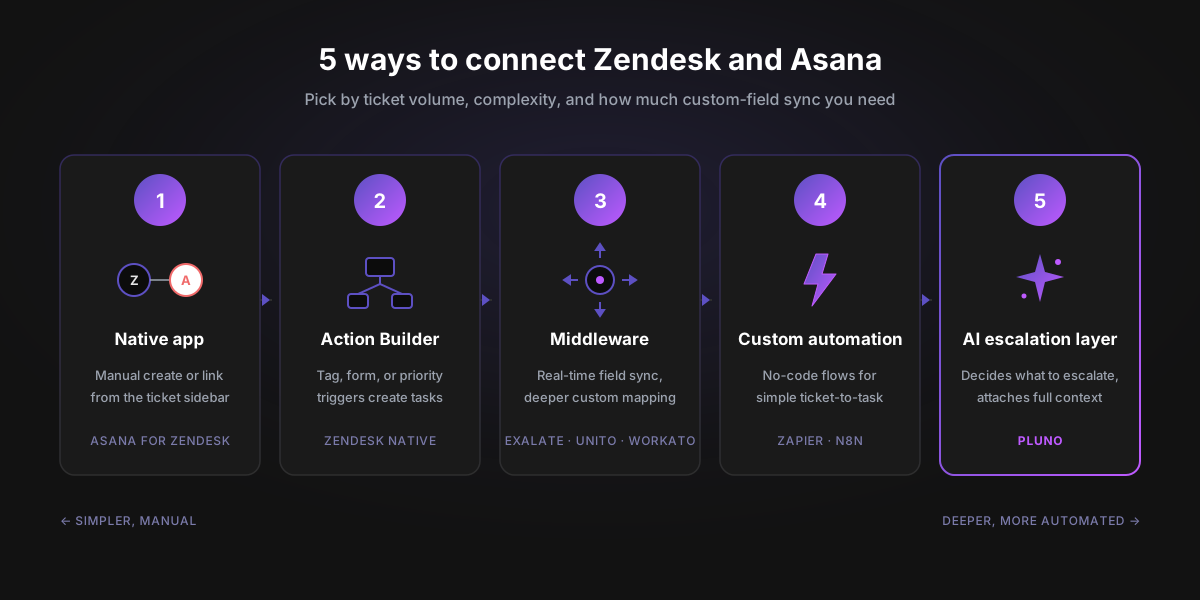
Most teams pick one of five paths to integrate Zendesk and Asana. Each has tradeoffs.
1. The Native Zendesk Asana App
The official app from Asana, installed via the Zendesk Marketplace. It can be installed from the Marketplace and configured in Asana projects, subject to your Zendesk and Asana plan requirements, and supports manual create or link, attachments, basic visibility into task status and owner, and Asana Rule notes back into Zendesk. Best when most of your escalations are agent-driven and you do not need full field mirroring.
2. Zendesk Action Builder With Asana Actions
Zendesk Action Builder with Asana actions lets admins create action flows that create, update, and manage Asana tasks from Zendesk workflows. It is the right path when you want tag, form, or priority-based automated workflows rather than manual task creation only.
3. A Middleware Platform (Exalate, Unito, Workato)
A third-party service that sits between Zendesk and Asana and handles richer field mapping, real-time synchronization, and deeper custom field support. Automation workflows here can reduce data duplication by syncing information in near real time, so updates are reflected across both platforms without manual intervention. Pricing models vary. Exalate pricing is based on items in active sync rather than the number of users, which keeps costs predictable as teams grow. If you have a large support team but only sync a handful of tickets, per-item pricing can be more cost-effective than per-user pricing. Unito and Workato use different structures.
4. Custom Automation via Zapier or n8n
A no-code workflow builder. Simple Zapier or n8n flows are easy to build, but complex routing, retries, auditability, and multi-step error handling often require more careful design.
5. An AI Escalation Layer
A newer category. An AI agent reads the ticket, decides whether and where it should escalate, prepares context, and mediates updates back to the support team. It is overkill for low-volume teams. It is increasingly common for B2B SaaS support teams handling complex tickets at scale.
Where Each Approach Falls Short
Native app limitations. Built for manual create/link plus basic visibility. It does not advertise full bidirectional synchronization of all custom fields, and it relies on agents knowing when to escalate.
Action Builder limitations. Enables automation from Zendesk workflows but does not replace deeper field mapping or two-way sync. Teams needing granular field mirroring usually move to middleware.
Middleware cost. Watch for hidden charges across vendors. Premium field types, additional connections, and priority support tiers often sit in higher tiers.
Zapier and n8n limits. Simple Zaps work for "create task on tag." Complex flows often hit run limits or lack the audit trail support leaders need for QA.
AI escalation maturity. Many AI support agents are primarily deployed against help center content. They handle simple FAQs but often miss the diagnostic context needed to escalate well.
What to Look For in a Zendesk Asana Integration
Use this checklist when evaluating any approach.
| Capability | Why it matters |
|---|---|
| Two-way visibility | Agents should see Asana task status and owner inside Zendesk. Asana users should see linked ticket title, number, and assignee. |
| Selective syncing | Sync should fire on tags, specific form fields, or priority values. Never on every ticket. |
| Automated status updates | When a task is updated or completed in Asana, the linked Zendesk ticket should update automatically. |
| Custom field mapping | Priority, due date, assignee, and any custom fields should map cleanly across both systems. |
| Attachment handling | Files attached to the ticket should travel with the task. |
| Audit trail | You need to see who escalated what, when, and why for QA. |
| Pricing predictability | Per-item pricing scales with sync volume. Per-user pricing scales with team size. |
| Safe handoff with context | The task should carry the full conversation, not just the subject line. |
If a tool fails on more than two of these, it will create more rework than it removes.
Setup: How to Install the Zendesk Asana Integration
The basic install is usually straightforward when the installer has the right permissions. Follow these steps in order.

Step 1: Confirm Permissions and Prerequisites
Confirm that you have permission to install apps in Zendesk, a Zendesk Support account, a paid Asana subscription that supports the integration, and access to the Asana projects that should receive Zendesk-linked tasks.
Step 2: Install in Zendesk
Open the Zendesk Marketplace, search for the Asana app (listing 353312), and click Install. Choose which agents and groups can see the app in the ticket sidebar.
Step 3: Authorize Asana
Open any ticket in Zendesk. The Asana panel appears in the right sidebar. Click Connect Asana and authorize your Asana account. Click Connect Zendesk on the Asana side too if prompted.
Step 4: Install on the Asana Side
In Asana, navigate to a project that should receive tasks from Zendesk. Click Customize, find the Apps section, search for Zendesk, and complete the installation wizard. Repeat for each project that needs the connection.
Step 5: Decide Whether Task Creation Should Be Manual or Automated
The native sidebar flow is best for agent-driven escalation: an agent reviews the ticket, then creates a new task or links an existing task from Zendesk. To automatically create tasks based on ticket trigger conditions and actions like tags, forms, priority, or custom fields, use Zendesk Action Builder with Asana actions, Zapier, n8n, or middleware.
Best practice is selective, tailored syncing to avoid clutter. Selective syncing means sending only the tickets that need cross-team work into Asana, rather than mirroring every ticket. It is a best practice to use Zendesk triggers based on tags or specific form fields rather than syncing every ticket to prevent overloading Asana with unnecessary information.
Step 6: Configure Your Own Rules for Return Updates
In each Asana project that receives Zendesk tasks, configure your own rules to add internal notes for selected task events such as a task being marked complete or moved to a new section. The core integration reflects task assignee, due date, and completion status changes in Zendesk. Use Asana Rules separately to add internal Zendesk comments for selected task events.
Also guard against infinite loops. A rule that fires on every comment can create infinite loops between Zendesk and Asana. Most middleware platforms include guardrails for this; for native or custom setups, scope your trigger event narrowly.
Step 7: Test With One Tag and One Project Before Rolling Out
Create a test ticket with the trigger tag, watch it flow into Asana, update the task, and confirm the comment lands in Zendesk. Only after that round trip works should you expand the rollout.
Expected Outcomes and How to Measure Them
A working setup turns manual processes into automated workflows. Automation ensures that internal requests, daily tasks, and Zendesk ticket updates flow through the same living system, improving cross functional collaboration and freeing teams time. A new user on either side can pick up the workflow without rebuilding it.
Set baselines before launch and compare them two to four weeks later. Track the metrics that map to your team's priorities.
| Metric | What it tells you |
|---|---|
| Time from ticket creation to escalation | How fast issues reach the right team. |
| Time from escalation to first update | How responsive the project team is. |
| Tickets reopened after escalation | Quality of the handoff context. |
| Agent time per escalated ticket | Reduction in manual data entry. |
| CSAT on escalated tickets | Whether customers feel kept in the loop. |
Treat these as measurement goals rather than guaranteed benchmarks. The actual gain depends on your team's ticket volume, complexity, and how strictly you apply selective syncing. Your own baseline is more reliable than industry averages.
Where AI Escalation Layers Fit
The Zendesk Asana integration solves the structural connection between support and project teams. It does not solve the upstream problem of deciding when and how to escalate, and making sure the right context is attached.
Many AI support agents are primarily deployed against help center content. That works for simple FAQs but often fails on complex tickets that actually need to escalate. Those tickets pull from past resolved tickets, internal docs, Slack threads, Jira issues, Sentry alerts, and APIs. None of that lives in a help center. For a broader comparison of options in this category, see our roundup of Zendesk AI alternatives.
A different category — an AI support agent for complex B2B tickets — fills that gap. Pluno is one example. It runs inside Zendesk, learns from your past resolved tickets, and connects to Slack, Jira, Sentry, DataDog, APIs, and documentation systems. When confidence is low or human action is required, it escalates safely with full context, including reproduction details and customer history, instead of guessing.
If your team coordinates these escalations in Slack today, our Zendesk Slack integration guide covers that handoff specifically.
For teams already using Zendesk and Asana, Pluno is positioned as an upstream escalation layer rather than a direct Asana integration. It helps decide what needs escalation and prepares context, while the Zendesk Asana integration or middleware handles the actual task workflow.
FAQ
What does the Zendesk Asana integration do?
It connects Zendesk tickets to Asana tasks. Agents can create new tasks or link existing ones directly from a ticket, with attachments included. Asana Rules can be configured to post internal notes back to the linked Zendesk ticket for selected task events such as completion or section changes.
Is the Zendesk Asana integration free?
The native Asana for Zendesk app can be installed from the Zendesk Marketplace and configured in Asana projects, but it is subject to plan requirements: Asana documents it as available with paid Asana subscriptions, and Zendesk requires a Zendesk Support account. Zendesk's listing also notes that additional fees may apply, so review your plan terms. Middleware tools like Exalate, Unito, and Workato have their own pricing.
Does the integration sync custom fields?
The native integration supports basic ticket-to-task context, attachments, task linking, and visibility across the two systems. Full custom-field synchronization is limited and should not be assumed. When a new task is created from a Zendesk ticket through middleware or Zendesk Action Builder with Asana actions, key details such as the ticket subject, description, and priority can be carried over so that important information is not lost during the transition. For deeper field mapping, priority mapping, comments, or granular bidirectional sync, organizations usually use middleware such as Exalate or Unito.
Can I create Asana tasks automatically from Zendesk tickets?
Yes, but do not frame this as a default native-sidebar feature. For automatic creation based on tags, forms, priorities, or custom fields, use Zendesk Action Builder with Asana actions, Zapier, n8n, or middleware. Best practice is still selective automation, not syncing every ticket.
How do I avoid overloading Asana with unnecessary tickets?
Sync only tickets that need cross-team work. Tags like engineering-handoff, ticket forms like "Bug Report," or priority values like Urgent are good filters. Avoid an "all tickets create tasks" rule unless the project team has asked for it.
Does the integration work with Asana subtasks?
Official native docs describe creating Asana tasks from Zendesk; they do not advertise native subtask sync. If you need subtask sync or hierarchical mapping, look at middleware platforms with deeper Asana API support.
How is the Asana integration different from the Zendesk Jira integration?
The pattern is similar: install on both sides, link tickets to issues, sync status. The difference is which tool your project teams use. Asana is common for product and ops, Jira for engineering. Choose based on where the work happens.
What happens to the Asana task if I close the Zendesk ticket?
Official docs do not state that closing a Zendesk ticket automatically completes the linked Asana task. Configure closure mirroring separately via Zendesk Action Builder, Zendesk triggers plus API or middleware, or a sync platform. Do not assume the native app completes Asana tasks when Zendesk tickets close.
When should I use middleware instead of the native app?
Choose middleware when you need full bidirectional sync of custom fields, conditional logic, or multi-tool routing. Stay native when manual escalation is enough for your team's volume.
Closing: Connect Tickets to Tasks Without Losing Context
A working Zendesk Asana integration is half of a healthy support workflow. The other half is making sure only the right tickets cross the bridge, with full context attached.
If your team is hitting the limits of the native integration, the next step is a layer that handles complex tickets intelligently before they become an Asana task. Book a free Pluno simulation to see how it handles your real tickets.
Continue reading: Zendesk Slack Integration: A Practical 2026 Guide for Support Teams →